

Download Assets
This tutorial includes 1 sample image and 1 PDF guide. Downloads are free with a PHLEARN account.
- Download the sample images and PSDs from every free tutorial on PHLEARN
- New free tutorials published every week
- One free account — sign up once, then download anything
Free PDF Guide · 2 Pages
This Tutorial as a Step-by-Step PDF
Every step from the video in order: Layer > Smart Objects > Convert to Smart Object, Filter > Camera Raw Filter, the Presets panel and the Seasons and Styles groups, hovering to preview, the Amount slider, OK, and double-clicking the smart filter to pick a different preset. Keep it next to your keyboard.
description
Color grading presets in Adobe Camera Raw give you a finished look in one click, and the strength slider is what makes them usable rather than obvious. Learn how to add them for stunning results. In this tutorial we’ll show you how to turn your image into a Smart Object, explore different cinematic and seasonal presets, and even adjust how strong the effect is.
Enjoying This Free Tutorial?
We publish a new free tutorial every week, each one with sample images and PSDs you can download and follow along with. Sign up and they land straight in your inbox, along with early word on sales, events and subscriber-only offers.
Image Source


How to Use Color Grading Presets in Adobe Camera Raw
Photoshop’s largest collection of color presets is not in Photoshop’s own panels — it is inside the Camera Raw filter, and a lot of people never open it. There are more grading presets there than anywhere else in the application, they preview live as you hover, and every one has a strength slider.
That combination makes it the fastest way to grade an image, and a useful one even when you intend to grade by hand, because seeing twenty directions in thirty seconds is a better starting point than a blank panel.
If you would rather build a grade yourself from the color wheels, see how to color grade photos in Adobe Camera Raw. This tutorial is about the preset library.
Convert to a Smart Object First
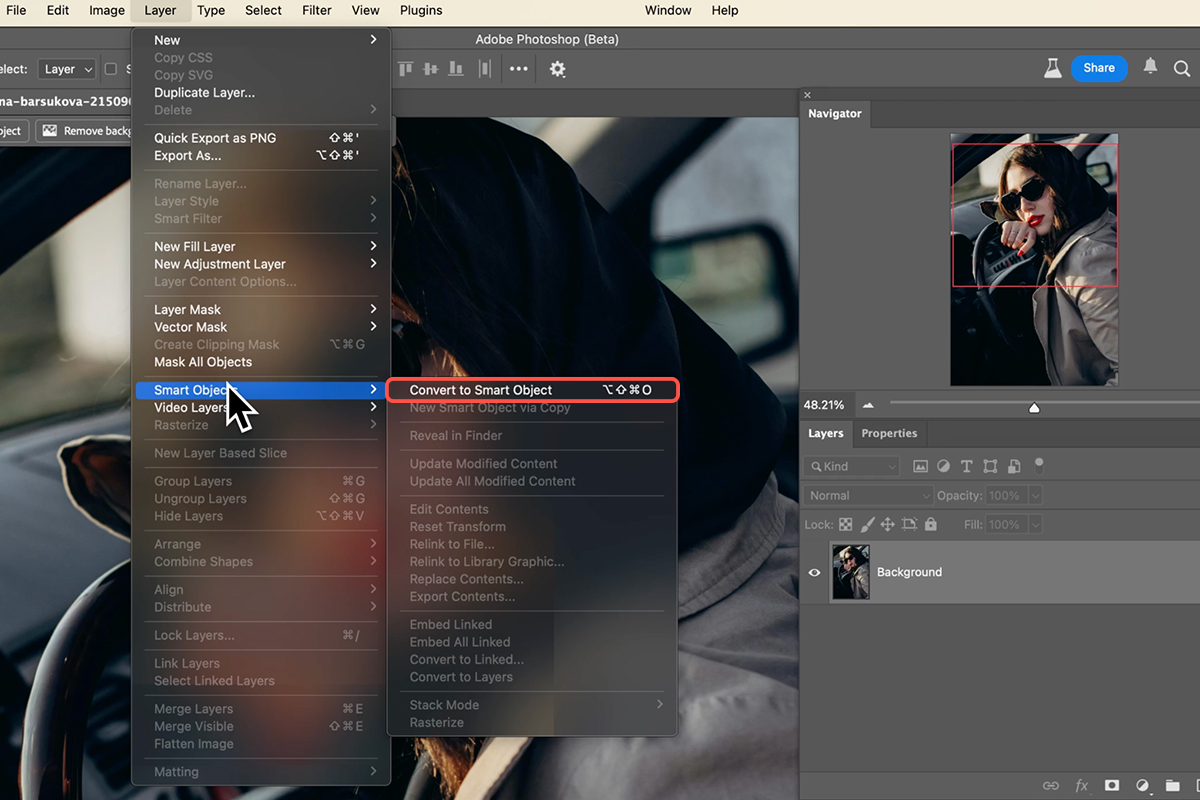
Do this before opening any filter. Select the background layer and go to Layer > Smart Objects > Convert to Smart Object. Check for the badge on the layer thumbnail.
Applied to a normal layer, Camera Raw bakes into the pixels permanently. Applied to a Smart Object it becomes a Smart Filter — re-openable with every setting intact, and switchable off.
For preset work this matters more than usual, because choosing a grade is inherently something you second-guess. Without a Smart Object, changing your mind means undoing back past whatever else you have done since.
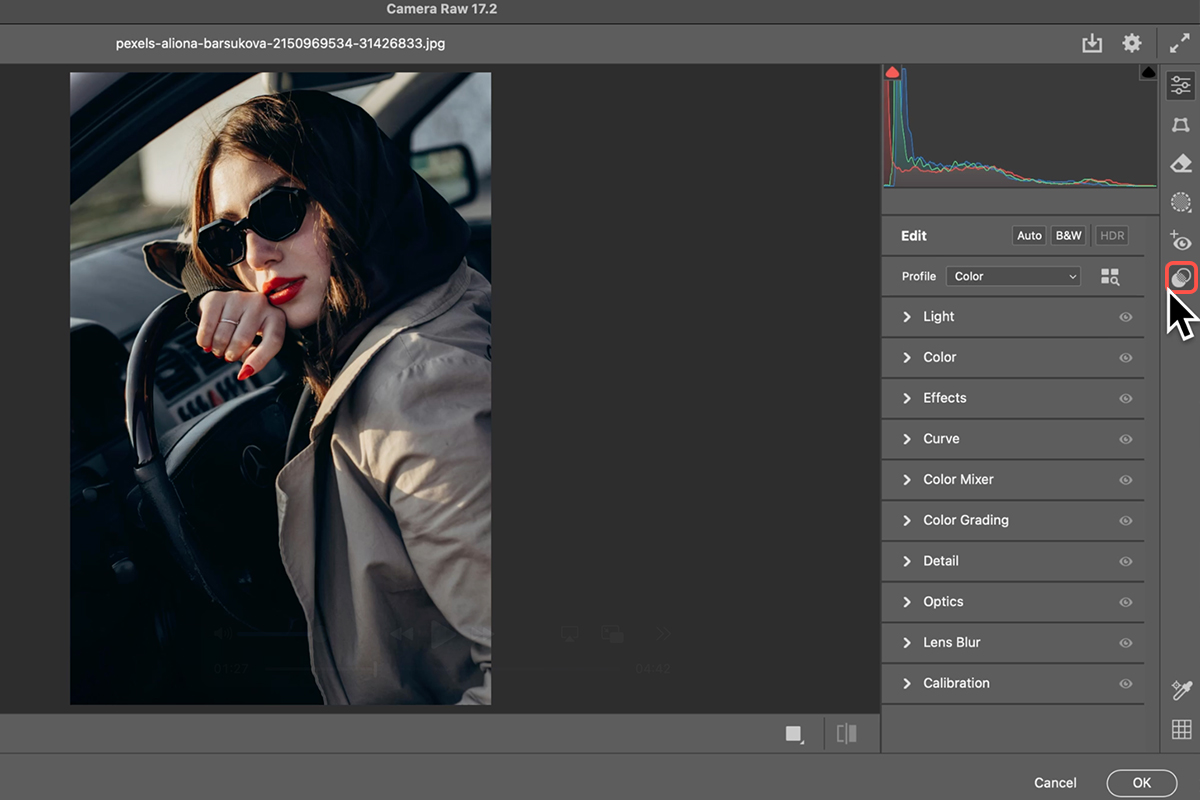
Then go to Filter > Camera Raw Filter.
Find the Presets
The Presets panel is on the right-hand side of the Camera Raw window. Open it and the list is organized into groups.
The portrait presets at the top are adaptive — they detect the subject and apply changes selectively, so something like Polish Portrait affects the person rather than the whole frame.
The color grades are further down, under headings like Seasons and Styles, with Cinematic among the most useful for photographic work. This is the part worth exploring.
Hover, Do Not Click
Hovering over a preset previews it on your actual image, full size, without applying anything. Move down the list and the image updates continuously.
This is what makes the panel worth using. You are not imagining what a grade might do from its name — you are seeing it on your photograph, and you can run through an entire category in well under a minute. Click only when something is worth keeping.
Dial the Strength Back
Once a preset is applied, an Amount slider appears at the top of the panel. Drag left to reduce it.
Use it on almost everything. Presets are built to read clearly in a thumbnail list, which means most are stronger than you want on a real image. At full strength a grade announces itself; at 40 or 50 percent it does its job without being the first thing anyone notices.
This also rescues presets you would otherwise dismiss. A grade that looks far too heavy at 100 percent is frequently excellent at 30 — so judge them reduced, not as they arrive.
Why This Beats Starting From Scratch
The hard part of color grading is usually not execution. It is knowing what you want.
Faced with empty color wheels, most people move sliders semi-randomly until something looks acceptable. Working from presets inverts that: you see a range of finished directions on your own image, pick one that is close, and adjust from there.
It is also a way to learn. Apply a preset, then open Color Grading and look at where it put the wheels. Seeing that a cinematic look means specific opposing moves in the shadows and highlights teaches the underlying logic faster than any explanation of it.
Come Back and Change It
Click OK and the grade applies as a Smart Filter under your layer. Toggle its visibility to compare against the original.
To change it, double-click Camera Raw Filter in the Layers panel. The dialog reopens with everything as you left it — pick a different preset, adjust the Amount, click OK, and the image updates.
Nothing is committed. A grade chosen today can be swapped a week later on a file you have since done other work to.
Keep Going From There
A preset is a starting point, not a finish. Once one is applied you still have every Camera Raw control — adjust the Color Grading wheels it set, correct exposure, add grain or vignetting.
You can also stack additional Smart Filters on the same layer, each independently toggleable and re-editable.

The Short Version
Convert to a Smart Object. Filter > Camera Raw Filter. Open Presets and scroll to the Seasons and Styles groups. Hover to preview on your own image, click when something works, then pull the Amount slider down — usually well down. Click OK, and double-click the Smart Filter any time you want to reconsider.
Two things carry most of the value: hovering rather than clicking, and reducing the strength of whatever you choose.
Quick Reference: Keys, Menus and Settings
- Keep it editableLayer > Smart Objects > Convert to Smart Object
- Open Camera RawFilter > Camera Raw Filter
- Find the presetsPresets panel on the right; Seasons and Styles (Cinematic and more) hold the color looks; Portraits presets detect the subject
- PreviewHover over a preset to see it on the photo
- StrengthThe Amount slider at the top of the preset list
- ApplyOK; it lands as a smart filter you can toggle
- Swap the look laterDouble-click Camera Raw Filter in the Layers panel, pick another preset
No AI, no generative credits.

Free Downloads
Follow Along on the Same Photo
Get the sample photo from the video and the PDF guide, and try every preset in Camera Raw on the same image. Free with a PHLEARN account.
Color Grading Presets: Common Questions
Where are the color grading presets in Photoshop?
Inside Camera Raw. Run Filter > Camera Raw Filter and open the Presets panel on the right. Aaron says there are more presets there than anywhere else in Photoshop.
Why convert to a Smart Object first?
So Camera Raw applies as a smart filter. You can toggle it, or double-click it to go back and choose a different preset without starting over.
Which preset groups are the color looks?
Seasons and Styles, near the bottom of the list; Cinematic is the group used in the video. The Portrait presets at the top detect the subject and adjust them instead.
How do I pick one?
Hover over each preset and the photo previews it. Click the one you like, then use the Amount slider at the top to make it subtler or stronger.
The preset is too strong. Can I dial it back?
Yes. Drag the Amount slider left. Most of the looks in the video end up well below full strength.
Can I change my mind later?
Double-click Camera Raw Filter under the layer, pick another preset, click OK. The video swaps a cinematic look for a green one in seconds.
Can I keep editing after the preset?
Yes. Add more Camera Raw adjustments or other filters on top; the preset is a starting point.
Is the sample file free?
Yes, with a free PHLEARN account. You get the sample image and the PDF guide.
Master Photoshop, Lightroom and Photography
Join PHLEARN PRO for $12.99 a month or $99.99 a year. Cancel anytime, with a 100% money-back guarantee.





