
Lightroom Open Eyes opens closed eyes in one tap in the Lightroom mobile app. It cost 20 credits on every one-face photo we tried and 40 on a large group shot, runs on Nano Banana 2, and we tested how real the eyes look against Aaron’s real eyes.
Free practice files
Practice on the Same Blink
Aaron’s blink frame, two real open-eye frames and the 4-page guide, so you can run Open Eyes on the same photos.
This tutorial includes 3 sample images and 1 PDF guide.


Create a free PHLEARN account to download, or log in if you already have one. One account gets you the files for every free tutorial.
description
Enjoying This Free Tutorial?
Image Source


How to Open Closed Eyes in Lightroom With the New Open Eyes Feature
Quick answer
Lightroom Open Eyes in 30 Seconds
Open Eyes is Adobe’s new one-tap fix for a blink. When someone’s eyes are closed in a photo, Lightroom on your phone spots it and offers to open them with generative AI. We tested it on a real blink of Aaron’s, a frame from one of our tutorial recordings, ran it twice, compared the results with frames where his eyes really were open, and checked what sets the credit price. Every step and every result is below, and the blink frame plus two real open-eye frames are in the downloads, so you can run Open Eyes on the same photos.
Step 1: Find Open Eyes in the Quick Actions
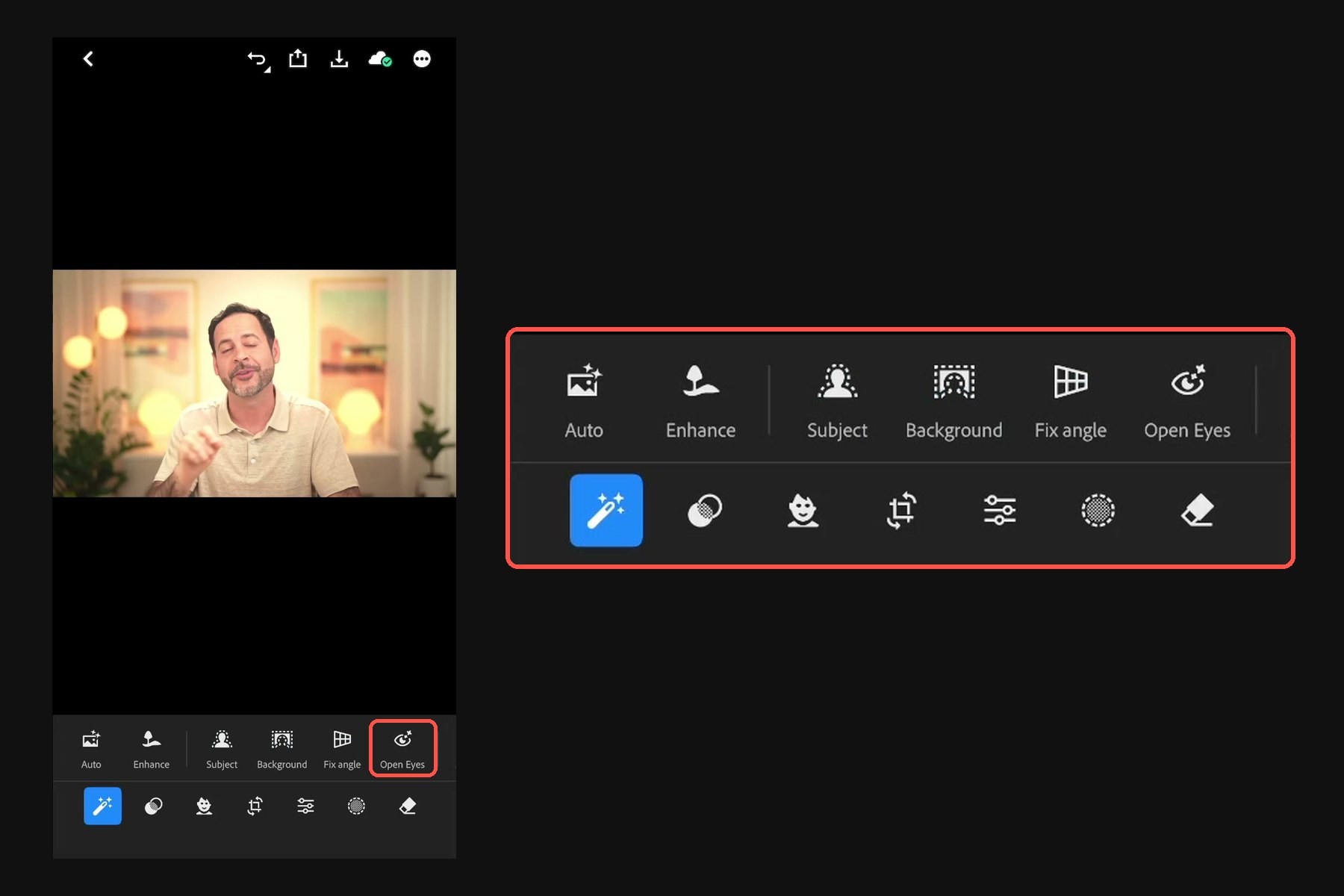
Open the photo with the closed eyes in the Lightroom mobile app and tap Actions at the bottom left. Lightroom analyzes the photo and fills the Quick Actions row with the edits it suggests. If anyone’s eyes are closed, an Open Eyes button appears on the right of that row. If you don’t see it, Lightroom didn’t detect closed or half-closed eyes, or you’re not in the mobile app: as of October 19, 2026 Open Eyes isn’t in Lightroom Classic or Lightroom on the desktop.
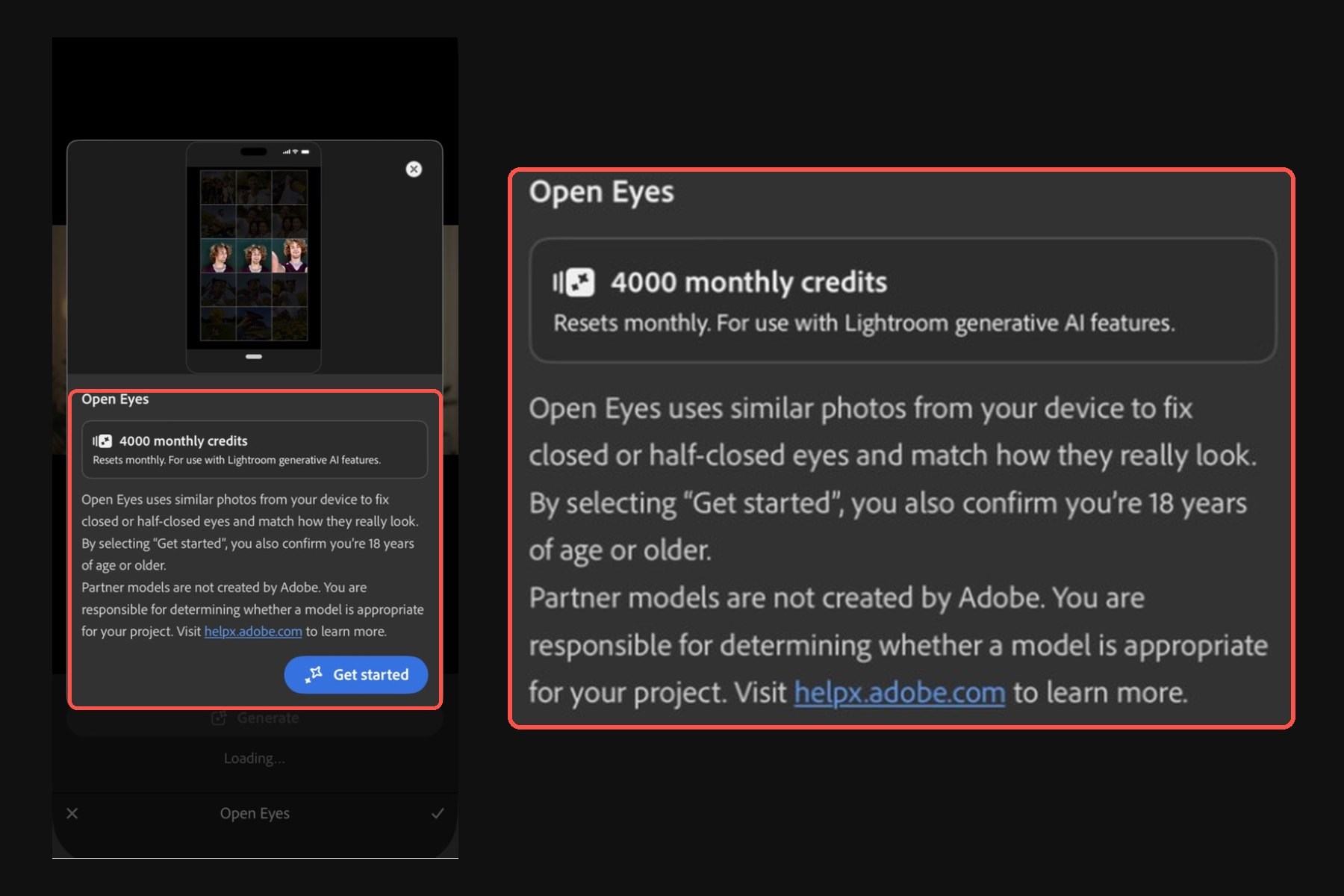
The first time, Lightroom shows a screen that explains the feature, shows your monthly credits, asks you to confirm you’re 18 or older and tells you Open Eyes runs on a partner model that Adobe didn’t make. Tap Get started.
Pro tip
Add other photos of the same person first
If you have other photos of the same person from the same shoot, add them to Lightroom before you tap. Lightroom says Open Eyes “uses similar photos from your device” to match how the eyes really look. The app never shows which photos it found, but when it has other frames of the same person in the library, the progress bar adds a step: Matching their eyes.
Step 2: Check the Price Under Generate, Then Tap It
Lightroom prints the cost right under the Generate button before you spend anything. On Aaron’s 3840 x 2160 frame it read Uses 20 credits. Every photo we tried with one face to fix cost 20, whatever its size: a 3840-pixel copy, a 6720 x 4480 original and a heavily compressed re-encode all said 20. The one time it read Uses 40 credits was a 24-megapixel group shot with two blinking faces far apart, so the price seems to follow how much of the photo Open Eyes has to regenerate rather than the pixel count. Read the number under Generate before you tap.
The credits are spent as soon as you tap Generate, and every new attempt on the same photo costs the same again. For scale, Adobe’s Lightroom mobile and web plan comes with 100 generative credits a month: five fixes at 20 credits. Adobe’s announcement calls Open Eyes free, and DPReview reports two free uses on a free account before a subscription prompt. On our paid plan every try cost credits, so the number under Generate is the one to trust. Our guide to generative credits explains how credits work across Photoshop and Lightroom, and Photoshop’s new Relight layer is another new feature that charges for every try.
20
credits on every one-face photo we tried, at any size
40
credits on a 24-megapixel group shot with two faces far apart
100
generative credits a month on the Lightroom mobile and web plan
5
fixes those 100 credits cover at 20 each
Step 3: Wait, Then Long Press for the Before and After
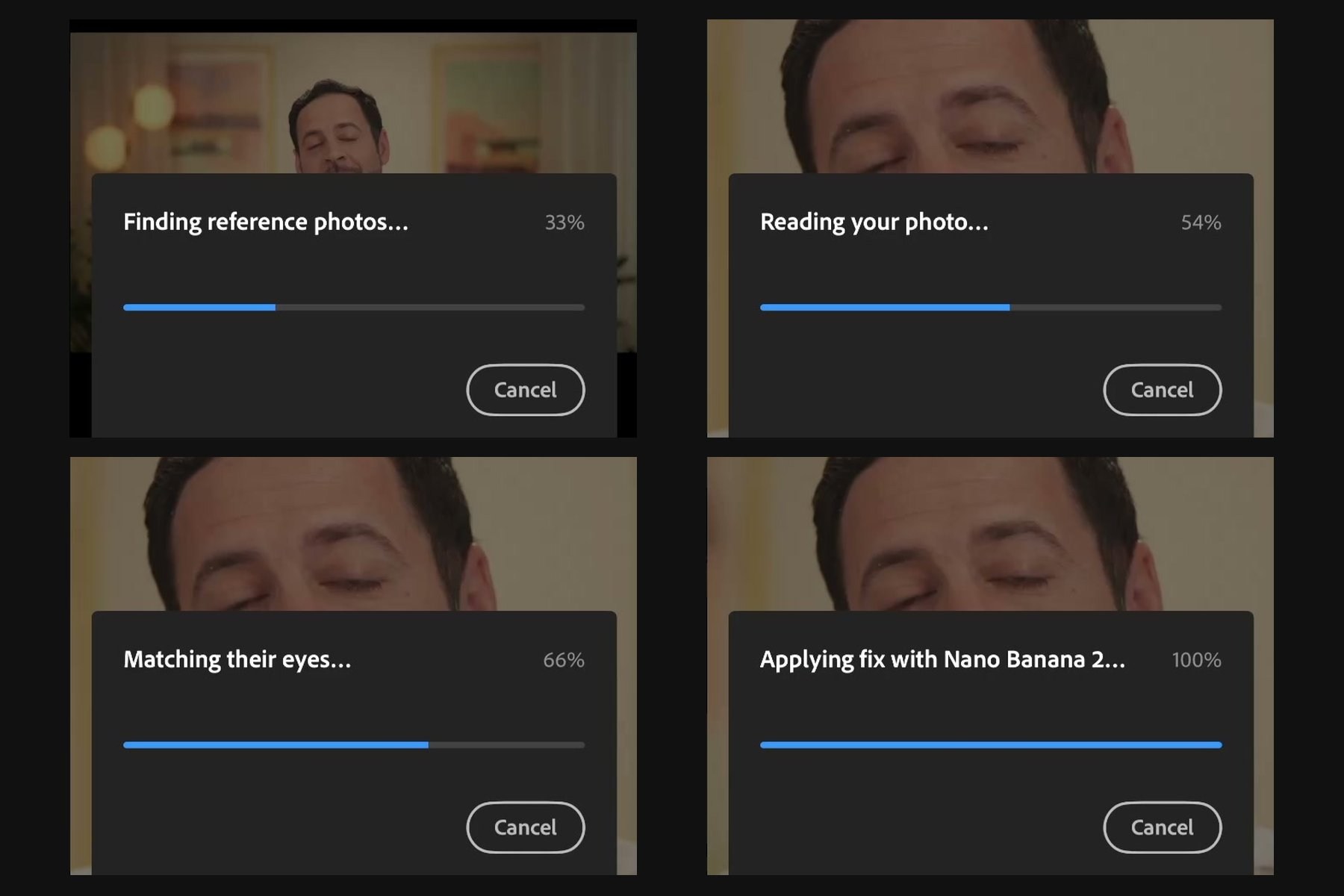
The progress bar runs through Finding reference photos, Reading your photo, Matching their eyes (when it has other photos to work from) and Applying fix with Nano Banana 2. On our phone the whole thing took well under a minute. When it’s done, hold your finger on the photo to see the closed eyes, and let go to see the new ones. Tap the checkmark at the bottom right to keep the result, then pinch to zoom in on the eyes.
Step 4: Compare With a Real Photo, and Generate Again If You Need To
Swipe to a nearby photo where the eyes really are open and zoom in on the same spot. Check the color of the irises, the catchlights and the shape of the eyelids, and look at the whole face, not just the eyes. Not happy? Go back, tap Reset, choose Reset all and run Open Eyes again. You get a new result, and you spend the credits again.
In the video we ran it twice on the same blink, and the two results weren’t the same. The first run opened the eyes and also raised Aaron’s eyebrows (“I look more surprised”). The second run opened only the eyes. Drag the sliders to compare each run with the original.
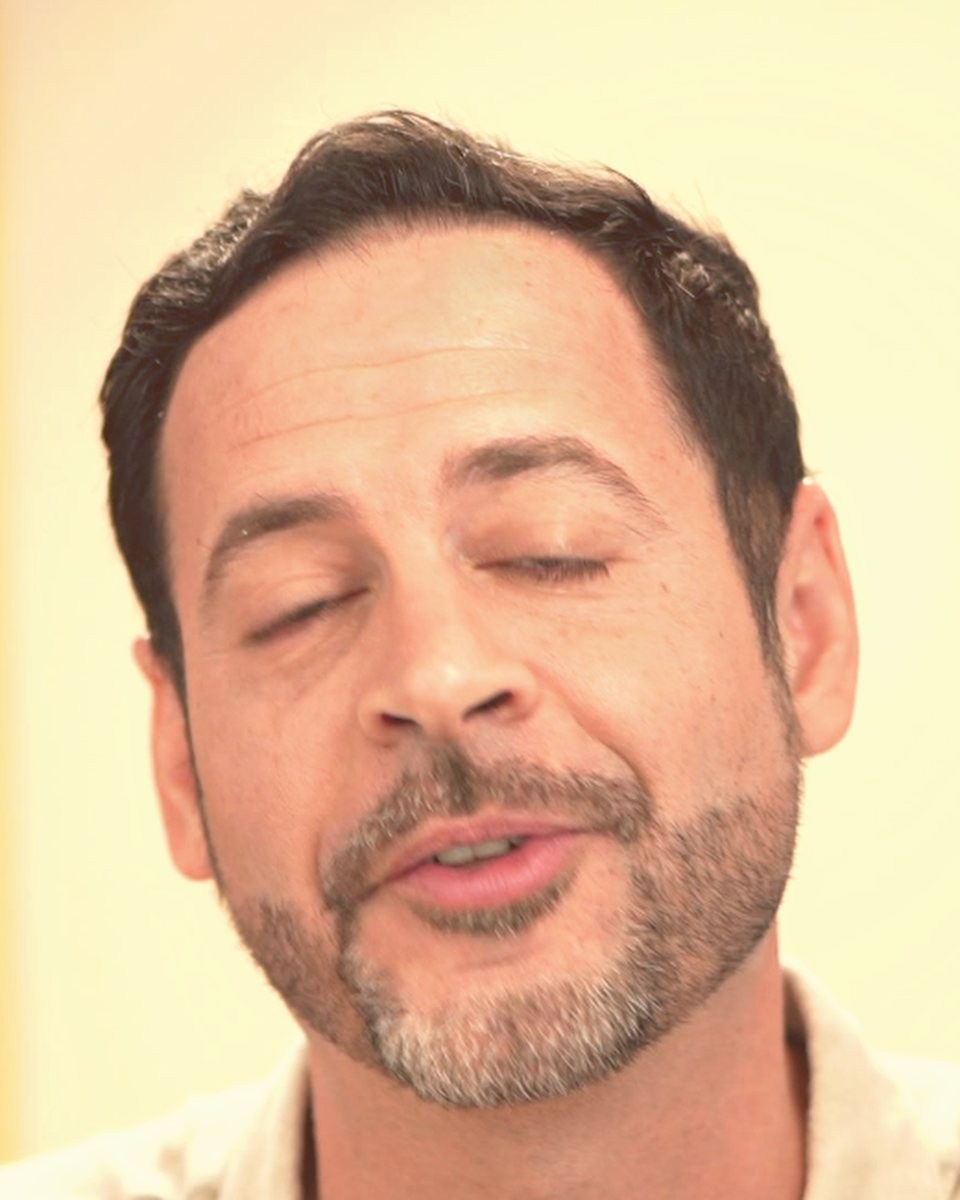
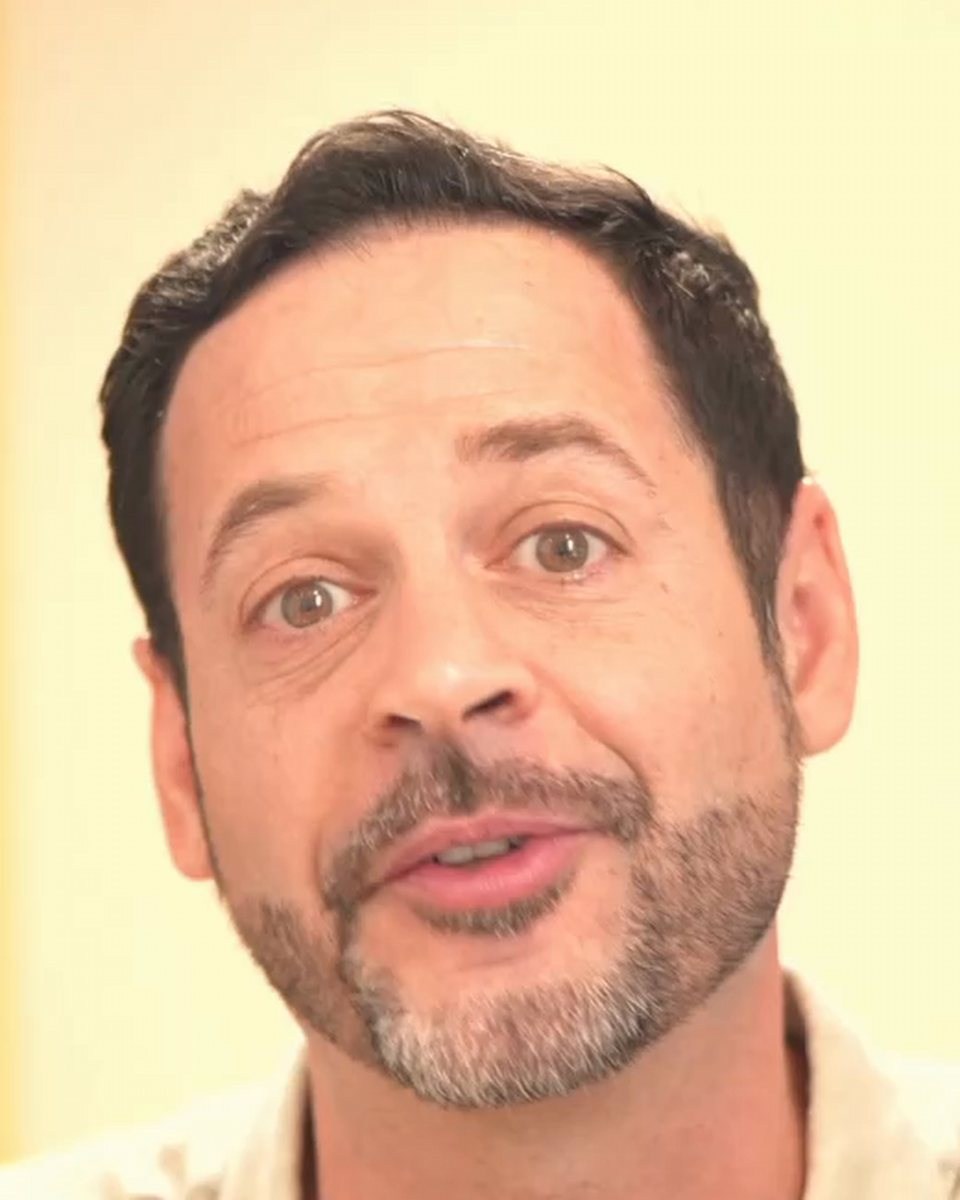
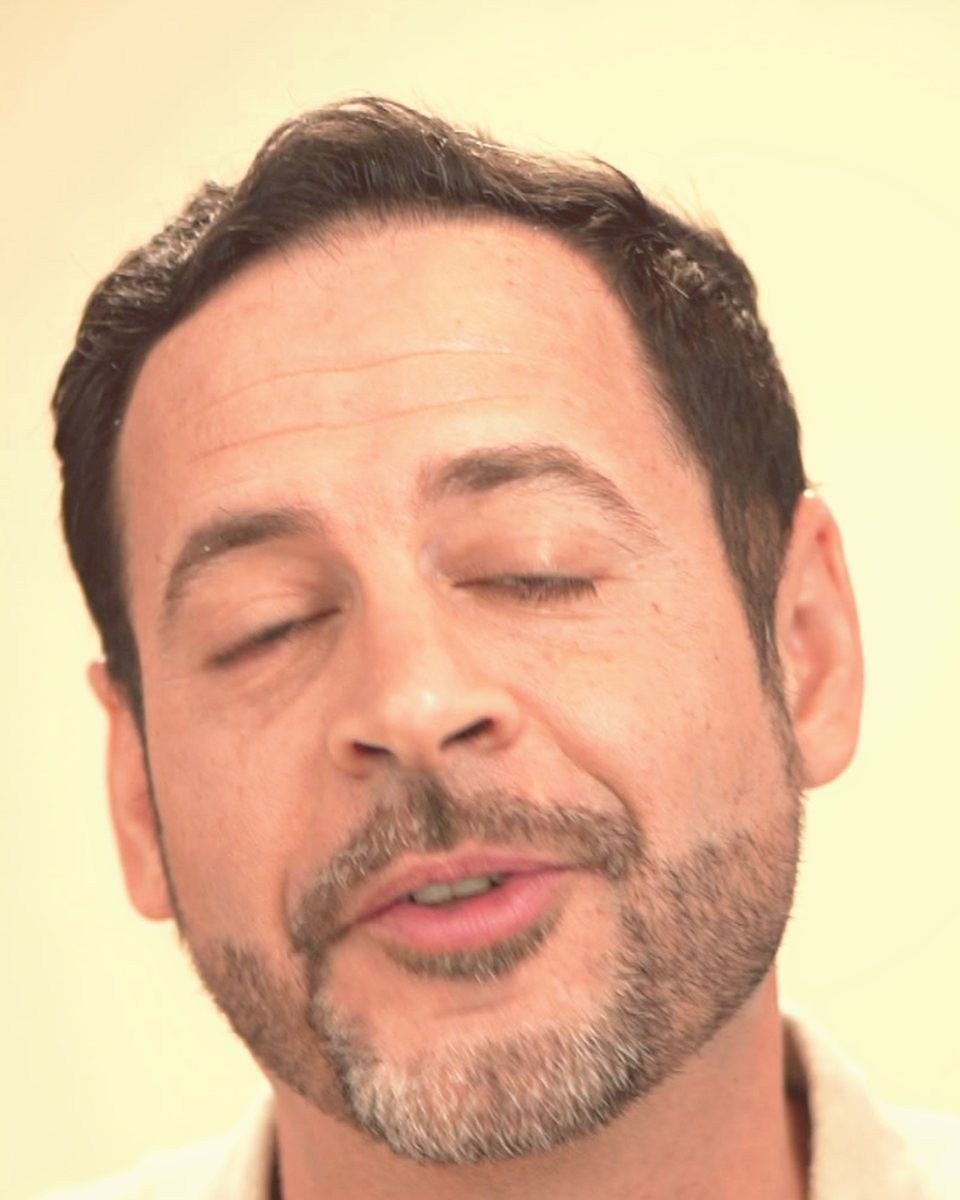
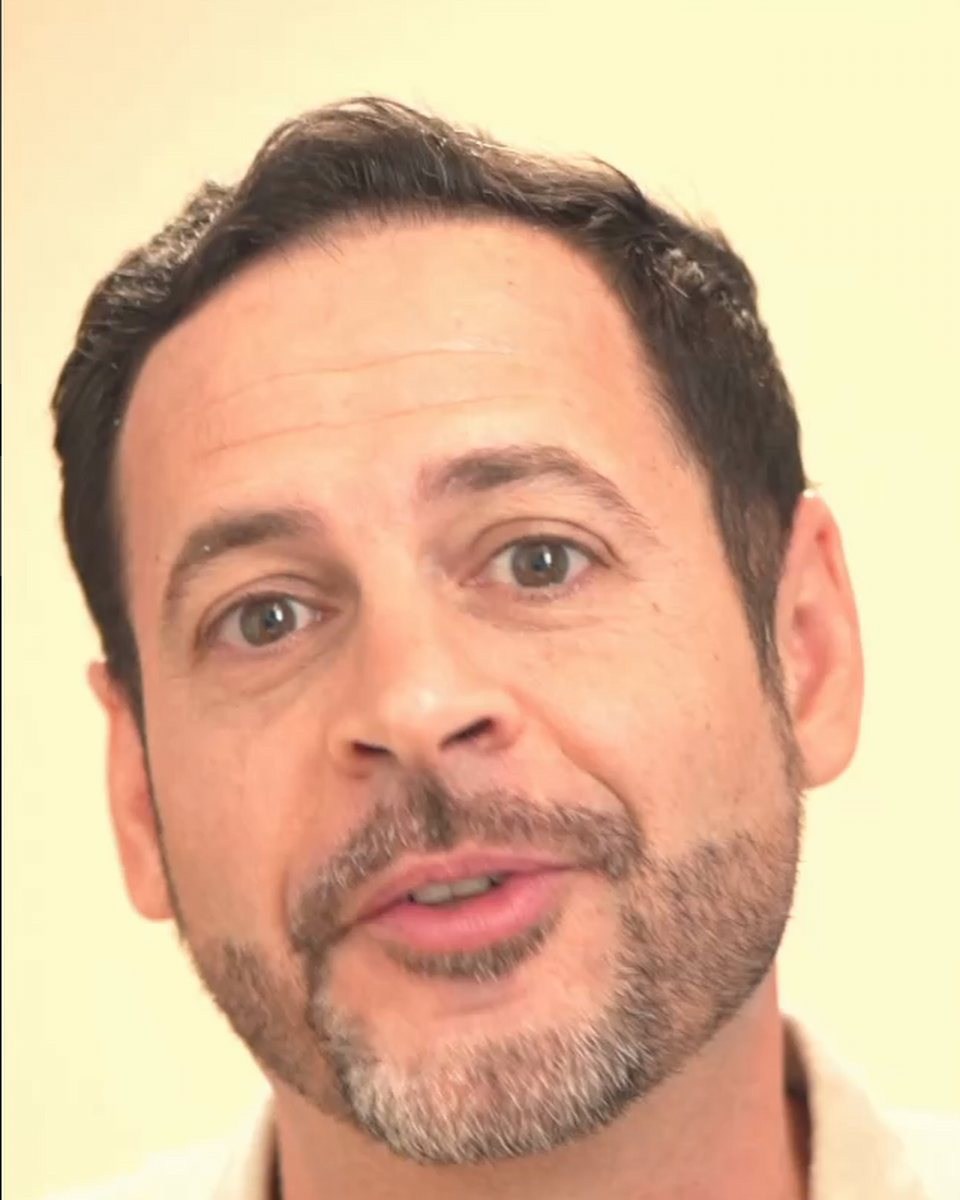
And the eyes themselves? In the video, Aaron puts each result next to a real frame from a fraction of a second earlier (the same frames are in the sample images below): the generated irises came out browner and more saturated than his real eyes, and a little narrower, while the catchlights sit in the right place. Aaron knows his own face better than anyone, and he thinks most people wouldn’t be able to tell.
Honestly, they fit in pretty well. The catch light looks good, the color looks decent. It didn’t nail it, but the fact that you can do this with a click of a button is insane.
Aaron Nace, comparing the generated eyes with his own
The AI Behind Open Eyes
Open Eyes doesn’t use Adobe Firefly. Adobe’s announcement only says “partner model”, but the progress bar named it: Applying fix with Nano Banana 2, Google’s image model, the same family you can pick in Photoshop (see partner models in Photoshop and Nano Banana Pro in Photoshop). Desktop looks likely to follow: Camera Raw 18.7 already contains the text for an Open Eyes panel that isn’t switched on yet.
When to Use Open Eyes, and When Not To
Aaron’s take: “Personally, I think this is a pretty cool feature. It’s not perfect, but it’s pretty cool we can do it with a single button click.” It works best on group portraits and on people far from the camera, where the eyes are small and several people can be fixed in one go. On a close-up the eyes are the most important part of the picture, and that’s where the small differences in color and shape show. If you’d rather catch the blink before you edit, AI Assisted Culling in Lightroom can flag closed eyes, and our Lightroom mobile tutorial covers the rest of the app.
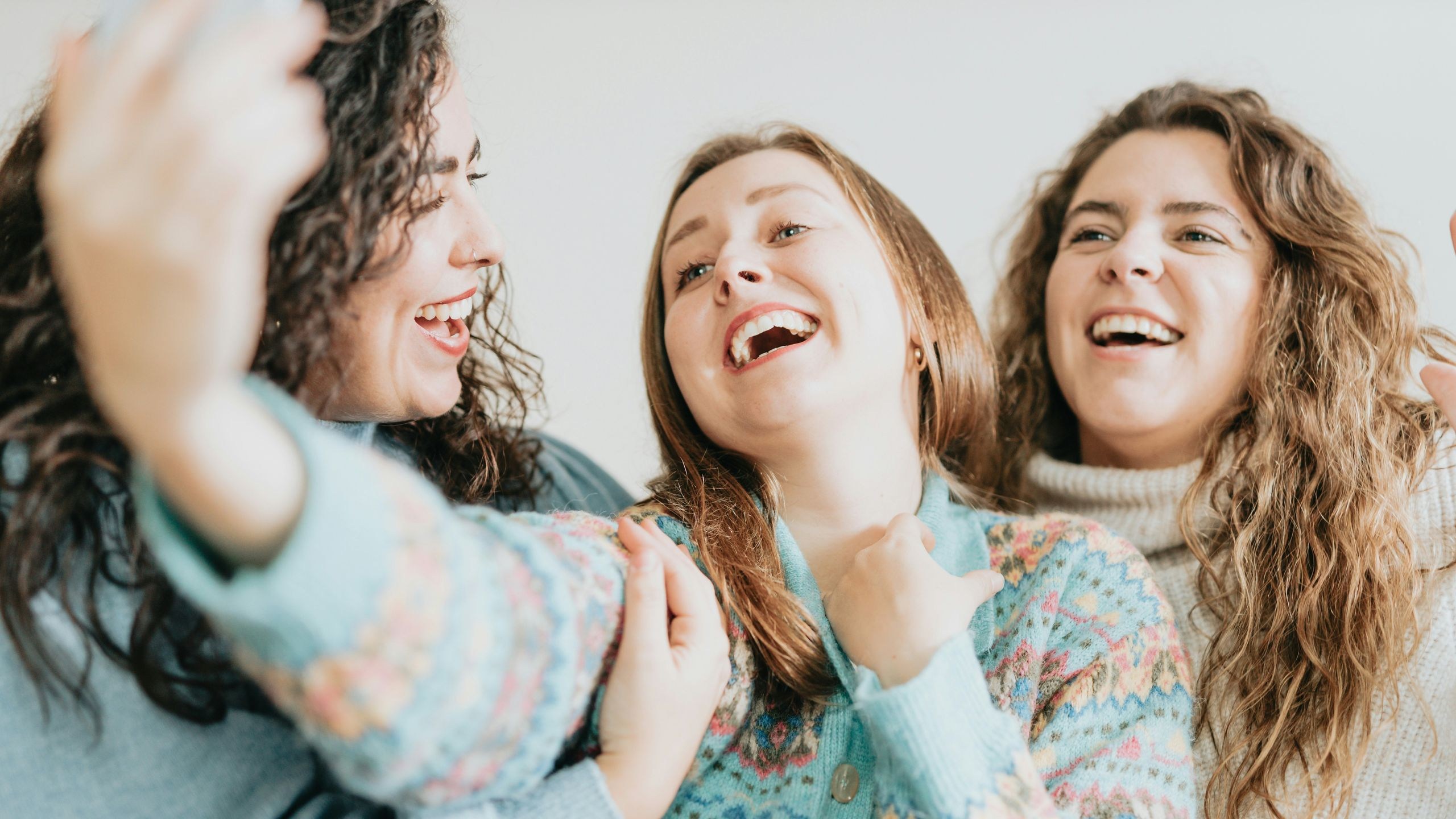
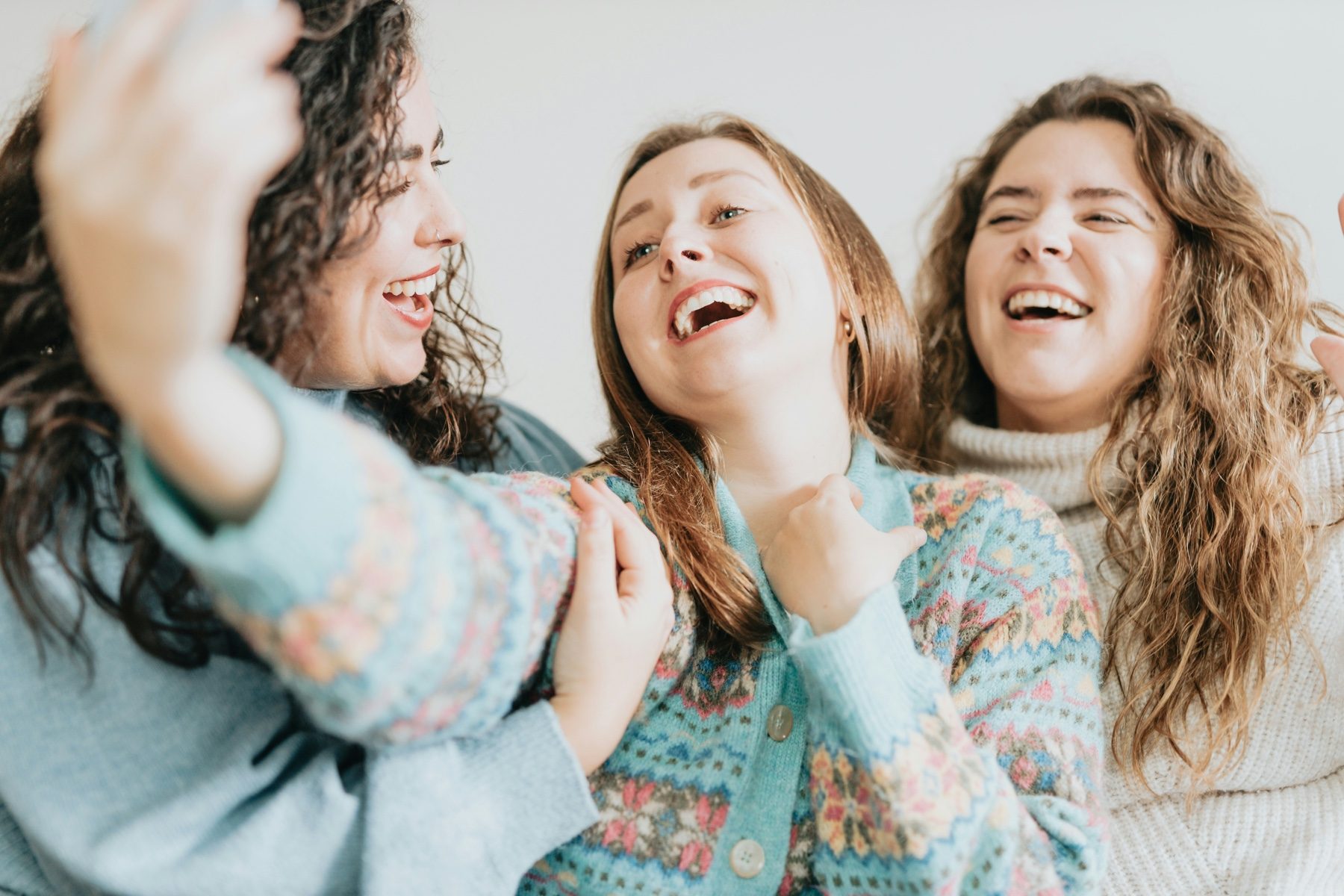
It does work on group shots. In this photo of three friends on a couch, the woman on the right had her eyes shut mid-laugh. One run opened them for 20 credits and left the other two faces alone. Drag the slider to compare.

Checklist
Before You Trust Open Eyes With a Portrait
Would you use this on a picture of someone else without telling them and say that it passes for the real face?
Aaron Nace’s question for you
Let us know in the comments on the video.
Quick Reference: Where It Is, What It Costs, How to Redo It
- Find Open EyesActions (bottom left) > Quick Actions > Open Eyes
- Where it worksLightroom mobile app only (as of October 19, 2026)
- What it costs20 credits on every one-face photo we tried, 40 on a 24 MP group shot with two faces; shown under Generate
- AI modelNano Banana 2, a Google partner model, not Firefly
- See the before and afterLong press the photo
- Keep the resultCheckmark at the bottom right
- Try againReset > Reset all, then Open Eyes again (the credits again)
Image source
Photos by PHLEARN. Group photo by A.C. via Unsplash+

Free Download
Practice on the Same Blink
3 sample images from the video (the blink and two real open-eye frames) and the 4-page PDF guide. Free with a PHLEARN account.
Lightroom Open Eyes: Common Questions
What is Open Eyes in Lightroom?
Open Eyes is a generative AI feature in the Lightroom mobile app that opens closed eyes in a photo. When Lightroom detects closed or half-closed eyes, an Open Eyes button appears in the Quick Actions. Tap it, then tap Generate.
Is Open Eyes in Lightroom Classic or Lightroom on the desktop?
Not as of October 19, 2026. It’s only in the Lightroom mobile app. Camera Raw 18.7 already contains the text for an Open Eyes panel that isn’t switched on yet, so a desktop version looks likely.
How many credits does Open Eyes use?
In our tests it followed how much Open Eyes had to regenerate rather than the photo’s size. Every photo we tried with one face to fix said Uses 20 credits, whatever its size. A 24-megapixel group shot with two blinking faces far apart said 40. Every new attempt costs the same again. On Adobe’s Lightroom mobile and web plan, with 100 credits a month, that’s five fixes at 20.
Does Open Eyes charge per person or per photo?
Per generation, in our tests. One-face photos cost 20 credits at every size we tried, and a large group shot with two faces far apart cost 40, so the price seems to grow with how much of the photo it regenerates rather than with pixel count. The price for your photo is shown under the Generate button before you tap.
Does Open Eyes work on group photos?
Yes. On our couch photo of three friends it opened the one pair of closed eyes for 20 credits and left the other faces alone, and on a larger group with two blinking faces one generation fixed both. Aaron found it works best when people are small in the frame. Check every face afterwards, at full size.
What AI model does Open Eyes use?
Not Adobe Firefly. Lightroom says Open Eyes uses a partner model, and in our test the progress bar read Applying fix with Nano Banana 2, which is Google’s image model.
Does Open Eyes use my other photos?
It looks for them. Lightroom says it uses similar photos from your device to match how the eyes really look, and the progress bar shows Finding reference photos. It doesn’t tell you which photos it found or whether it used them.
Does Open Eyes change anything besides the eyes?
Adobe says it only changes the area that needs adjustment, but on our first run the eyebrows went up too. The second run on the same photo opened only the eyes. Long press for the before and after and check the whole face.
Why did Open Eyes give me a different result the second time?
Every run generates new eyes, so results vary. Our two runs on the same blink in the video came out differently. Each new try costs the same credits again.
How do I see the before and after?
Long press the photo. You see the original with closed eyes while you hold, and the new eyes when you let go.
How do I undo Open Eyes or try again?
Go back, tap Reset and choose Reset all to return to the original photo, then run Open Eyes again.
Do the generated eyes look like the real person?
Close, but not exact. In our test the catchlights were right, but the irises came out browner and more saturated than the real eyes. Aaron thinks most people might not be able to tell. It works best when people are far from the camera or in a group shot.
Master Photoshop, Lightroom and Photography
Join PHLEARN PRO for $12.99 a month or $99.99 a year. Cancel anytime, with a 100% money-back guarantee.





