
Download Assets
This tutorial includes sample images. Downloads are free with a PHLEARN account.
- Free sample files with every tutorial on PHLEARN
- New tutorials published every week
- Unlimited downloads with your free PHLEARN account
description
Added steam gives itself away by being too thick and too evenly bright. This Quick Tip brings photographed steam in on a Screen-mode Smart Object so its dark background falls away, masks it down to the cup it should be rising from, then darkens the midtones and highlights, which pushes more of the image below the threshold Screen mode can show and thins the steam into something sparse.
Enjoying This Free Tutorial?
We publish a new free tutorial every week, each one with sample images and PSDs you can download and follow along with. Sign up and they land straight in your inbox, along with early word on sales, events and subscriber-only offers.
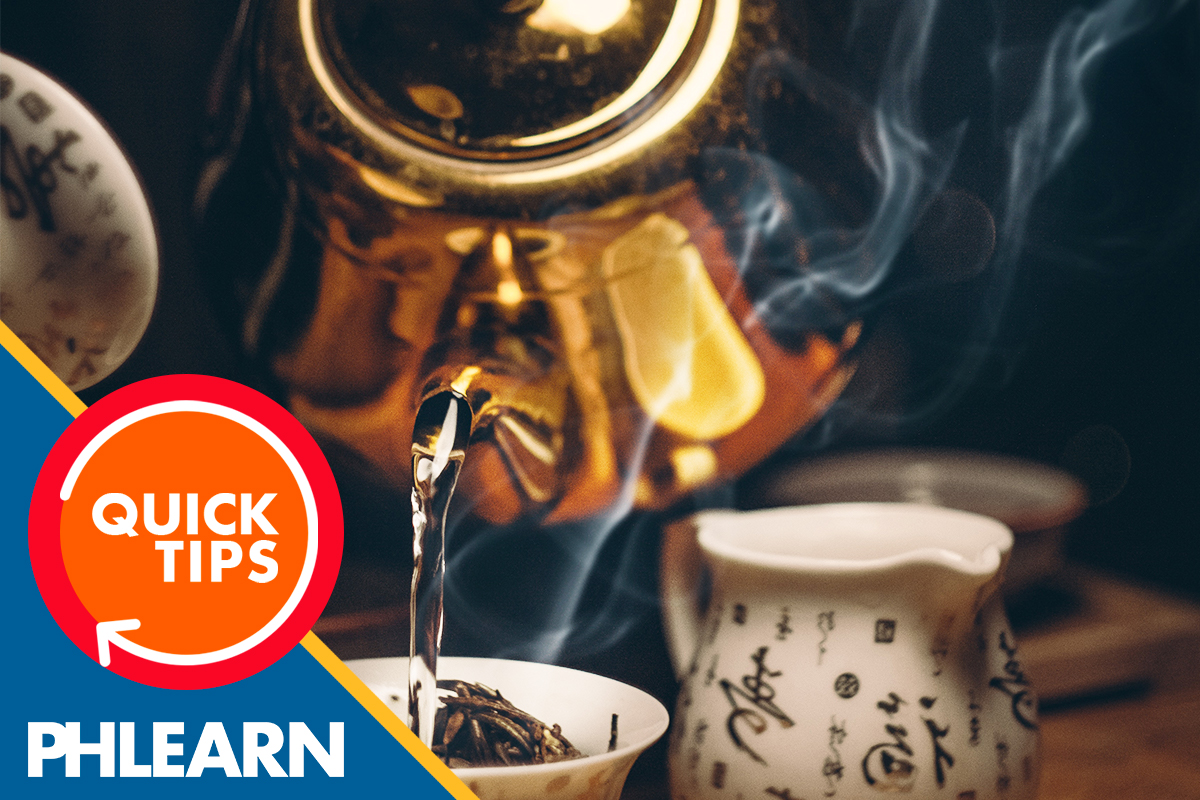
How to Add Steam or Smoke in Photoshop
This Quick Tip adds photographed steam to a photo using Screen blend mode, then masks and darkens it so the added steam looks like a natural, sparse wisp rather than a dense, obviously overlaid cloud.
Converting the Steam Image to a Smart Object
Right-clicking the steam image layer and converting it to a Smart Object keeps the adjustments that follow editable, so the darkening step later on can still be revisited without redoing the whole effect.
Setting the Steam to Screen Mode
The steam layer’s blend mode is set to Screen, letting its bright wisps show through onto the photo underneath while its dark background contributes nothing, so only the steam itself appears in the final image.
Masking Away Unwanted Areas
A layer mask is added to the steam layer, giving control over exactly where the steam is allowed to appear in the frame.
Confining the Effect to a Believable Source
Without this mask, steam from the stock image would show up across the entire frame regardless of what’s actually in the photo, breaking the illusion that it’s rising from a specific cup or bowl.
Painting Black to Hide Excess Steam
With the Brush tool, selected with the B key, black is painted onto that mask to hide any steam that spills outside the area it should realistically be rising from, like drifting outside the cup or bowl it’s coming from.
Darkening Midtones and Highlights
The steam layer’s midtones and highlights are darkened, reducing the overall brightness and visibility of the effect rather than leaving it at full strength.
Working on the Smart Object’s Adjustment
Because the steam layer was converted to a Smart Object earlier, this darkening stays non-destructive and can be adjusted again later without starting the effect over.
Why Darkening Makes the Steam Sparser
Since Screen mode only shows the steam’s brighter areas, darkening the midtones and highlights pushes more of the image below the threshold where Screen mode has any visible effect, thinning out the steam and leaving only its brightest wisps visible.
A Sparser Look Reads as More Natural
A thick, uniformly bright cloud of steam is one of the fastest ways for this kind of effect to look artificial; a sparser, more broken-up result is closer to how real steam actually drifts and dissipates.
More Free Photoshop Tutorials
- Use Custom Brushes to Create Atmosphere in Photoshop
- Add Realistic Clouds with Photoshop Blend If
- Create Dust from Scratch in Photoshop
Why This Technique Works
Screen mode is what turns a photographed steam image into something that behaves like actual rising vapor rather than a flat overlay, and masking plus darkening are both about restraint: hiding steam where it shouldn’t be, and thinning out how much of it shows at all. Both moves push the effect toward looking like it was really there when the photo was taken.
Final Thoughts
Adding believable steam or smoke comes down to a Screen-mode layer, a mask that keeps it confined to where it should realistically rise from, and a darkening pass on a Smart Object that thins the effect out into something sparse and natural rather than a dense, obvious cloud.
Related Tutorials
From the Magazine View all
Stories, interviews and guides for photographers, new every week.
 EditingLightCraft vs Lightroom: I Edited the Same RAW Files in BothThe free clone on the same RAW files: what matches, what breaks and who should switch.
 InspirationRare Historical Photos: 13 of the Rarest Pictures Ever TakenFrom the earliest surviving picture of a person to the last passenger pigeon: who took each one and why it survives.
 EditingArtCraft: Photoshop Cloned by AI in Two Weeks. Is It Legal?ArtCraft cloned Photoshop and Lightroom with AI and gave them away. Any good? Legal? Safe?
Master Photoshop, Lightroom and Photography
Join PHLEARN PRO for $12.99 a month, or $99.99 a year (save 36%). Cancel anytime, with a 100% money-back guarantee.