Photoshop Graphics & Text Effects Tutorials
Learn graphic design in Photoshop: text effects, logos, posters, mockups, packaging, collage, and how to combine graphics with photos. More than 70 free video tutorials from Aaron Nace for photographers, designers, and anyone who needs to make something that is not just a photo.
What You’ll Learn
Photoshop is also a design tool, and photographers end up needing it that way more than they expect: a watermark, a poster, a client mockup, a social graphic. These tutorials cover the design side without assuming a design degree.
- Text effects. 3D text, long shadows, metallic and neon, text wrapped around objects, the Dynamic Text tool in Photoshop 2026, and typography that sits naturally inside a photo.
- Logos and vectors. Creating logos, converting low-resolution images to clean vectors, and removing backgrounds from illustrations, text, and graphics.
- Mockups and packaging. Realistic product mockups, packaging design, and placing artwork onto surfaces with the right perspective and lighting.
- Photos plus graphics. Mixing graphics and photos in portraits, compositing text into scenes, collages, and holiday cards from free stock assets.
- Design fundamentals. Color theory and composition, print-style effects like risograph, and exporting for print and web.
Where to Start
Start with the Graphics & Text Learning Path, which sequences the text and logo tutorials before the mockup and packaging work. If you are here for one job, the mockup tutorials and the 3D text tutorial are the two most-used pages in this category.
Free and PRO Tutorials
Free tutorials are complete lessons, not previews. PRO tutorials go deeper and longer, and they include the sample images, RAW files, actions, and presets used in the lesson so you can follow along on the exact same file. A PHLEARN PRO membership unlocks every PRO tutorial on the site, including all of the ones in this category.
Frequently Asked Questions
Can I do graphic design in Photoshop instead of Illustrator?
For most photographer and small-business needs, yes: text effects, posters, social graphics, mockups, and logos that will mostly live on screen. Illustrator is better for logos that must scale to any size, and one tutorial here shows how to get a vector-clean result in Photoshop anyway.
How do I make text look like part of a photo?
Match the perspective, add the same lighting and shadow the scene has, and use blend modes and a mask so the text interacts with the surface. The text-into-photos tutorials walk through each step.
What is a mockup and why would I need one?
A mockup shows your design on a real object, such as a poster on a wall or a label on a bottle, before it exists. Clients understand a mockup instantly, and the mockup tutorials here show how to make one that looks photographed rather than pasted.
Where to Go Next
The design skills here overlap with Compositing, especially for placing graphics into photos, and with Visual Effects for glows, 3D, and stylized finishes. For painterly and illustrative work see Art & Style, and for the tools underneath all of it, Tools & Techniques.
Learn Design in Order
The Graphics & Text Learning Path sequences text and logo work before mockups and packaging.
On This Page
PHLEARN PRO
Every PRO tutorial in this category, with sample and RAW files, plus the full PRO library.

We’ll be taking an image, making it into a Smart Object and then placing it over an iPad. This technique would work great for anyone who wants to create a mock-up and see what it’d look like in real space.
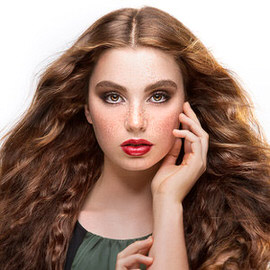
Draw more attention to your photos by showing before/after animations on Instagram. In today’s episode, we show you how to create a Before and After image in Photoshop. After that, we show you how to animate it as an Animated Gif.
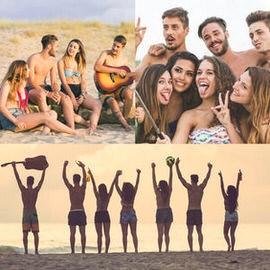
Learn How to Create Collage Templates in Photoshop in this episode! This is a priceless technique for anyone with a blog, website, or someone just wanted to combine a few images together into one.
Sample Images Included
Channels are a great way to make extremely accurate selections! Although there are many different techniques that could yield similar results, Channels can provide the most accurate selections of all.

Learn how to create a cinemagraph in Photoshop. We don’t stop there, we also give you some tips for creating a cinemagraph in camera. Sit back, grab some popcorn and enjoy the ride!

We show you some Basic Techniques you can use to create some awesome Graphic art. From color fill Adjustment Layers to Layer Masks, to transforming selections and saving custom color swatches.

Create and Place a Logo in perspective in today’s episode! This is helpful for photographers and designers alike as you will learn how to Transform text as well as place it into an image!

In this episode we’ll show you where to get a banner, how to Transform your text to fit on the banner and how to place those banners on your images.
Sample Images Included

Follow along to make text match the perspective of most images. Using a combination of Warp and Transform, you can give text the perspective to fit your photo, and we will share our favorite fonts for a handwritten look.
In today’s episode, the rounded rectangle tool comes in handy as we create our icon. The rounded rectangle Tool helps us create are shape and there are enough options available for us to be really specific.

If you are looking to add some security to the images you are uploading online, this episode is perfect for you! Today we’ll show you how to create a watermark to place on your images.

Having your own signature at the end of your emails is a great way to leave a professional impression. No matter what type of business you are in, having an email signature is the perfect way to sign off.
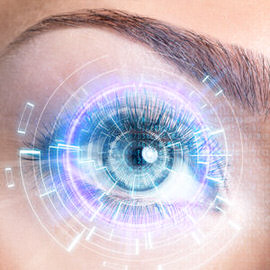
Add a futuristic look to your images. In this tutorial, we’ll show you how to add a light up display over the eye for a cyborg look.
Video Game lovers, rejoice! In today’s episode, learn How to Make a Call of Duty Title Screen in Photoshop, and take away some versatile font techniques too!

If you have a complicated selection to make such as hair, let us introduce you to your new best friend: the Refine Edge Tool!
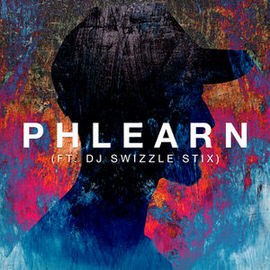
Join us for a jam packed episode on how to create an amazing painted album cover!
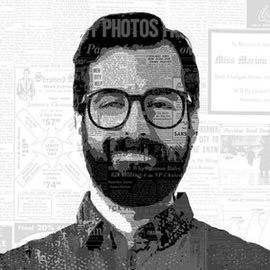
In today’s episode we combine Vintage newspapers with a portrait to create a piece of art. Learn how to apply Filters to your subject to make them appear like an illustration, then Add Texture to that illustration in a few easy steps.

From cutting subjects out to switching Backgrounds to any Pattern of your choosing, this is one episode you don’t want to miss!
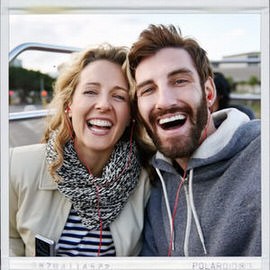
In today’s episode, we show you how to make a Polaroid framed picture in Photoshop!

Explore artistic options and learn how quickly you can accomplish them with a simple Blending Mode change!

Ditch the struggle to try and figure out perspective manually! In today’s episode, we show you how to use the Vanishing Point Filter to lay Text anywhere in a realistic way.
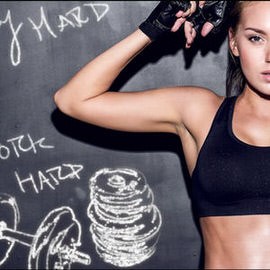
Photoshop is an amazing Tool that can help you with more than just Retouching photographs; it can be used to create illustrations as well! In today’s episode, we show you how to turn a photo into what looks like a hand-drawn illustration.

In this episode we show you how to turn a photo into a magazine cover by integrating the “V” Logo with the subject.

We will show you the amazing power of focus area selections in Photoshop cc 2014 as well as new Type Tools. We are also throwing in one of our old favorites – Content Aware Scale with Skin Tone Protection.

A watermark can ruin an image of not designed and placed well. In this episode you will learn how to place your Logo on your images in a way that won’t destroy your image.

You can turn anything into a Pattern in Photoshop using the Define Pattern command. It will take whatever is visible on a canvas and turn it into a repeatable pattern stored on the computer.
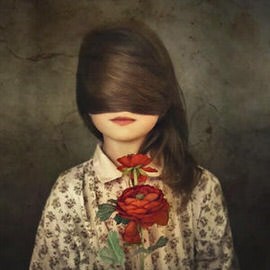
Learn a Simple Technique for adding textures to your images. We are using multiple textures combined together to create the final effect.
Sample Images Included

The Step and Repeat command is one of the coolest secrets Photoshop has to offer. You won’t need this feature every time you open Photoshop, but when you are creating Patterns, there is no better Tool.

In Part II of this tutorial we show you how to put the splatter Brush (created in Part 1) to good use.

In this episode we teach you how to use the Pen Tool to cut your subject out of their Background. The Pen Tool is a vital part of Photoshop and is used to create accurate selections.
Sample Images Included