

Camera Raw’s new Vectorscope tool gives you an objective read on skin tone, with a built-in reference line for exactly one hue. This tutorial covers turning on the Vectorscope and skin tone indicator, isolating skin with a mask so the scope reads only what matters, and correcting Temperature, Tint, and Saturation in the right order to bring skin back on target without guessing. It also covers where the tool misleads you and when to ignore it.
Free practice files
Practice Files for This Tutorial
The 3 sample images, 3 layered PSDs and the 5-page PDF guide from the video, so you can follow every step on the same files.
This tutorial includes 3 sample images, 3 sample PSDs and 1 PDF guide.


Create a free PHLEARN account to download, or log in if you already have one. One account gets you the files for every free tutorial.
description
Enjoying This Free Tutorial?
Image Source


Adobe Just Put an Instrument Inside Camera Raw for Reading Skin Tone
Camera Raw has a new panel called the Vectorscope tool, and it shows you something your eyes can’t: the color that is actually in your file, independent of your monitor, your room light, or the twenty minutes you’ve spent staring at the same face. A histogram tells you about brightness. The Vectorscope tells you about color, and it ships with a built-in reference line for exactly one thing — skin.
That line is why this tool matters. Every human skin tone sits at roughly the same hue angle regardless of how deep or light the skin is, so it works as a check for any subject in any photo — instead of eyeballing whether a face looks “too warm” under lighting you can’t fully trust, you watch a cluster of pixels align to a line that doesn’t drift.
This is a standard Camera Raw panel, not a plugin or a generative feature, and everything below uses ordinary Photoshop and Camera Raw tools. It currently lives in Camera Raw only, not yet in Lightroom or Lightroom Classic.
What the Vectorscope Actually Shows You
Angle is hue, distance is saturation
The Vectorscope tool plots every pixel in your image on a color wheel. A cluster’s angle around that wheel tells you the hue — the value you’re correcting. How far it sits from the center tells you saturation: near the middle is muted, toward the edge is vivid. Saturation varies legitimately from photo to photo and isn’t something you’re chasing a target on.
One line works for every subject
Right-click the histogram and turn on Show Skin Tone Indicator, and a dashed line appears across the scope. What changes person to person is how deep and saturated their skin reads, not which direction the cluster points, so this one line works as a reference for any face. Skin is also a spread, not a dot — shadowed and lit areas of a face rotate slightly differently, so you’re looking for the bulk of the mass running roughly parallel to the line, not a tidy point sitting on it. It’s one of several precision color tools Adobe has added to Camera Raw recently, alongside the Point Color tool for isolating a single hue anywhere in a photo.
Set Up the Vectorscope in Camera Raw
-
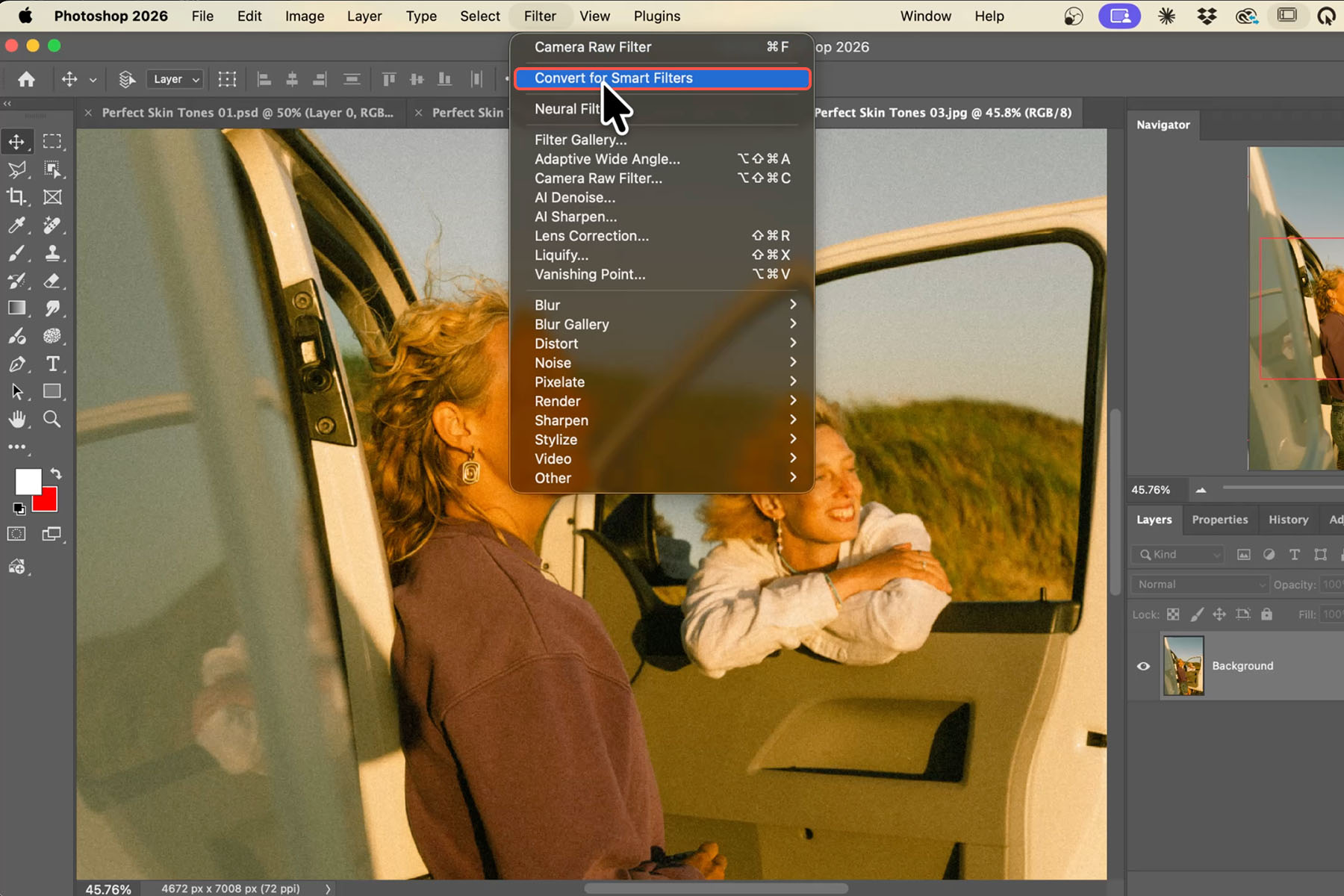
Convert your layer to a Smart Object.
Select your background layer, then go to Filter > Convert for Smart Filters, so everything below stays non-destructive and editable later.
-
Open Camera Raw Filter.
With the Smart Object selected, go to Filter > Camera Raw Filter. Requires Camera Raw 18.4 or later.

-
Turn on the Vectorscope tool.
Right-click directly on the histogram itself, not near it, and choose Show Vectorscope — it’s easy to miss, sitting at the very bottom of that menu.
-
Turn on the skin tone indicator.
Right-click the scope again and choose Show Skin Tone Indicator to draw the reference line every later step is measured against.
-
Add Lab color readouts and drop a few samplers.
Right-click once more for Show Lab Color Readouts, then press S and click two or three points on the skin. Samplers stay put and update live as you drag sliders.
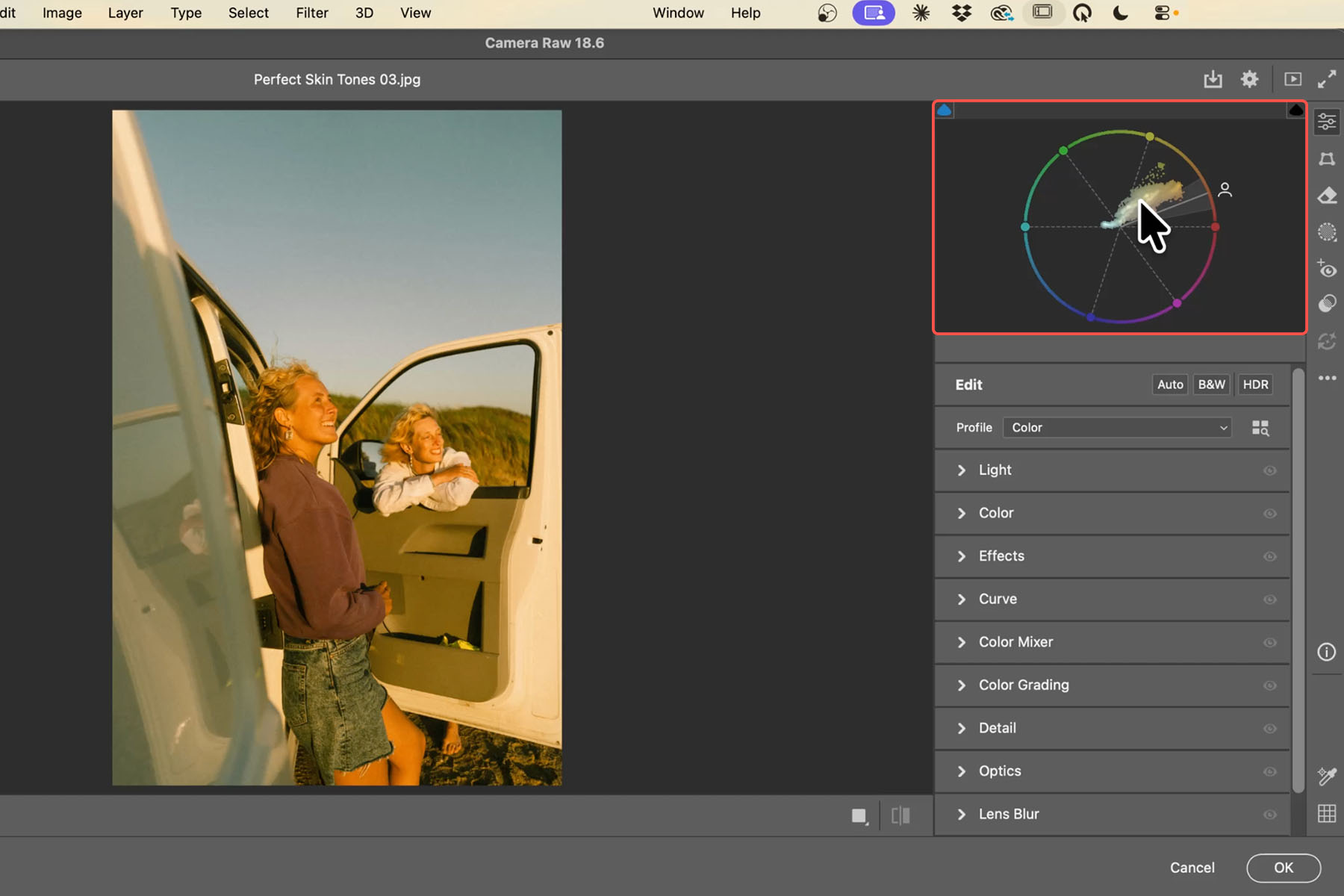
One optional setting in that same menu, Show Red at 3:00, just rotates the wheel to match video scopes like Premiere and Resolve — it changes nothing about accuracy, so pick one and stay consistent.
Isolate Skin and Read the Cluster
A full-frame reading tells you almost nothing useful about skin — sky, foliage and clothing are mixed into the same cluster, and the face you care about is buried inside it. The Vectorscope tool respects an active mask: build one around the skin, and the scope redraws to show only that selection.
-
Open the masking panel and try a People mask first.
If Camera Raw finds the person, check only Face Skin and Body Skin for each one and click Create. Leave hair, eyes, lips and clothing unchecked — those pixels aren’t skin.
-
If the AI can’t find your subject, mask it manually.
Select the Brush, set Flow and Density to 100 with no feathering, and paint over the face and any other exposed skin. Turn on Show Overlay so you can see exactly what’s selected, and watch for stray edges — a foot or hand at the frame’s edge is easy to miss.
-
Tighten a brush mask with Color Range.
Click the three dots on your mask, choose Intersect Mask With > Color Range, then click-drag over the skin. This narrows a rough brush selection to just the skin tones inside it.

-
Read which way the masked cluster leans.
A cluster rotated toward yellow or orange reads too warm; rotated the other way reads too cool. Confirm with Lab readouts: a and b should both be positive, with b sitting slightly higher than a, within roughly 15 units. b well above a means skin is reading yellow; b below a means it’s gone pink or magenta.
Correct Temperature, Tint, and Saturation, in Order
Before touching color at all, get your exposure and contrast dialed in — the scope doesn’t show brightness, but saturation shifts as exposure changes, so correcting color first just means redoing it. Once tone is set, the order below is what actually moves the cluster onto the line efficiently.
-
Move Temperature first.
Temperature is the bigger lever and controls your Lab b value — pull left to cool the cluster toward blue, right to warm it toward yellow. This alone typically does most of the work.
-
Move Tint second.
Tint controls your a value: pull left toward green, right toward magenta, to clean up whatever Temperature left behind. Double-click either slider to reset it.
-
Adjust Saturation last, and pull Vibrance first if skin looks over-saturated.
Saturation moves the cluster toward or away from the center of the scope. A mass pressing against the outer ring is over-saturated skin, not a hue problem — pull Vibrance back before Saturation, since it protects skin tones by design.
-
Use the mask’s Amount slider to blend the correction, then look with the mask off.
The Amount slider at the top of the mask panel scales the whole correction at once. A golden hour photo should probably keep some warmth — the indicator shows where neutral sits, not what the photo should look like, so backing Amount off is a creative choice. Toggle the mask off and on to confirm you’ve improved the photo, not just changed it.
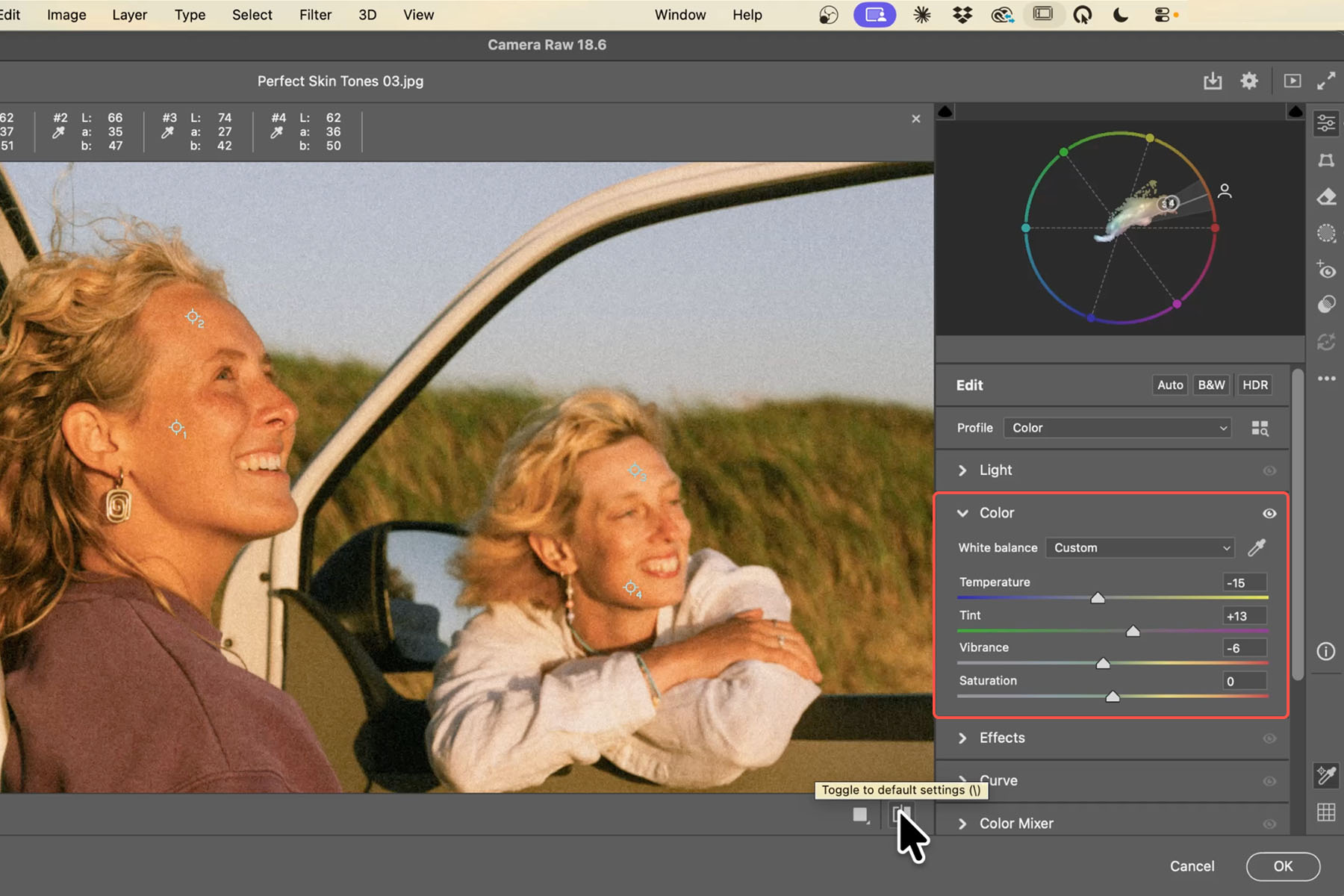
Only take a masked correction global when the whole frame shares the same cast — a real white balance problem affects everything, but warmth coming only from the skin will wreck the rest of the image if applied broadly. Local Temperature and Tint run on a relative scale, while the global sliders are measured in Kelvin, so carry across the direction and rough distance, then re-check against the scope. Once skin reads correctly, Camera Raw’s broader color grading tools and its color grading presets carry that work into the rest of the frame.
What Trips People Up
You’re chasing a perfect point on the line
Faces never produce a tight dot — shadowed and lit skin rotate slightly differently, so aim for the bulk of that spread running parallel to the line, not a single pixel landing on it.
You pushed saturation trying to reach the line
The indicator is entirely about hue, not saturation. A cluster pressed against the outer edge of the scope is over-saturated skin — pull Vibrance or Saturation back, don’t push Temperature further to compensate.
Your mask includes hair, lips, or clothing
Any non-skin pixel in the mask means the cluster you’re reading isn’t skin, and everything after that is built on bad information. Double-check People mask selections show only Face Skin and Body Skin.
Skin still looks off after the numbers check out
An objectively correct Lab reading won’t automatically look right on every subject — a naturally warmer or cooler complexion can read as off if you chase the same target every time. If color still looks wrong after aligning to the indicator, the redness may need its own targeted correction instead of a global shift.
When to Use It, and When Not To
Use it any time you need an objective check on skin color instead of trusting eyes that have already adapted to your room and monitor — mixed lighting, golden hour warmth you’re not sure you’ve overcorrected, or any photo you’ll compare against others edited on a different day.
Use it alongside masking tools you already know. The scope doesn’t care how a mask was built — a depth-based AI mask or a selection from Camera Raw’s object masking reads the same as one you painted by hand, as long as it isolates skin cleanly.
Don’t expect it to make the final call. It’s an instrument, not a verdict — it gets you objectively close and stops the slow drift of warming a photo further every session without noticing. The last five percent is still your eyes: warm skin from a golden hour shoot can be a decision, not a mistake the tool caught.
Quick Reference: Keys, Menus and Settings
- Make it a Smart ObjectFilter > Convert for Smart Filters
- Open Camera RawFilter > Camera Raw Filter
- Show the vectorscopeRight-click the histogram > Show Vectorscope
- Skin tone line and video wheelRight-click the scope > Show Skin Tone Indicator, Show Red at 3 o’clock
- Read L, A and BRight-click the scope > Show Color Readouts; Toggle Sample Overlay, then click the skin
- Zoom inCmd/Ctrl + +
- Before and afterToggle Default Settings, bottom right of Camera Raw
- Reopen the correctionDouble-click Camera Raw Filter in Layers
Image source
Photos by Kirsten Frank, Christian Agbede, and Michael McKay via Unsplash
Free Downloads
Follow Along on the Same Photos
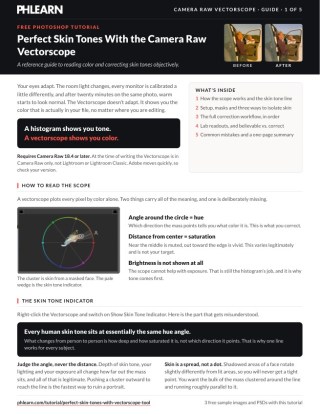
Get all 3 sample images, the 3 layered PSDs and the five-page PDF guide to reading the vectorscope, and correct the skin tones on the same portraits. Free with a PHLEARN account.
Vectorscope Skin Tones: Common Questions
What does the vectorscope in Camera Raw show?
The color in your photo, plotted on a wheel. The direction around the wheel is the hue, and the distance from the center is the saturation: near the middle is muted, out toward the edge is vivid. Pull the Temperature slider cooler and the whole cloud shifts toward blue; pull Tint toward green or magenta and it follows.
Which version of Camera Raw do I need?
Camera Raw 18.4 or newer. It’s only in Camera Raw for now, not in Lightroom or Lightroom Classic.
Where is the vectorscope hidden?
Right-click the histogram in Camera Raw and choose Show Vectorscope. Then right-click the scope and turn on Show Skin Tone Indicator. Show Red at 3 o’clock is optional: it rotates the wheel to match video editing programs.
Why can’t I just judge skin tone by eye?
Every monitor is calibrated slightly differently, and the light in the room changes how you see the photo. A measurement works the same no matter where you’re editing.
Does one skin tone line really work for every person?
Yes. Everyone’s skin has about the same hue; what varies is how deep and how saturated it is. Skin shows up as a spread, not a dot, so you want the cluster gathered around the line, not sitting exactly on it.
What do the L, A and B readouts mean?
L is lightness. A is the green-to-magenta axis, which the Tint slider moves. B is the blue-to-yellow axis, which the Temperature slider moves. Turn on Show Color Readouts, then use the sample overlay to click a few points on the skin; those samples also appear on the scope.
In what order should I adjust the sliders?
Exposure and contrast first, because they affect color. Then Temperature, then Tint, then Saturation, usually down just a little. Watch the cluster move toward the line as you drag.
How do I make the scope read only the skin?
Open Masking, choose People, pick the person, and check only Facial Skin and Body Skin. Click Create and the scope switches to the mask alone. With several people, add each one with the plus icon.
What if Camera Raw can’t find the people?
Build the mask by hand. Paint the faces and any visible skin with the Brush at full flow and density and no feather, then open the mask’s three-dot menu, choose Intersect Mask With, then Color Range, and drag across the skin. The mask keeps only where the two overlap.
Should the skin sit exactly on the line?
Not always. A sunset portrait should keep some warmth. Toggle the before and after, and if the correction went too far, lower the mask’s Amount slider to blend back toward the original.
Can I apply the correction to the whole photo?
Yes. Note which way the mask’s Temperature and Tint moved, turn the mask off, and make a similar move in the main panels. The numbers won’t match exactly, and use Vibrance rather than Saturation, which is kinder to skin.
Are the sample files free?
Yes, with a free PHLEARN account. You get all 3 sample images, the 3 PSDs and the five-page PDF guide, so you can follow along on the same portraits.
Master Photoshop, Lightroom and Photography
Join PHLEARN PRO for $12.99 a month, or $99.99 a year (save 36%). Cancel anytime, with a 100% money-back guarantee.





