
Photo Effects Tutorials for Photoshop
Add light, atmosphere, and style to any photo in Photoshop: glows, light rays, lens flares, motion blur, textures, double exposures, film and vintage looks, glitch and painterly effects, and other visual effects. More than 180 free and PRO video tutorials from Aaron Nace, each building a complete effect from scratch.
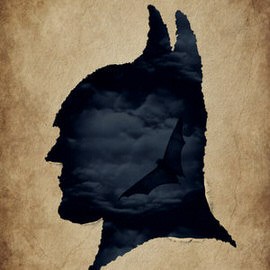
We start with creating a ripped paper effect and then apply that to a silhouette for a cool Batman themed poster.

Take any photo and convert it into latte art using our free custom brush and the Smudge Tool!
Sample Images Included
Photoshop | Text & Graphic Design | Easy | 30 mins | 1 video
1 Photoshop Brush | 1 PDF Guide
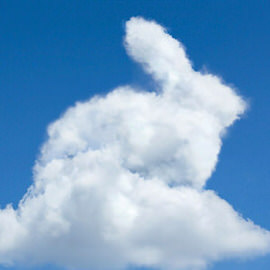
Learn how to create shapes with clouds in the fun and whimsical tutorial!
Sample Images Included
Photoshop | Photo Effects | Medium | 30 mins | 1 video
1 Photoshop Brush | 1 PDF Guide
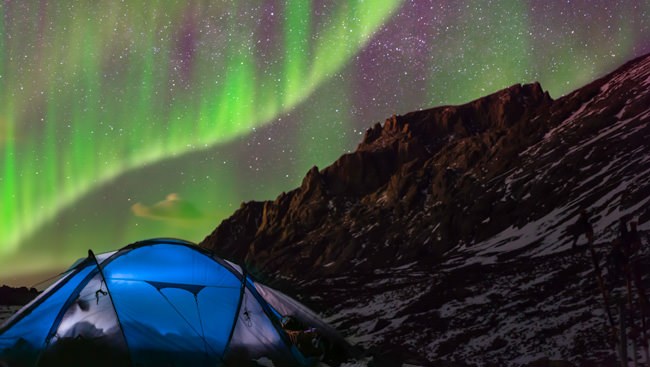
Northern Lights are actually collisions between electrically charged particles from the sun that enter the earth’s atmosphere. Add this effect to any night photo in a few simple steps.

Light rays are fun to create, and can make a big Difference in your photos! Learn how to identify the best place to put Light rays and how to create them using a Brush Tool and a Radial Blur Filter.
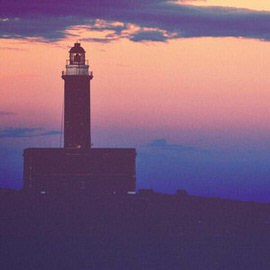
We are going to apply the look of a dark film photograph to a digital image in today’s tutorial.
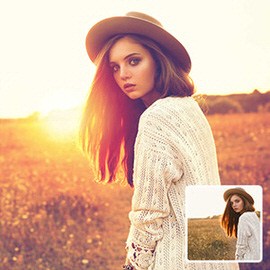
Adding a sunset effect to a photo can be done in a couple of easy steps, and makes a huge difference in a back-lit image.
Sample Images Included
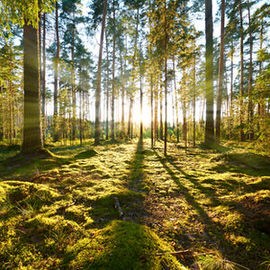
We’ll show you how to add some awesome sun rays into your image in Photoshop, but first make sure it makes sense in your image!
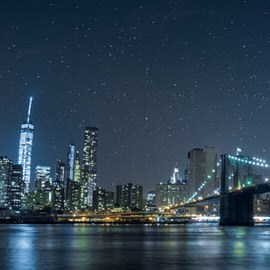
We start with creating a custom star brush and then play around with our brush settings to get the perfect shape and scatter for painting the stars in our sky.
Sample Images Included

Add Snowflakes to any image by learning to make your own brush or download ours for free!
Sample Images Included
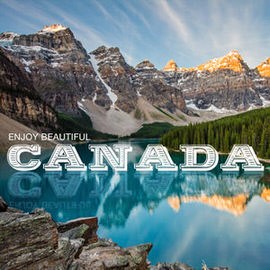
Learn how to add the correct effects to make a realistic looking reflection in a body of water.
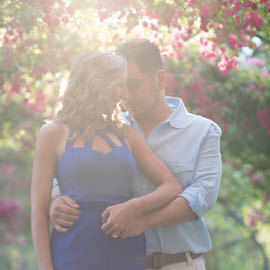
Learn How to Add and Remove Fog in Photoshop in today’s episode! This super quick and Easy Tutorial will turn you into a fog wizard. Guaranteed.
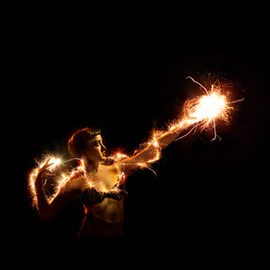
Adding Special Effects to images can actually be incredibly simple! All it takes is a little practice with blend modes, Adjustment Layers, and Layer Masks.
Sample Images Included
Photoshop | Photo Effects | Easy | 15 mins | 1 video
7 Sample Images
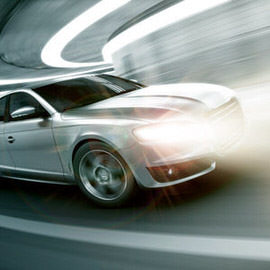
Learn How to Turn on Headlights in Photoshop! Learn all the tricks to creating realistic light, including Lens Flares and light streaks made from scratch.
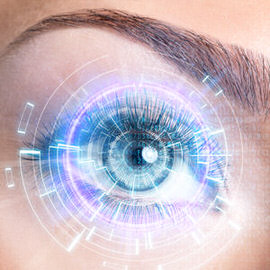
Add a futuristic look to your images. In this tutorial, we’ll show you how to add a light up display over the eye for a cyborg look.
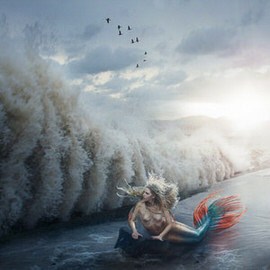
Master the Liquify Tool, matching color, matching light, and learn to completely recreate areas of an image with the Brush Tool. This tutorial is a great exercise for advanced Photopshop users.
Photoshop | Compositing | Advanced | 4 hours
28 Sample Images | 1 Photoshop Action
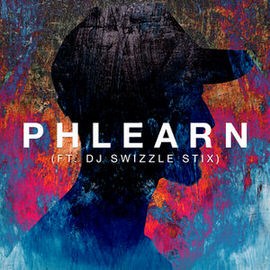
Join us for a jam packed episode on how to create an amazing painted album cover!

In today’s episode, learn how to use amazing Lighting Effects in Photoshop! Watch and learn as we Transform a flat piece of art into a textured, 3-D masterpiece!
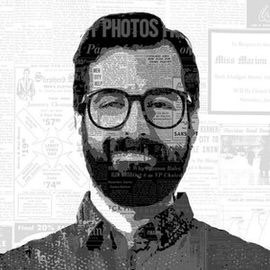
In today’s episode we combine Vintage newspapers with a portrait to create a piece of art. Learn how to apply Filters to your subject to make them appear like an illustration, then Add Texture to that illustration in a few easy steps.
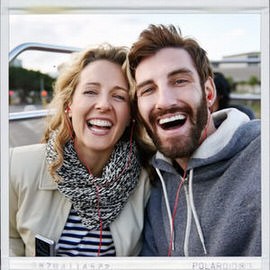
In today’s episode, we show you how to make a Polaroid framed picture in Photoshop!
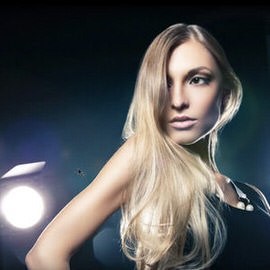
When are flares appropriate in photos? Why can’t you customize the Photoshop Lens Flare Filters?? In today’s episode, we show you the best way to use Lens Flares in Photoshop and answer those burning questions!
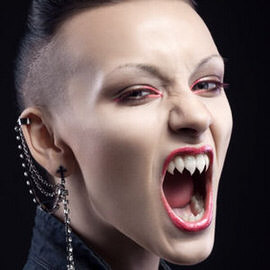
Are you ready for our fourth and final Halloween episode?? Learn how to shape teeth into sharp fangs to give your images some real “bite!”

In our third Halloween Episode, we show you how to create realistic scars in Photoshop! Wow humans and zombies alike with this scary gash technique!
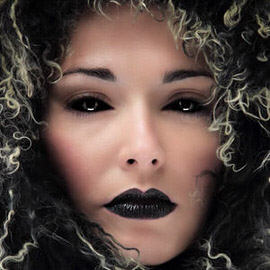
Making eyes all black is faster than you might think, and is definitely a terrifying effect to add to your images! Join us in the spirit of Halloween as we show you how to black out eyes in Photoshop!
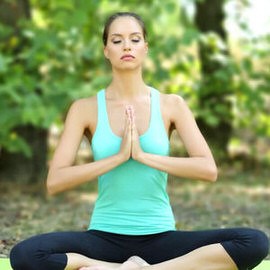
Everyone wants a beautiful out of focus Background once in a while, but what if you can’t achieve the look in-camera? In today’s episode, we show you how to fake Depth of field in Photoshop!
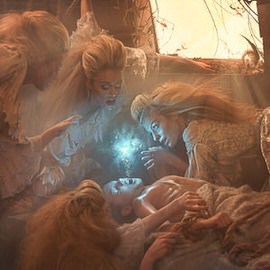
Create an extraordinary fantasy image in this in-depth tutorial. Learn to tell a story through images, build and shape lighting, dodge and burn, blend, and composite several images into a scene.
Photoshop | Compositing | Medium | 1.75 hours
6 Sample Images | 3 Photoshop Brushes
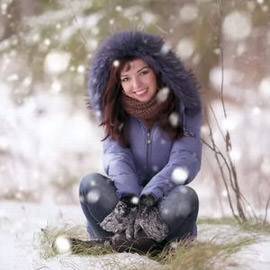
Have you ever wondered if it is possible to create snow from scratch? In today’s episode, we show you that all you need is a custom Brush and some blurs to create your own winter wonderland!
Photoshop | Photo Effects | Easy | 30 mins | 1 video
1 Photoshop Brush
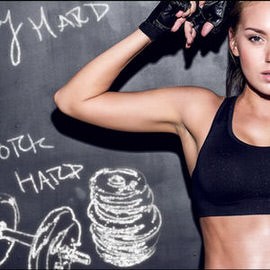
Photoshop is an amazing Tool that can help you with more than just Retouching photographs; it can be used to create illustrations as well! In today’s episode, we show you how to turn a photo into what looks like a hand-drawn illustration.

In this tutorial, you will learn the photography and Photoshop required to transform your images into an underwater world. Color correct highlights and shadows independently, create light rays, create flowing hair, and learn to light a subject.
Photoshop | Compositing | Advanced | 2.5 hours
30 Sample Images | 3 Photoshop Brushes
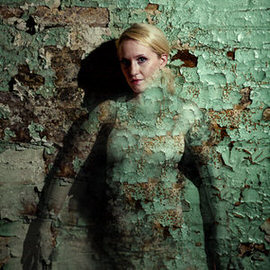
Follow along and learn how to take the texture from any background and blend it directly onto a subject. Discover techniques for blending, colorizing, advanced cloning, creating highlights and shadows, making selections and more.
Photoshop | Photo Effects | Medium | 1.5 hours
1 Sample Image

Transform your next portrait image into a special effects scene worthy of a superhero. In this tutorial, you’ll learn to add realistic fire to your photos. Watch as we retouch a background, add fire, create custom brushes and much more.
Photoshop | Photo Effects | Easy | 1 hours
7 Sample Images | 3 Photoshop Brushes
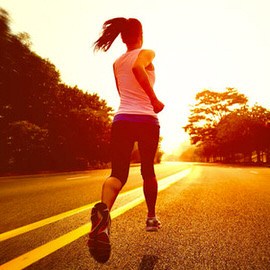
Shooting later in the day gives you the opportunity to add a warm “sunset Style” to your image in Photoshop. In today’s episode we show you how to Color your image to give it that warm “sunset” feel.
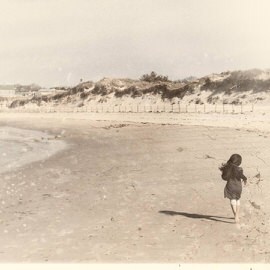
There are many things that go into making an image appear vintage in Photoshop and this episode Highlights all the techniques you may need to make your photos look aged. In this episode, we’ll show you how to create a Vintage photo in Photoshop.

Add creative and artistic effects to your images using the Filter Gallery.
Photoshop | Tools & Techniques | Easy
1 Sample Image

A double Exposure is traditionally done using a film camera by taking two different photos on the same Exposure of film. The images will combine in unique ways, giving you the “double exposure” effect.
There are several ways to blur objects in Photoshop, but the Blur Tool comes with a number of ways to control and fine tune it. Unlike Blur Filters, The Blur Tool allows you to precisely apply a blur to certain areas in an image.
Photoshop | Tools & Techniques | Easy
1 Sample Image
What You’ll Learn
Good visual effects are built from the same things a photographer works with on set: light, atmosphere, and depth. These tutorials teach the effects as lighting and physics first and Photoshop tricks second, which is why they hold up at full size.
- Light. Glows, highlight bloom, light rays, sun flares, neon, and painting light onto a subject so it matches the scene.
- Atmosphere. Fog, haze, rain, snow, dust, smoke, and depth of field, layered so the subject sits inside them rather than in front of them.
- Elements. Fire, water, lightning, sparks, and particles from stock and from scratch, with the blend modes and masks that make them believable.
- Stylized effects. Double exposure, dispersion and pixel stretch, portrait slice, glitch, 3D and long-shadow text, and film and vintage looks.
- The finish. Grain, vignette, color grading, and sharpening that make an effect feel like part of the photograph.
Where to Start
Begin with the Special Effects Learning Path, which sequences the fundamentals of light and atmosphere before the showpiece effects. For the deep dive, the PRO course Advanced Lighting Effects in Photoshop is the one most people come back to. Many effects here start with a clean cutout, so the selection tutorials in Tools & Techniques are worth a look first.
Free and PRO Tutorials
Free tutorials are complete lessons, not previews. PRO tutorials go deeper and longer, and they include the sample images, RAW files, actions, and presets used in the lesson so you can follow along on the exact same file. A PHLEARN PRO membership unlocks every PRO tutorial on the site, including all of the ones in this category.
Frequently Asked Questions
Why do my effects look pasted on?
Usually because the effect ignores the light already in the photo. Match the direction and color of the existing light, add the effect on its own layer with a soft mask, and let it interact with the subject through blend modes like Screen and Soft Light. The light tutorials here show each step.
Do I need plugins or stock images?
No plugins. A few tutorials use free stock elements for fire, smoke, or particles and show where to find them; most build the effect entirely inside Photoshop with brushes, gradients, and filters.
Which blend modes are used for effects?
Screen and Linear Dodge for light, Multiply for shadows and darkening, Soft Light and Overlay for contrast and color, and Blend If for fitting an effect into the tones of a photo. The blend-mode tutorials in this category explain each.
Where to Go Next
Visual effects sit on top of a solid edit and often a composite. See Compositing for placing subjects in scenes, Color & Tone for the cinematic finish, and Text & Graphic Design for painterly and illustrative looks. The PRO library is at PRO Visual Effects.
Learn Effects in Order
The Special Effects Learning Path teaches light and atmosphere first, then the showpiece effects.
On This Page
PHLEARN PRO
Every PRO tutorial in this category, with sample and RAW files, plus the full PRO library.