30 Days of Photoshop Classic Edition
The original 30-day Photoshop challenge, free and complete. One lesson a day, from a guided tour of the toolbar to swapping a gray sky on day thirty. There is also a 2025 Edition rebuilt for current Photoshop — start there if you are new; this run is kept for the manual techniques it teaches in more depth.
What You’ll Learn
The 30 Days of Photoshop Classic Edition is the original 2020 run of a free thirty-lesson challenge: one technique a day, in an order that builds. It is deliberately more manual than the current edition — it teaches the Pen Tool, channels, frequency separation and Blend If at a point when Photoshop had fewer shortcuts, which is exactly why it is still worth working through.
- Week one — the interface and the basics A guided tour of every tool and menu, opening and saving files properly, how layers and the Layers panel work, the types of adjustment layer, and selections with the Marquee, Lasso and Magic Wand.
- Week two — core editing Levels and Curves for exposure and color, targeting colors with Hue/Saturation, transforming and aligning layers, the Brush Tool in detail, and cropping and resizing without wrecking the file.
- Week three — the tools professionals lean on Type, Liquify, Smart Objects, the Blend If sliders, every blending mode, the Clone Stamp, and dodging and burning for shape and depth.
- Week four — RAW, color and retouching Adobe Camera Raw, color grading highlights and midtones and shadows, changing the color of clothing and products, recovering blown highlights, removing blemishes, frequency separation and non-destructive sharpening.
- The last days — selections and compositing Precise selections with the Pen Tool, cutting out hair with Select and Mask, matching light and color across a composite, editing a landscape in Camera Raw, and swapping a gray sky.
Who This Series Is For
Anyone who wants a structured month of Photoshop rather than a folder of bookmarked videos. It assumes nothing on day one and finishes with techniques most working retouchers use weekly.
It suits two groups in particular. Complete beginners who want a schedule to follow, and self-taught users with gaps — people who can composite but have never understood Blend If, or who use adjustment layers without knowing what half of them do.
If you are starting today, the 2025 Edition covers the same ground in current Photoshop, including the AI tools that did not exist when this run was made. Many people do both: the 2025 Edition for how it is done now, the Classic Edition for what the software is actually doing underneath.
What You Need
- Photoshop Any version. The lessons were recorded on an older release, and every technique still works — a handful of panels have moved.
- Nothing else The series is free in full. No membership, no download, no sign-up required to watch.
- Thirty days Or thirty sittings, whenever they happen. The order matters more than the pace.
- Your own images Optional but recommended, because applying each day’s lesson to a photo you care about is what makes it stick.
No prior Photoshop experience is assumed. Day one starts with what each tool in the toolbar does.
How Long It Takes
Thirty lessons, most of them short enough to watch and follow in under half an hour. Done daily it is a month; done at weekends it is closer to four months, which is also fine.
The one thing worth resisting is skipping ahead. The later compositing and retouching days assume you are comfortable with masks, blending modes and Smart Objects, all of which arrive in weeks one to three.
Frequently Asked Questions
Is this really free?
Yes. All thirty lessons plus the introduction are free to watch, with no membership required.
Should I do this one or the 2025 Edition?
The 2025 Edition if you want the current workflow, including generative and AI tools. This one if you want the manual methods explained in more depth, or if you have already done the 2025 run and want to go further into the fundamentals.
Does it still apply to the latest Photoshop?
Almost entirely. Curves, blending modes, masks, Smart Objects and the Pen Tool have not changed. A few panels have moved and some tasks now have a faster AI route, which the 2025 Edition covers.
Do I need to do it in thirty consecutive days?
No. The name is a structure, not a rule. What matters is the order.
What comes after day thirty?
The Photoshop Learning Path is the natural next step — it picks up at roughly the level this series finishes.
Where to Go Next
Start on Day One
The introduction explains how the series is structured. Day one is a guided tour of every tool and menu in Photoshop.
On This Page
PHLEARN PRO
When the free series runs out, PRO has the full library — every Learning Path, with sample files.

Now is the perfect time to learn Photoshop! Join us on a journey of the basics, master powerful tools and techniques, and even learn photo retouching and compositing.
In Day 1 of 30 Days of Photoshop, we take you on a tour of the entire program. Learn where to find every tool, menu, and option in Adobe’s flagship software.
Sample Images & PSD Included
In Day 2 of 30 Days of Photoshop, learn how to open images, make edits and adjustments, and then save your work so you can share it with the world.
Sample Images & PSD Included
Layers and Masks are the foundation of working in Photoshop! Learn how to use Layers to add new elements to an image, change colors, and work non-destructively.
Sample Image & PSD
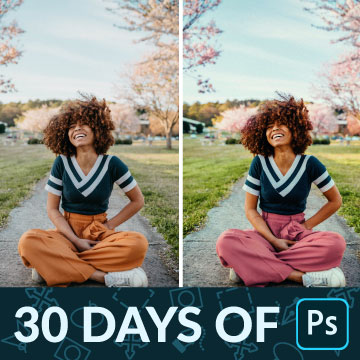
In Day 4 of 30 Days of Photoshop, we show you how to use Adjustment Layers to enhance colors, fix exposure, and even help with compositing!
Sample Images & PSD Included

Day 5 of 30 Days of Photoshop! Learn how to use selections to cut a person out from the background and to add effects to specific parts of a photo.
Sample Image Included
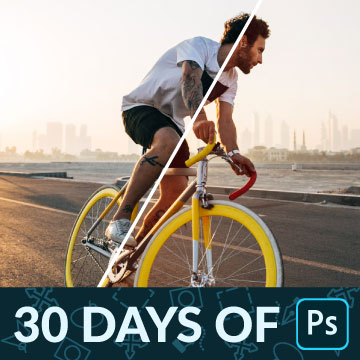
In Day 6 of 30 Days of Photoshop, learn how Levels and Curves can help you make detailed adjustments to both exposure and color in any photo.
Sample Image Included

Day 7 of 30 Days of Photoshop! Learn how to use Hue/Saturation Adjustment Layers to target and change the color of anything in a photo.
Sample Images Included
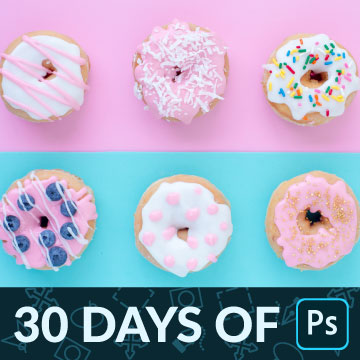
In Day 8 of 30 Days of Photoshop, we show you how to use all of the Transform options to scale, warp, rotate, flip, and align all the elements in a project.
Sample Images & PSD Included
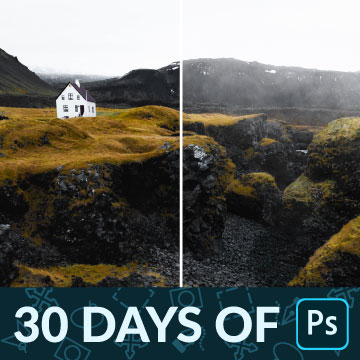
The Brush Tool is one of the most versatile tools in Photoshop! Learn how to use the Brush Tool to dodge and burn and add realistic fog to a photo.
Sample Image & Custom Brush Included

Today is all about the Crop Tool! Learn how to crop, resize, and extend your images in Photoshop so that you can share them on the web and social media.
Sample Image Included

Day 11 of 30 Days of Photoshop! Learn how to use the Type Tool to add text to an image, change fonts and weights, and have the text interact with parts of a photo using Layer Masks.
Sample Image Included

In Day 12 of 30 Days of Photoshop, learn how to use the Liquify Tool to change the shape of clothing, add volume to hair, and protect areas you don’t want to be warped, like the face and body.
Sample Image Included

In Day 13 of 30 Days of Photoshop, learn how Smart Objects can help you work non-destructively in Photoshop. Resize images without losing resolution and apply filters that can be changed or removed at any time.
Sample Images Included
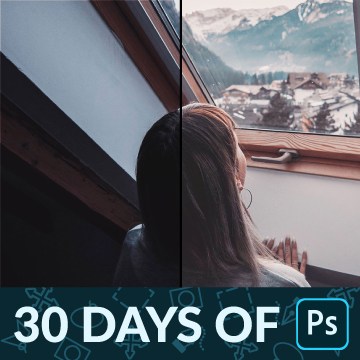
Day 14 of 30 Days of Photoshop! Blend If is Photoshop’s best kept secret. Learn how to use it to blend color and exposure effects into the highlights, midtones, and shadows of any Layer.
Sample Image Included

In Day 15 of 30 Days of Photoshop, we show you how to use Blending Modes to make a simple composite image, and then add some stylistic coloring to tie it all together.
Sample Images Included

Day 16 of 30 Days of Photoshop! Learn how to use the Spot Healing Brush and the Clone Stamp Tool to seamlessly remove objects and distractions from any photo.
Sample Image Included
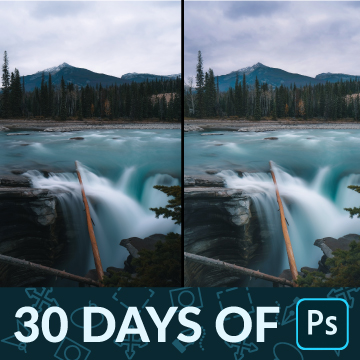
In Day 17 of 30 Days of Photoshop, we show you how to dodge and burn in Photoshop, recovering details and adding beautiful shape and dimension to your photos.
Sample Image Included
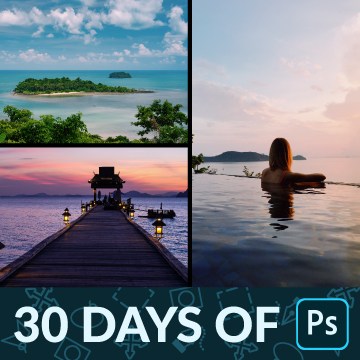
In Day 18 of 30 Days of Photoshop, we show you how to use Smart Objects to make a beautiful photo collage to celebrate any occasion.
Sample Images Included
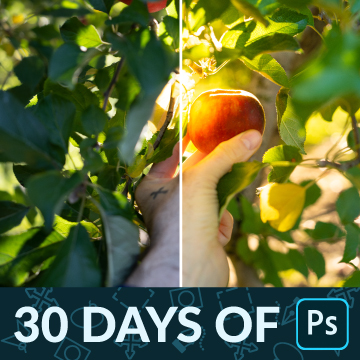
Day 19 of 30 Days of Photoshop! Learn how to use Adobe Camera RAW to edit the exposure and color of full 16-bit RAW images in Photoshop.
Sample Image Included

In Day 20 of 30 Days of Photoshop, we show you how to add stylistic coloring into the highlights and shadows of any image.
Sample Image Included

In Day 21 of 30 Days of Photoshop, we show you how to change the color of anything in a photo using Hue/Saturation Adjustment Layers.
Sample Image Included
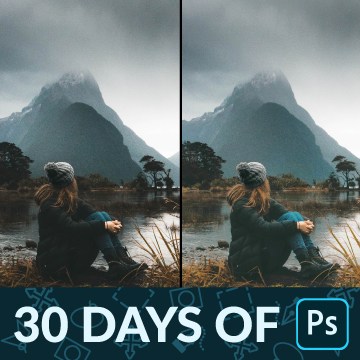
In Day 22 of 30 Days of Photoshop, we show you how to fix the exposure of any photo, recovering the details in dark shadows or blown-out highlights.
Sample Image Included
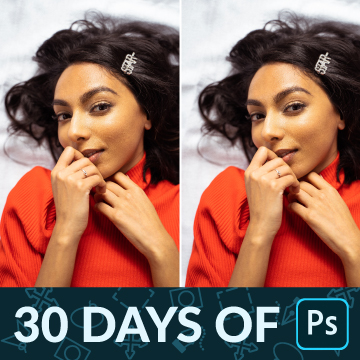
Day 23 of 30 Days of Photoshop! We all get them; small pimples and blemishes that are here today and gone tomorrow. Learn how to quickly remove them in Photoshop so that your subjects can look their best!
Sample Image
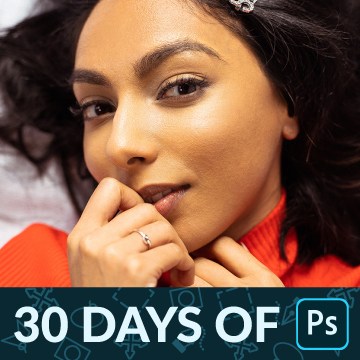
Day 24 of 30 Days of Photoshop! Learn how to use Frequency Separation to remove blemishes and smooth out skin tones, creating a cleaner image while preserving all the beautiful, natural details.
Sample Images & PSD Included
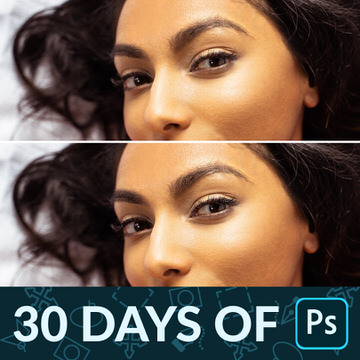
In Day 25 of 30 Days of Photoshop, learn how to add professional sharpening to any image, drawing more attention to the details that matter most.
Sample Images & PSD Included
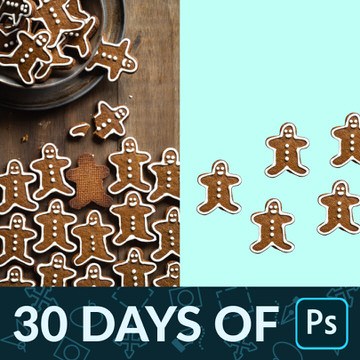
Day 26 of 30 Days of Photoshop! If you need a selection with clean lines, smooth curves, and unmatched accuracy, look no further than the Pen Tool; the best tool for cutting out objects from their background in Photoshop.
Sample Image Included
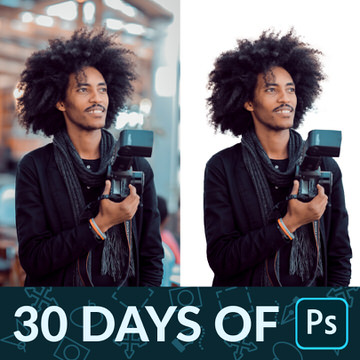
Day 27 of 30 Days of Photoshop! Cutting hair out from a background can be a major challenge. Use Select Subject and Select and Mask to make it easier than ever!
Sample Image Included
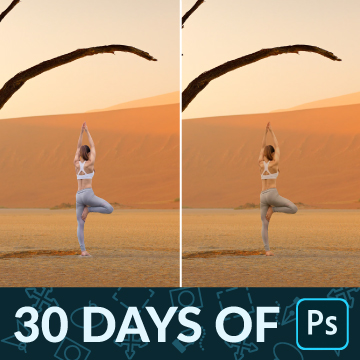
In Day 28 of 30 Days of Photoshop, learn how to perfectly match light, color, and contrast for a seamless composite photograph.
Sample Images Included

Day 29 of 30 Days of Photoshop! Recover beautiful details in clouds and trees as we edit a landscape image with Adobe Camera RAW and Photoshop.
Sample Image Included

Day 30 of 30 Days of Photoshop! When it comes to landscapes, the weather doesn’t always cooperate. Learn how to add more interest to a photo by swapping out the sky for one with more color and detail.
Sample Images Included