Photoshop & Lightroom Tools & Techniques Tutorials
Master the tools every edit is built on: layers, masks, adjustment layers, blend modes, Smart Objects, Camera Raw, and the Lightroom panels, plus sharpening, noise reduction, resizing, and perspective. More than 230 free and PRO video tutorials from Aaron Nace, organized from simple to advanced.
What You’ll Learn
Most Photoshop problems are really tool problems: the wrong selection tool, a mask that was never refined, a destructive edit that cannot be undone. This category teaches the tools themselves, then shows the same technique at simple, intermediate, and advanced levels so you can grow into it.
- Cutouts and selections. Select Subject, the Pen Tool, Channels, and Select and Mask, from a simple product cutout to hair, glass, and motion blur.
- Object removal. Simple, intermediate, and advanced removal with the Remove Tool, Content-Aware Fill, Clone Stamp, and painting by hand when AI gets it wrong.
- Non-destructive editing. Layers, layer masks, adjustment layers, Smart Objects, and Blend If, so every edit stays reversible.
- Backgrounds and studio cleanup. Changing, extending, and cleaning backgrounds, matching color between images, and restoring old photos.
- Graphics, text, and mockups. Logos, vector conversions, textures and overlays, title animations, and realistic product mockups.
Where to Start
Learn the tools in order with 30 Days of Photoshop, then use this category as a reference whenever a specific tool is the problem. The Essential Photoshop Skills collection is a shorter refresher, and the PRO course The Ultimate Guide to Smart Objects is the single most useful deep dive on this page.
Free and PRO Tutorials
Free tutorials are complete lessons, not previews. PRO tutorials go deeper and longer, and they include the sample images, RAW files, actions, and presets used in the lesson so you can follow along on the exact same file. A PHLEARN PRO membership unlocks every PRO tutorial on the site, including all of the ones in this category.
Frequently Asked Questions
Which selection tool should I use?
Start with Select Subject or Object Selection for anything with a clear edge, use the Pen Tool for hard geometric edges like products and architecture, and use Channels or Select and Mask for hair, fur, and transparency. The cutout tutorials here cover each case.
What is the difference between the Remove Tool and Content-Aware Fill?
The Remove Tool is a brush that samples intelligently as you paint and is best for small distractions. Content-Aware Fill works on a selection, gives you control over the sample area, and is better for large objects. Both are covered at simple, intermediate, and advanced levels.
Do I need to learn every tool?
No. About ten tools do most of the work in real-world editing, and they are the ones 30 Days of Photoshop covers. Learn those well, then pick up the rest from this category when a project calls for them.
Where to Go Next
Once the tools are comfortable, put them to work in Compositing and Retouching. The Photo Editing hub covers correction and color, and Workflow & Productivity covers the habits that make all of this faster.
Learn the Tools in Order
30 Days of Photoshop teaches the essential tools one short lesson at a time, in the order they build on each other.
On This Page
PHLEARN PRO
Every PRO tutorial in this category, with sample and RAW files, plus the full PRO library.

Customize the toolbar once and the tools you never use stop getting in the way. Hide them, regroup them, and keep the shortcuts you rely on.
Photoshop | Workflow & Productivity | Easy | 15 mins | 1 video
1 Sample Image | 1 PDF Guide
Adjustments vs adjustment layers comes down to one thing: whether you can change your mind later. One bakes the change in, the other stays live forever.
Photoshop | Tools & Techniques | Easy | 15 mins | 1 video
1 Sample Image | 1 Sample PSD | 1 PDF Guide

Color channels are three grayscale images stacked together. Read them properly and you get selections that no other tool in Photoshop can make for you.
Photoshop | Tools & Techniques | Easy | 30 mins | 1 video
2 Sample Images | 2 Sample PSDs | 1 PDF Guide

Lightroom Mobile is not a companion app. It is the same cloud library on a phone, with the same develop controls, and edits sync both ways automatically.
Lightroom | Tools & Techniques | Medium | 30 mins | 1 video
1 Sample RAW File
The Lightroom desktop app looks stripped back next to Classic, but very little is actually missing. Albums replace folders and the cloud does the filing.
Lightroom | Tools & Techniques | Medium | 30 mins | 1 video
3 Sample RAW Files
Adobe ships three programs called Lightroom. The real difference is where your photos live, not what the develop sliders can do. Learn which one fits you.
Lightroom | Tools & Techniques | Medium | 15 mins | 1 video
1 Sample RAW File

Denoise in Lightroom rewrote a twenty-year rule about ISO. It only works on raw, it makes a new DNG, and the amount slider matters more than you expect.
Lightroom | AI & Generative Tools | Medium | 15 mins | 1 video
1 Sample RAW File

RAW vs JPEG is usually explained badly. What matters is which decisions you can still change afterwards: white balance, recovery, and how far you can push.
Lightroom | Tools & Techniques | Medium | 15 mins | 1 video
1 Sample RAW File | 1 Sample JPEG
Cropping is the most underrated edit in photography. Deciding what to leave out matters more than anything you do to what stays in the frame.
Lightroom | Tools & Techniques | Medium | 15 mins | 1 video
1 Sample RAW File
The Basic panel is where almost every edit in Lightroom Classic happens. Read the histogram, work the tone sliders in order, then decide about Presence.
Lightroom | Tools & Techniques | Easy | 30 mins | 1 video
1 Sample RAW File
Day 1 of 30 Days of Lightroom Classic: what a catalog really is, how to import photos, the four import options, previews and copyright presets.
Lightroom | Tools & Techniques | Medium | 30 mins | 1 video
30 Sample Images

30 Days of Lightroom is a free 30-part course: catalogs, importing, culling, masking, retouching, color grading, exporting and the mobile app.
Lightroom | Tools & Techniques | Medium | 15 mins | 1 video
How to use Smart Objects in Photoshop: convert a layer, scale it without losing quality, build a composite, and swap the contents later without redoing the work.
Photoshop | Tools & Techniques | Medium | 15 mins | 1 video
9 Sample Images | 1 Sample PSD | 1 PDF Guide

Ready to start learning Photoshop but unsure where to start? This is the course for you! Master Aaron’s top 10 tools and techniques that will help you confidently tackle any Photoshop project.
Photoshop | Tools & Techniques | Medium | 4.25 hours
21 Sample PSDs | 36 Sample Images (JPEG) | 1 Sample Image (RAW)
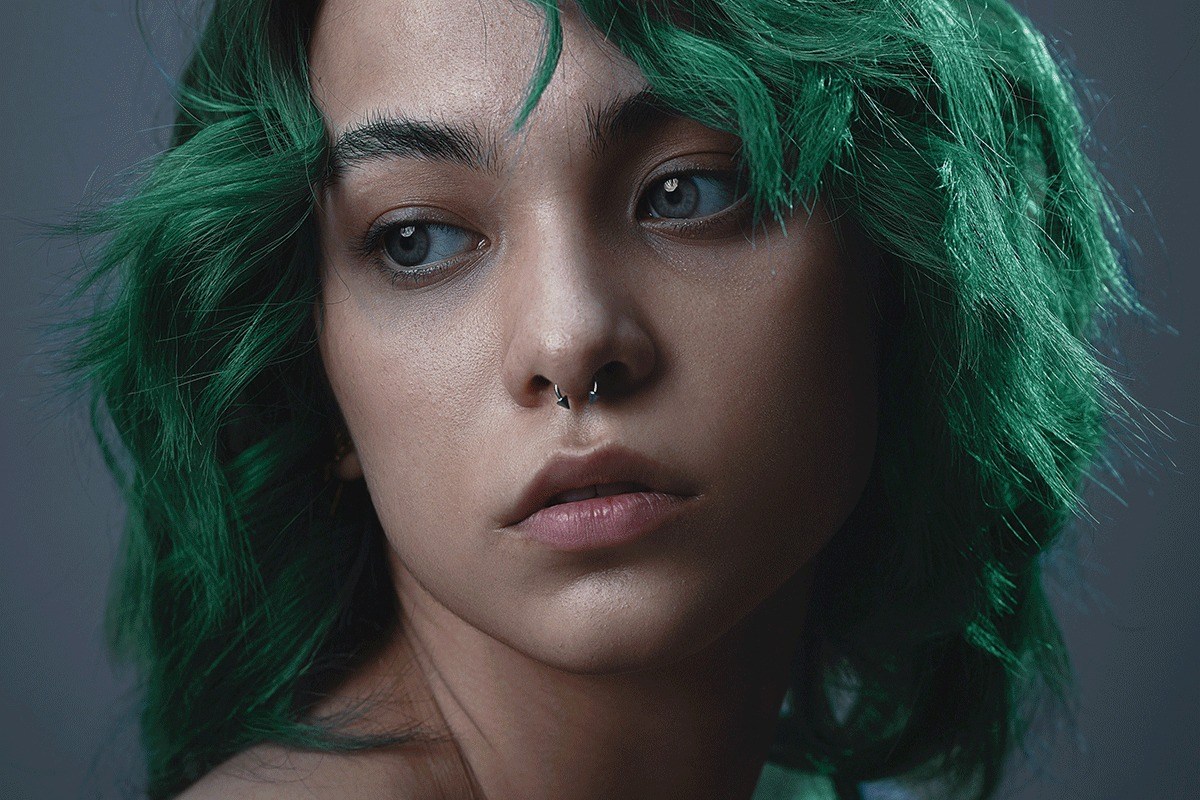
How to create and use layer masks in Photoshop: build a mask from a selection, refine the edge, copy it to another layer, unlink it, and mask a whole group.
Photoshop | Tools & Techniques | Medium | 15 mins | 1 video
2 Sample Images | 1 Sample PSD | 1 PDF Guide

How to straighten and expand a crop in Photoshop: level the horizon with the Crop and Straighten tools, then rebuild the empty corners with Generative Expand.
Photoshop | Tools & Techniques | Easy | 15 mins | 1 video
2 Sample Images | 2 Sample PSDs | 1 PDF Guide

How to sharpen images in Photoshop with High Pass: build a sharpening layer, stack passes for control, then paint the effect exactly where it belongs.
Photoshop | Tools & Techniques | Medium | 15 mins | 1 video
3 Sample Images | 3 Sample PSDs | 1 PDF Guide
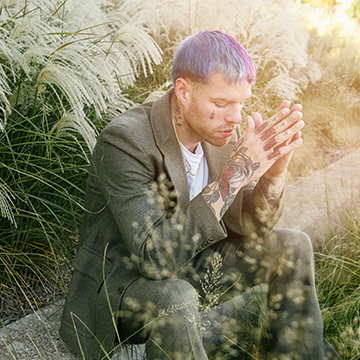
How to add a gradient in Photoshop three ways: deepen a flat sky, draw the eye to your subject with a radial gradient, and build a believable sun flare.
Photoshop | Tools & Techniques | Medium | 15 mins | 1 video
3 Sample Images | 3 Sample PSDs | 1 PDF Guide
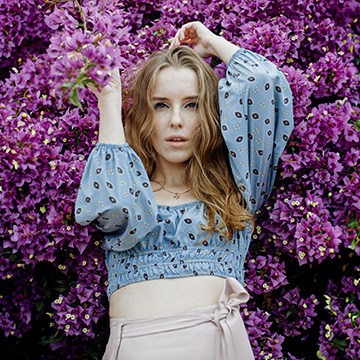
How to expand aspect ratios in Photoshop: set the Crop Tool to the ratio you need, position the frame, then let Generative Expand fill the new edges.
Photoshop | AI & Generative Tools | Easy | 15 mins | 1 video
2 Sample Images | 2 Sample PSDs | 1 PDF Guide

Blend If blends two images together based on brightness alone, no masking required. See it used three ways: adding bokeh to a portrait, compositing stars into a night sky, and coloring with a Gradient Map.
Photoshop | Tools & Techniques | Medium | 15 mins | 1 video
5 Sample Images | 3 Sample PSDs | 1 PDF Guide

Curves vs Levels in Photoshop: both set black, white and midtones, but only one gives you multiple points and an on-image adjustment tool. When to use each.
Photoshop | Tools & Techniques | Easy | 30 mins | 1 video
1 Sample Image | 1 Sample PSD | 1 PDF Guide

Generative Fill vs Clone Stamp vs Spot Healing Brush: what each one actually does to your pixels, where each fails, and which to reach for first.
Photoshop | Object Removal & Cleanup | Easy | 15 mins | 1 video
1 Sample Image | 1 Sample PSD | 1 PDF Guide
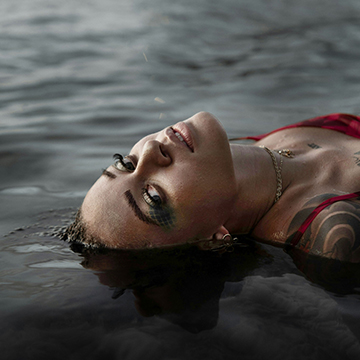
How to dodge and burn in Photoshop with Curves instead of the Dodge and Burn tools: one pass to even the light, a second to carve the highlights.
Photoshop | Retouching | Medium | 30 mins | 1 video
1 Sample Image | 1 Sample PSD | 1 PDF Guide
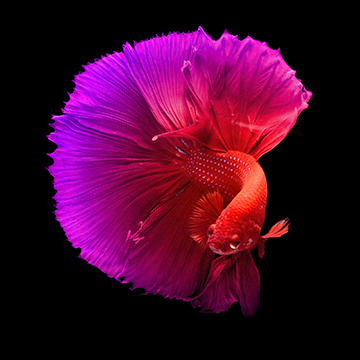
How to use the Adjustment Brush Tool in Photoshop: paint exposure, hue and saturation straight onto an image, use Apply to Object for automatic masking, and stack adjustments.
Photoshop | Tools & Techniques | Easy | 15 mins | 1 video
2 Sample Images | 2 Sample PSDs | 1 PDF Guide
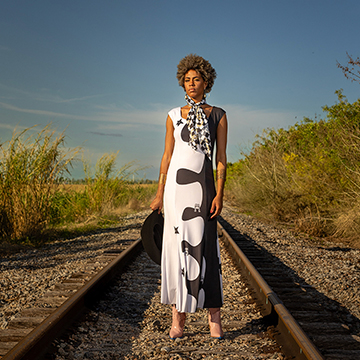
Transform your phone photos into pro-quality edits! This hands-on Lightroom Mobile tutorial teaches you how to import and master essential editing tools. We’ve even included both RAW & JPG files so you can follow along every step of the way!.
Lightroom | Tools & Techniques | Medium | 1.5 hours
7 RAW Files | 16 JPGs Files

How to use Adobe Camera Raw in Photoshop: convert to a Smart Object first, work the basic adjustments in a sensible order, then use the masking panel.
Photoshop | Tools & Techniques | Easy | 15 mins | 1 video
1 Sample Image | 1 Sample PSD | 1 PDF Guide
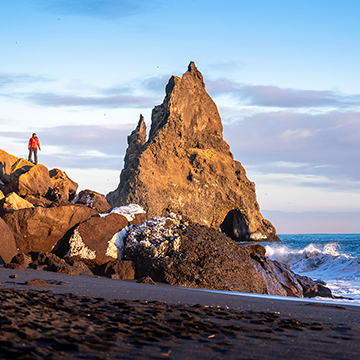
Dive into Adobe Camera Raw 2024! Learn how to fine-tune white balance for perfect colors, bring out hidden details in highlights and shadows, clean up imperfections, and more. Plus, send your pictures to Photoshop where you can use AI tools to fix even trickier problems, like removing objects and distractions.
Photoshop | Tools & Techniques | Medium | 2 hours
20 RAW Files

Photoshop Beta speeds up finding layers! “Hover Bounds” shows the layer under your cursor, on canvas and Layers panel. This tutorial covers masks, groups, and customization options.
Photoshop | Tools & Techniques | Easy | 15 mins | 1 video
2 Sample Images | 1 Sample PSD | 1 PDF Guide
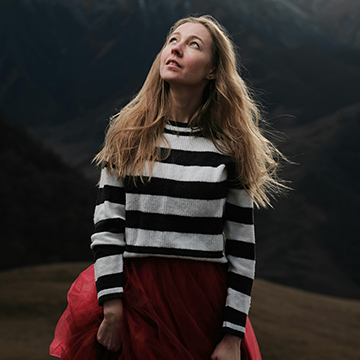
How to use the Adjustment Brush Tool in Photoshop Beta: where to find it, which adjustments it offers, built-in Select Subject, and the eyedropper for color ranges.
Photoshop | Tools & Techniques | Medium | 15 mins | 1 video
3 Sample Images | 3 Sample PSDs | 1 PDF Guide

How to adjust perspective in Photoshop: separate the subject, build a clean background, correct the perspective on that, then put the subject back.
Photoshop | Tools & Techniques | Easy | 30 mins | 1 video
3 Sample Images | 3 Sample PSDs | 1 PDF Guide

In this tutorial we’re going to walk you through the fantastic new features of the gradient tool. Discover the endless possibilities, including a variety of gradients, customizable colors, and the powerful gradient editor!
Photoshop | Tools & Techniques | Easy | 30 mins | 1 video
3 Sample Images | 1 PDF Guide