Photoshop & Lightroom Workflow Tutorials
Edit faster, stay organized, and stop redoing work. Workflow tutorials for Photoshop and Lightroom on culling, batch editing, presets and actions, Smart Objects, non-destructive editing, and exporting. More than 250 free and PRO video tutorials from Aaron Nace.
What You’ll Learn
Workflow is the difference between a great edit that took all night and a great edit that took twenty minutes. These tutorials are about the habits and tools that make editing repeatable: setting up files so changes are cheap, doing the same thing to a hundred photos at once, and knowing which program to do each job in.
- Non-destructive setup. Smart Objects, adjustment layers, masks, and Blend If, so a client change is a slider move instead of a redo.
- Lightroom for volume. Culling, syncing edits and masks across a shoot, presets, Denoise, and moving between Lightroom and Photoshop without losing anything.
- Automation. Actions, batch processing, LUTs, and the new AI tools that take the grunt work out of masking and clean-up.
- Organization and export. Naming, catalogs, color spaces, sharpening for output, and export settings for print, web, and social.
- Photoshop 2026 features. Object masking, the AI slider, Firefly, and the updated Remove Tool, with an honest verdict on which ones actually save time.
Where to Start
The Lightroom Editing & Workflow collection is the fastest way to speed up a whole shoot. In Photoshop, start with The Ultimate Guide to Smart Objects and the non-destructive editing tutorials, because everything else in this category depends on files that stay editable.
Free and PRO Tutorials
Free tutorials are complete lessons, not previews. PRO tutorials go deeper and longer, and they include the sample images, RAW files, actions, and presets used in the lesson so you can follow along on the exact same file. A PHLEARN PRO membership unlocks every PRO tutorial on the site, including all of the ones in this category.
Frequently Asked Questions
Should I edit in Lightroom or Photoshop?
Cull, correct, and batch in Lightroom; retouch, composite, and do anything that needs layers in Photoshop. Most professional workflows use both, and several tutorials here show the round trip.
What is non-destructive editing?
Editing in a way that never overwrites the original pixels: adjustment layers instead of direct adjustments, masks instead of erasing, Smart Objects instead of flattened filters. It costs nothing up front and saves hours when something changes.
Do actions and presets replace learning the tools?
No, but they multiply what you already know. An action is only as good as the technique inside it, which is why the workflow tutorials teach the manual version first and then show how to automate it.
Where to Go Next
Workflow supports everything else on the site. For the editing itself see Photo Editing and Retouching; for the tools in depth see Tools & Techniques; and for Lightroom-first editors, the Lightroom tutorials and presets.
Speed Up a Whole Shoot
The Lightroom Editing & Workflow collection shows how to cull, sync, and export a full session in one sitting.
On This Page
PHLEARN PRO
Every PRO tutorial in this category, with sample and RAW files, plus the full PRO library.
Master advanced masking and coloring across all Lightroom apps! This course covers mask logic, light balancing, and professional color grading, with Photoshop techniques included for those who need ultimate creative control.
Lightroom | Workflow | Medium | 3.75 hours
9 Sample Images
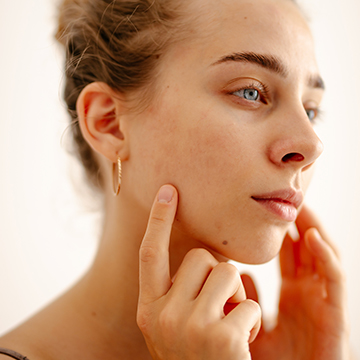
Master Lightroom Mobile’s AI Quick Actions to instantly clear skin. Use the new Blemishes tool and amount slider for professional, natural retouching results on the go.
Lightroom | Retouching | Easy | 15 mins | 1 video
1 Sample Image | 1 Sample PSD
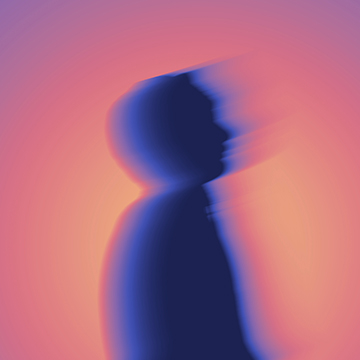
Learn how to create a vibrant and stylized glow effect in Photoshop! Master professional techniques for adding artistic motion, custom gradients, and cinematic color to your work.
Photoshop | Visual Effects | Medium | 15 mins | 1 video
2 Sample Images | 1 Sample PSD
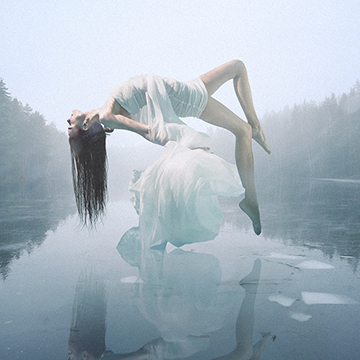
Discover the world of advanced compositing! Master manual lighting, masking, and color matching across four projects. This tutorial includes sample images, and even two exclusive brushes, so you can follow along!.
Photoshop | Compositing | Advanced | 3.25 hours
13 Sample Images | 2 Photoshop Brushes

Learn to use Adobe’s new AI Landscape Masking tool to automatically edit snow. This tutorial covers Lightroom and Photoshop workflows for professional, flexible landscape results in seconds. We’re even including a RAW file, so you can follow along.
Photoshop | Photo Editing | Easy | 15 mins | 1 video
1 Sample Image (RAW File)
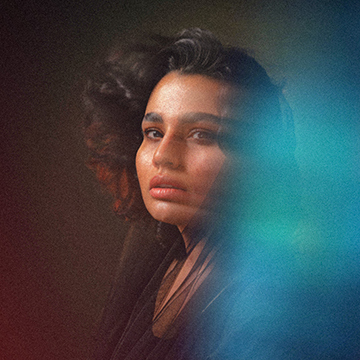
Learn how to create a stunning, colorful aura effect in Photoshop! Master vibrant glows, professional motion blurs, and texture blending to turn your portraits into beautiful edits.
Photoshop | Visual Effects | Medium | 15 mins | 1 video
8 Sample Images | 1 Sample PSD
Stop wasting AI credits!This tutorial reveals exactly which Photoshop and Lightroom AI tools cost credits, and which ones are totally free. We’ll even show you how to track your balance and expert strategies to maximize your monthly usage.
Photoshop, Lightroom | Photo Editing | Easy | 30 mins | 1 video
1 Sample Image | 1 Sample PSD
Master 2026’s Photoshop and Lightroom AI updates, from Harmonize to Assisted Culling we cover it all. This pro tutorial includes 30 practice images including 3 RAW files to perfect your workflow.
Photoshop, Lightroom | Photo Editing | Advanced | 2 hours
26 Sample Images (JPEG Files) | 3 Sample Images (RAW Files) | 8 Sample PSDs | 2 Sample Videos

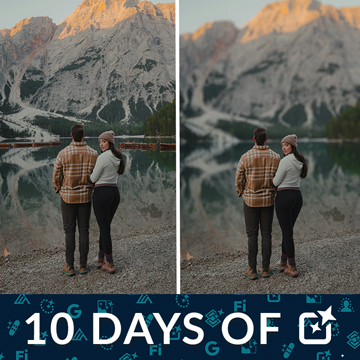
Denoise rescues high-ISO files and Lens Blur adds the depth your lens did not. Both are one slider away, and the skill is knowing how far to push them.
Lightroom | Photo Editing | Medium | 15 mins | 1 video
1 Sample Image (RAW File) | 2 Sample Images (JPEG File)

Build your masks once, then apply them to the whole shoot. Lightroom Synchronize brings background, subject and people masks across every frame.
Lightroom | Photo Editing | Medium | 15 mins | 1 video
4 Sample Images
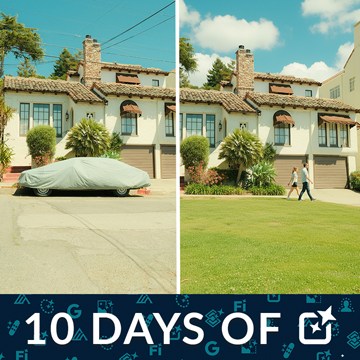
Nano Banana and FLUX Kontext Pro now run inside Generative Fill. One prompt, the whole canvas selected, and edits that used to take an hour.
Photoshop | Photo Editing | Medium | 15 mins | 1 video
4 Sample Images | 4 Sample PSDs

Harmonize matches a subject to a new background in one click, colour and light together. Then Generative Upscale enlarges the composite without it falling apart.
Photoshop | Photo Editing | Medium | 15 mins | 1 video
5 Sample Images | 3 Sample PSDs

Select Subject is one click. What makes it powerful is everything you can do with that selection afterwards, from relighting the person to replacing the background.
Photoshop | Photo Editing | Advanced | 15 mins | 1 video
4 Sample Images | 4 Sample PSDs
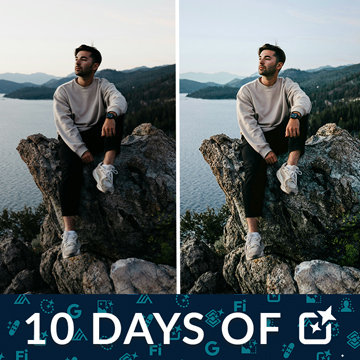
Camera Raw can find the subject, the sky and the background for you. Build precise masks in seconds, then adjust each region on its own terms.
Photoshop | Photo Editing | Advanced | 15 mins | 1 video
2 Sample Images | 2 Sample PSDs

Distractions come out three different ways in Photoshop. Use the Remove tool for the easy ones, Find Distractions for people and wires, and Generative Fill when neither will do.
Photoshop | Photo Editing | Medium | 15 mins | 1 video
4 Sample Images | 4 Sample PSDs

Photoshop can build what was never in the frame. Use Generative Expand to extend a photo past its edges, then zoom out and change the camera angle with a partner model.
Photoshop | Photo Editing | Medium | 15 mins | 1 video
3 Sample Images | 3 Sample PSDs


Discover the complete workflow for natural light portrait editing! Learn how to enhance sun glow, remove flare, fix underexposure, and master professional light sculpting using the latest tools. This tutorial includes 8 RAW files and a our exclusive Frequency Separation Action.
Photoshop | Photo Editing | Medium | 2.5 hours
8 Sample Images (RAW Files) | 1 Sample Image (JPEG File) | 7 Sample TIFFs | 1 Photoshop Action