Photoshop & Lightroom Tools & Techniques Tutorials
Master the tools every edit is built on: layers, masks, adjustment layers, blend modes, Smart Objects, Camera Raw, and the Lightroom panels, plus sharpening, noise reduction, resizing, and perspective. More than 230 free and PRO video tutorials from Aaron Nace, organized from simple to advanced.
What You’ll Learn
Most Photoshop problems are really tool problems: the wrong selection tool, a mask that was never refined, a destructive edit that cannot be undone. This category teaches the tools themselves, then shows the same technique at simple, intermediate, and advanced levels so you can grow into it.
- Cutouts and selections. Select Subject, the Pen Tool, Channels, and Select and Mask, from a simple product cutout to hair, glass, and motion blur.
- Object removal. Simple, intermediate, and advanced removal with the Remove Tool, Content-Aware Fill, Clone Stamp, and painting by hand when AI gets it wrong.
- Non-destructive editing. Layers, layer masks, adjustment layers, Smart Objects, and Blend If, so every edit stays reversible.
- Backgrounds and studio cleanup. Changing, extending, and cleaning backgrounds, matching color between images, and restoring old photos.
- Graphics, text, and mockups. Logos, vector conversions, textures and overlays, title animations, and realistic product mockups.
Where to Start
Learn the tools in order with 30 Days of Photoshop, then use this category as a reference whenever a specific tool is the problem. The Essential Photoshop Skills collection is a shorter refresher, and the PRO course The Ultimate Guide to Smart Objects is the single most useful deep dive on this page.
Free and PRO Tutorials
Free tutorials are complete lessons, not previews. PRO tutorials go deeper and longer, and they include the sample images, RAW files, actions, and presets used in the lesson so you can follow along on the exact same file. A PHLEARN PRO membership unlocks every PRO tutorial on the site, including all of the ones in this category.
Frequently Asked Questions
Which selection tool should I use?
Start with Select Subject or Object Selection for anything with a clear edge, use the Pen Tool for hard geometric edges like products and architecture, and use Channels or Select and Mask for hair, fur, and transparency. The cutout tutorials here cover each case.
What is the difference between the Remove Tool and Content-Aware Fill?
The Remove Tool is a brush that samples intelligently as you paint and is best for small distractions. Content-Aware Fill works on a selection, gives you control over the sample area, and is better for large objects. Both are covered at simple, intermediate, and advanced levels.
Do I need to learn every tool?
No. About ten tools do most of the work in real-world editing, and they are the ones 30 Days of Photoshop covers. Learn those well, then pick up the rest from this category when a project calls for them.
Where to Go Next
Once the tools are comfortable, put them to work in Compositing and Retouching. The Photo Editing hub covers correction and color, and Workflow & Productivity covers the habits that make all of this faster.
Learn the Tools in Order
30 Days of Photoshop teaches the essential tools one short lesson at a time, in the order they build on each other.
On This Page
PHLEARN PRO
Every PRO tutorial in this category, with sample and RAW files, plus the full PRO library.
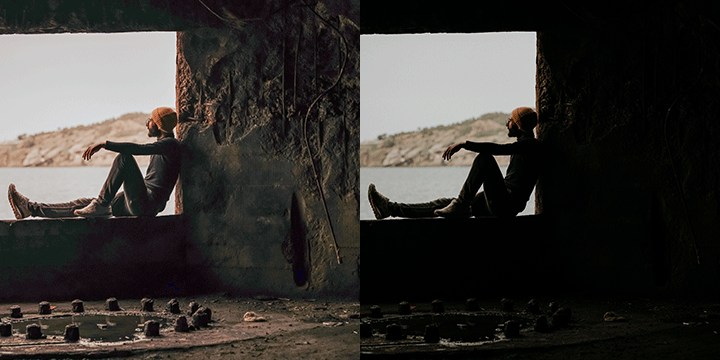
If you love Lightroom tools, you may be surprised to learn they are available in Photoshop!
Photoshop | Tools & Techniques | Easy | 15 mins | 1 video
1 Sample Image | 1 Sample PSD | 1 PDF Guide

Noisy photos? No problem! Join as we test a variety of noise reduction tools and programs.
Sample Images & PSD Included
Lightroom, Photoshop | Tools & Techniques | Easy | 15 mins | 1 video
7 Sample Images | 1 Sample PSD | 1 PDF Guide

Learn how to use the Super Resolution feature in Adobe Camera RAW and Photoshop 2021 to enhance the resolution of any image!
Sample Image Included
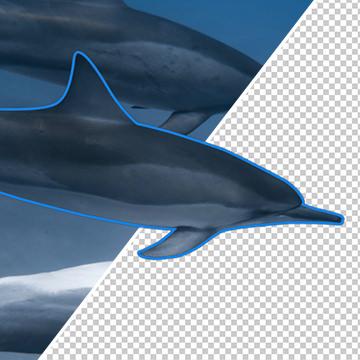
Learn how to create perfect selections and cutouts with the Pen Tool using some essential keyboard shortcuts!
Sample Images & PSD Included

Learn how quickly copy any Layer from one Document to another in Photoshop!
Sample Image Included
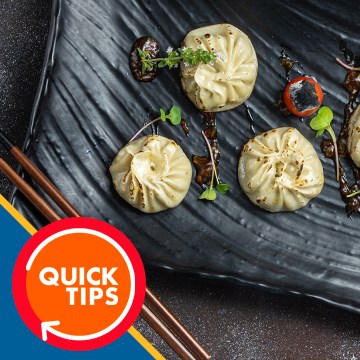
Learn how to flip an image horizontally and vertically in Photoshop.
Sample Image Included

Learn how to use the Elliptical Marquee Tool and Layer Masks to circle crop any image in Photoshop.
Sample Image Included
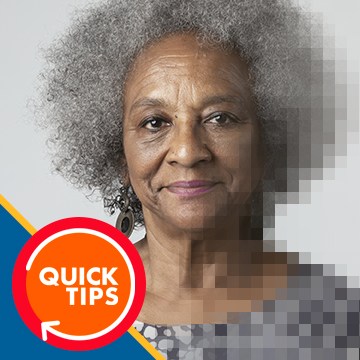
Learn how to use Smart Objects in Photoshop to resize an image without losing any quality or resolution.
Sample Image Included
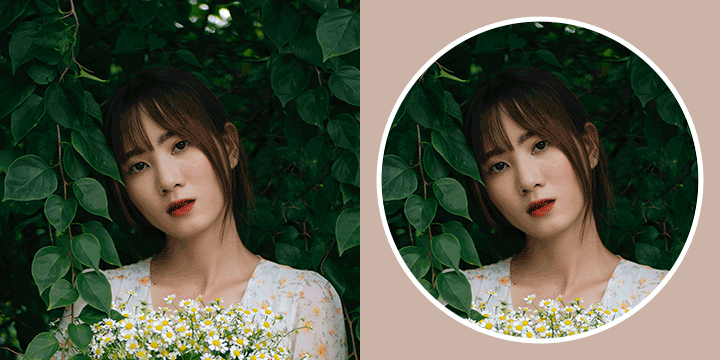
Layer Masks are an essential tool for any Photoshop artist. Follow along as we break down our top 10 tips for getting the most out of Layer Masks.
Sample Images Included
Photoshop | Tools & Techniques | Easy | 15 mins | 1 video
2 Sample Images | 1 PDF Guide
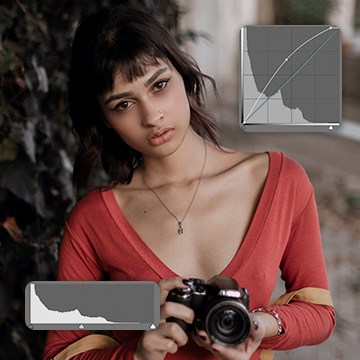
You need to fix exposure, correct colors, or add stylistic coloring to an image, but what tool should you use? Curves? Levels? What’s the difference anyway? Watch to find out!
Sample Image Included
Learn how to sharpen in both Lightroom and Photoshop! And best of all, we reveal our favorite sharpening method that provides the most flexibility, control, and a professional result.
Sample Image Included

Learn all of the photo editing tools Lightroom Classic offers to help you fix exposure, recover detail, correct colors, color tone, and much more!
Sample Images Included

Lighroom Classic is a powerful tool for photographers and image makers. Start learning the basics as we show you how to import and organize your photos within Lightroom and on your computer!
Sample Images Included
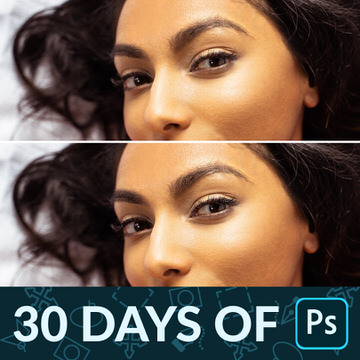
In Day 25 of 30 Days of Photoshop, learn how to add professional sharpening to any image, drawing more attention to the details that matter most.
Sample Images & PSD Included
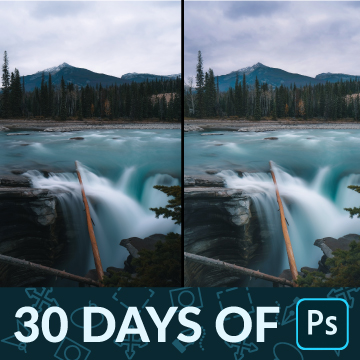
In Day 17 of 30 Days of Photoshop, we show you how to dodge and burn in Photoshop, recovering details and adding beautiful shape and dimension to your photos.
Sample Image Included

In Day 15 of 30 Days of Photoshop, we show you how to use Blending Modes to make a simple composite image, and then add some stylistic coloring to tie it all together.
Sample Images Included
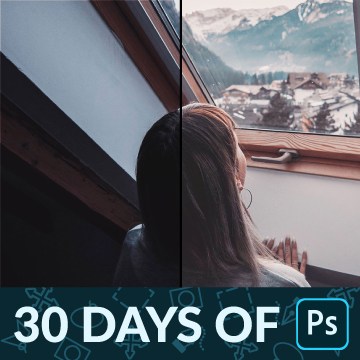
Day 14 of 30 Days of Photoshop! Blend If is Photoshop’s best kept secret. Learn how to use it to blend color and exposure effects into the highlights, midtones, and shadows of any Layer.
Sample Image Included

Day 11 of 30 Days of Photoshop! Learn how to use the Type Tool to add text to an image, change fonts and weights, and have the text interact with parts of a photo using Layer Masks.
Sample Image Included

Today is all about the Crop Tool! Learn how to crop, resize, and extend your images in Photoshop so that you can share them on the web and social media.
Sample Image Included
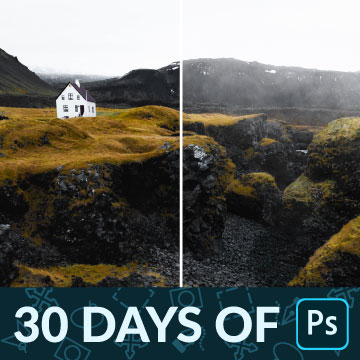
The Brush Tool is one of the most versatile tools in Photoshop! Learn how to use the Brush Tool to dodge and burn and add realistic fog to a photo.
Sample Image & Custom Brush Included
In Day 8 of 30 Days of Photoshop, we show you how to use all of the Transform options to scale, warp, rotate, flip, and align all the elements in a project.
Sample Images & PSD Included
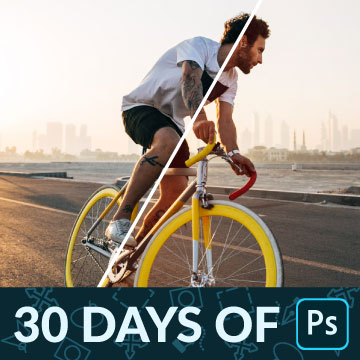
In Day 6 of 30 Days of Photoshop, learn how Levels and Curves can help you make detailed adjustments to both exposure and color in any photo.
Sample Image Included

Day 5 of 30 Days of Photoshop! Learn how to use selections to cut a person out from the background and to add effects to specific parts of a photo.
Sample Image Included
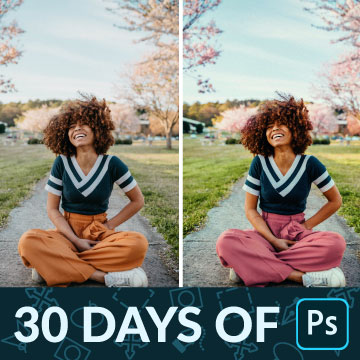
In Day 4 of 30 Days of Photoshop, we show you how to use Adjustment Layers to enhance colors, fix exposure, and even help with compositing!
Sample Images & PSD Included

In Day 13 of 30 Days of Photoshop, learn how Smart Objects can help you work non-destructively in Photoshop. Resize images without losing resolution and apply filters that can be changed or removed at any time.
Sample Images Included
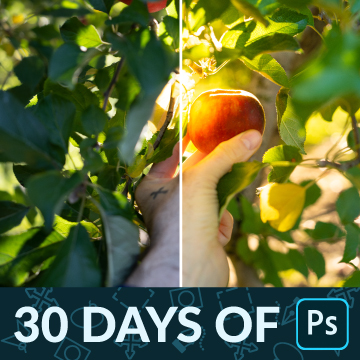
Day 19 of 30 Days of Photoshop! Learn how to use Adobe Camera RAW to edit the exposure and color of full 16-bit RAW images in Photoshop.
Sample Image Included
Layers and Masks are the foundation of working in Photoshop! Learn how to use Layers to add new elements to an image, change colors, and work non-destructively.
Sample Image & PSD
In Day 2 of 30 Days of Photoshop, learn how to open images, make edits and adjustments, and then save your work so you can share it with the world.
Sample Images & PSD Included
In Day 1 of 30 Days of Photoshop, we take you on a tour of the entire program. Learn where to find every tool, menu, and option in Adobe’s flagship software.
Sample Images & PSD Included

Now is the perfect time to learn Photoshop! Join us on a journey of the basics, master powerful tools and techniques, and even learn photo retouching and compositing.

Split Warp might be the best part of the Photoshop 2020 update! Learn how to make precise adjustments to the shape of anything in a photo with the new Warp Tool options.
Sample Images Included
Photoshop | Tools & Techniques | Easy | 15 mins | 1 video
2 Sample Images | 1 PDF Guide