
Photoshop & Lightroom Tutorials, Presets & Actions
1,264 free and PRO tutorials, plus Lightroom presets, Photoshop actions, brushes and LUTs. Filter by topic, software, skill level or downloads, or search for a tool or technique.
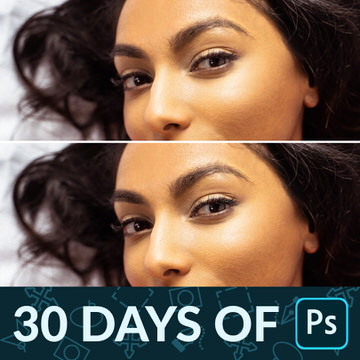
In Day 25 of 30 Days of Photoshop, learn how to add professional sharpening to any image, drawing more attention to the details that matter most.
Sample Images & PSD Included
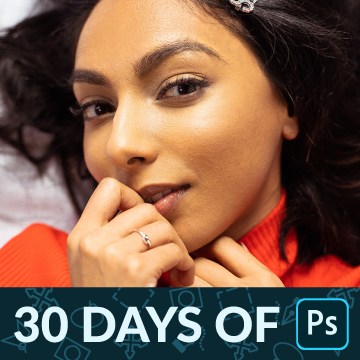
Day 24 of 30 Days of Photoshop! Learn how to use Frequency Separation to remove blemishes and smooth out skin tones, creating a cleaner image while preserving all the beautiful, natural details.
Sample Images & PSD Included
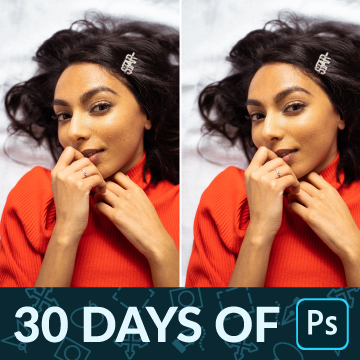
Day 23 of 30 Days of Photoshop! We all get them; small pimples and blemishes that are here today and gone tomorrow. Learn how to quickly remove them in Photoshop so that your subjects can look their best!
Sample Image
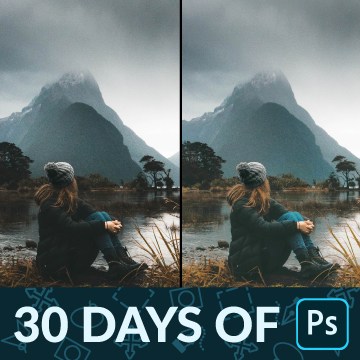
In Day 22 of 30 Days of Photoshop, we show you how to fix the exposure of any photo, recovering the details in dark shadows or blown-out highlights.
Sample Image Included

In Day 21 of 30 Days of Photoshop, we show you how to change the color of anything in a photo using Hue/Saturation Adjustment Layers.
Sample Image Included

In Day 20 of 30 Days of Photoshop, we show you how to add stylistic coloring into the highlights and shadows of any image.
Sample Image Included
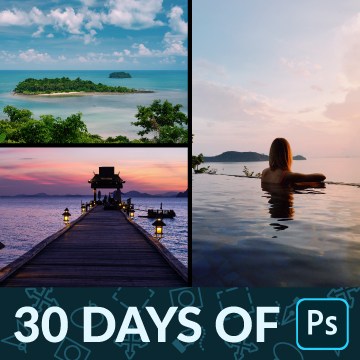
In Day 18 of 30 Days of Photoshop, we show you how to use Smart Objects to make a beautiful photo collage to celebrate any occasion.
Sample Images Included
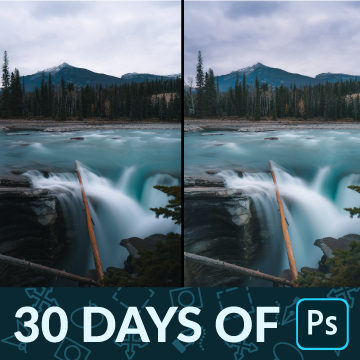
In Day 17 of 30 Days of Photoshop, we show you how to dodge and burn in Photoshop, recovering details and adding beautiful shape and dimension to your photos.
Sample Image Included

Day 16 of 30 Days of Photoshop! Learn how to use the Spot Healing Brush and the Clone Stamp Tool to seamlessly remove objects and distractions from any photo.
Sample Image Included

In Day 15 of 30 Days of Photoshop, we show you how to use Blending Modes to make a simple composite image, and then add some stylistic coloring to tie it all together.
Sample Images Included
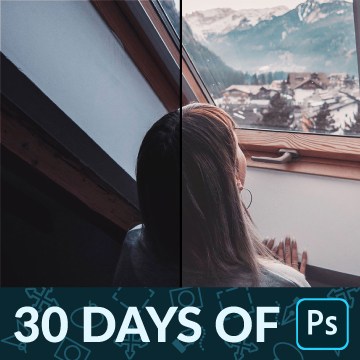
Day 14 of 30 Days of Photoshop! Blend If is Photoshop’s best kept secret. Learn how to use it to blend color and exposure effects into the highlights, midtones, and shadows of any Layer.
Sample Image Included

In Day 12 of 30 Days of Photoshop, learn how to use the Liquify Tool to change the shape of clothing, add volume to hair, and protect areas you don’t want to be warped, like the face and body.
Sample Image Included

Day 11 of 30 Days of Photoshop! Learn how to use the Type Tool to add text to an image, change fonts and weights, and have the text interact with parts of a photo using Layer Masks.
Sample Image Included

Today is all about the Crop Tool! Learn how to crop, resize, and extend your images in Photoshop so that you can share them on the web and social media.
Sample Image Included
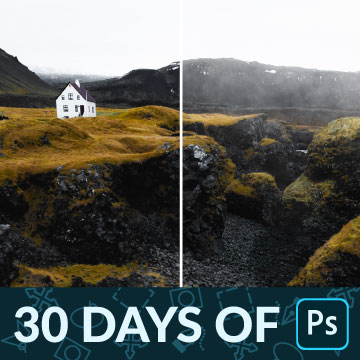
The Brush Tool is one of the most versatile tools in Photoshop! Learn how to use the Brush Tool to dodge and burn and add realistic fog to a photo.
Sample Image & Custom Brush Included
In Day 8 of 30 Days of Photoshop, we show you how to use all of the Transform options to scale, warp, rotate, flip, and align all the elements in a project.
Sample Images & PSD Included

Learn how to make clothing and fabric look amazing in Photoshop. Remove wrinkles, change color, recover details, add shape and definition, and much more!
Photoshop | Retouching | Medium | 2.5 hours
13 Sample Images | 1 Sample PSD | 1 Photoshop Action

Day 7 of 30 Days of Photoshop! Learn how to use Hue/Saturation Adjustment Layers to target and change the color of anything in a photo.
Sample Images Included
In Day 6 of 30 Days of Photoshop, learn how Levels and Curves can help you make detailed adjustments to both exposure and color in any photo.
Sample Image Included

Day 5 of 30 Days of Photoshop! Learn how to use selections to cut a person out from the background and to add effects to specific parts of a photo.
Sample Image Included
In Day 4 of 30 Days of Photoshop, we show you how to use Adjustment Layers to enhance colors, fix exposure, and even help with compositing!
Sample Images & PSD Included

Make your landscapes more impactful with the tools and techniques in Adobe Camera RAW and Photoshop. Fix exposure, correct color, add lighting effects, and more!
Sample RAW Image Included
Photoshop | Photo Editing | Easy | 30 mins | 1 video
1 Sample RAW File | 1 PDF Guide

In Day 13 of 30 Days of Photoshop, learn how Smart Objects can help you work non-destructively in Photoshop. Resize images without losing resolution and apply filters that can be changed or removed at any time.
Sample Images Included
Day 19 of 30 Days of Photoshop! Learn how to use Adobe Camera RAW to edit the exposure and color of full 16-bit RAW images in Photoshop.
Sample Image Included
Layers and Masks are the foundation of working in Photoshop! Learn how to use Layers to add new elements to an image, change colors, and work non-destructively.
Sample Image & PSD
In Day 2 of 30 Days of Photoshop, learn how to open images, make edits and adjustments, and then save your work so you can share it with the world.
Sample Images & PSD Included
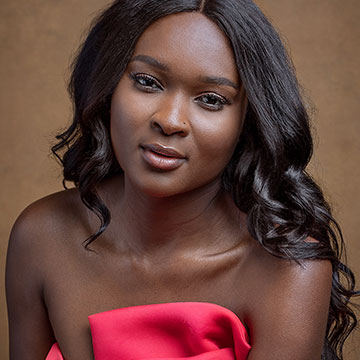
Your time is valuable! Learn how to retouch a portrait quickly and efficiently as we take you through every step of the professional’s workflow. And all in under an hour!
Photoshop | Retouching | Medium | 1 hours
1 RAW Sample Image | 1 Sample PSD | 2 Photoshop Actions
In Day 1 of 30 Days of Photoshop, we take you on a tour of the entire program. Learn where to find every tool, menu, and option in Adobe’s flagship software.
Sample Images & PSD Included

Now is the perfect time to learn Photoshop! Join us on a journey of the basics, master powerful tools and techniques, and even learn photo retouching and compositing.

Aaron sits down with wilderness landscape photographer Josh Cripps as he shares 10 tips to help us improve our landscape photos!
Guest Interview
Photo Editing | Easy | 30 mins | 1 video
1 PDF Guide
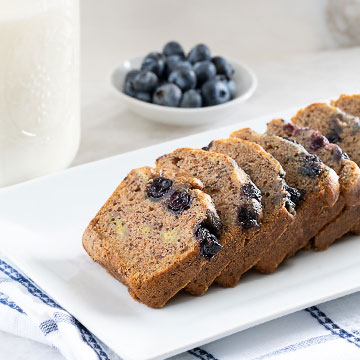
From websites, to Grubhub, to Instagram, food photography is everywhere. Learn how to work with a client, how to photograph food using lighting and styling techniques, and how to bring it all together with retouching in Photoshop.
Lightroom, Photoshop | Photography & Lighting | Medium | 4.75 hours
45 Sample Images | 1 Photoshop Action
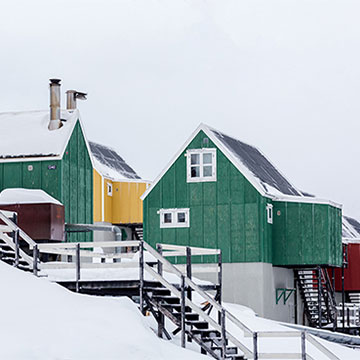
Content-Aware is more flexible than ever! See the new additions to Content-Aware in Photoshop 2020, and how it performs on both simple and more complex object removal.
Sample Images Included
Photoshop | Object Removal & Cleanup | Easy | 15 mins | 1 video
2 Sample Images | 1 PDF Guide
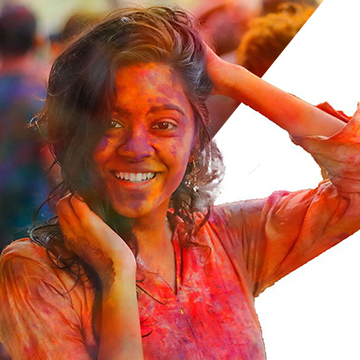
Learn about the new Object Selection Tool in Adobe Photoshop 2020! Can we really get clean cutouts of our subjects in just a few clicks? Watch and find out!
Sample Images Included
Photoshop | Selections & Masking | Easy | 15 mins | 1 video
3 Sample Images | 1 PDF Guide

Split Warp might be the best part of the Photoshop 2020 update! Learn how to make precise adjustments to the shape of anything in a photo with the new Warp Tool options.
Sample Images Included
Photoshop | Tools & Techniques | Easy | 15 mins | 1 video
2 Sample Images | 1 PDF Guide
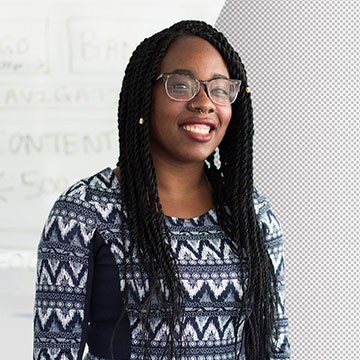
Learn about the new Select Subject Tool in Photoshop CC 2020 and how it can help you make accurate selections of your subjects in just a few clicks!
Sample Images Included
Photoshop | Selections & Masking | Easy | 15 mins | 1 video
3 Sample Images | 1 PDF Guide

Easy app and website mockups in Photoshop! Learn how to use Smart Objects and the Place Linked function to work non-destructively, and make quick edits to a design!
Sample Images & PSD Included
Photoshop | Text & Graphic Design | Easy | 15 mins | 1 video
Sample Images | Sample PSDs