
Photo Effects Tutorials for Photoshop
Add light, atmosphere, and style to any photo in Photoshop: glows, light rays, lens flares, motion blur, textures, double exposures, film and vintage looks, glitch and painterly effects, and other visual effects. More than 180 free and PRO video tutorials from Aaron Nace, each building a complete effect from scratch.

The Smudge Tool essentially pushes pixels around in your image. Although it is not the most practical tool, there are some artistic applications.
Photoshop | Tools & Techniques | Easy
1 Sample Image

Easily one of Aaron’s favorite tools in Photoshop! The Brush Tool can be one of the most powerful and versatile tools, capable of retouching, compositing, and stunning special effects.
Photoshop | Tools & Techniques | Medium
1 Sample Image

In today’s episode we will show you how to use the new blur gallery in Photoshop cc 2014.
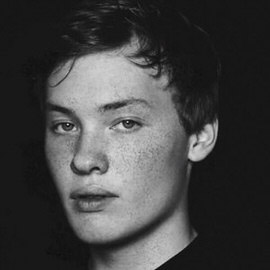
In order to make freckles look real when applied in Photoshop we have to start with a Texture that is organic and random. In this episode we will show you how to create freckles in Photoshop using a photo of granite as our base for creating freckles.
Sample Images Included
Photoshop | Retouching | Easy | 30 mins | 1 video
1 Photoshop Brush

In How to Make Beer Look Amazing in Photoshop (Part 2) we show you how to take a normal photo of a Guinness and make it really stand out.
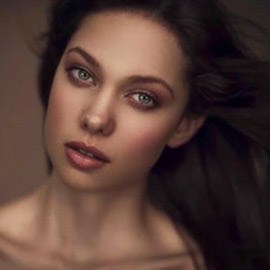
In this episode we are creating a cracked skin effect in Photoshop, making it look more three-dimensional and adding blur. Be sure to check out Part 1 where you will learn how to wrap the Texture around a subject’s Face.
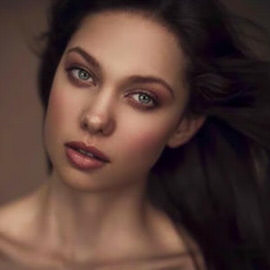
Our goal is to take a flat image and make it look like it wraps around the subject’s Face and blend the images together to make the effect realistic. This part one of two episodes teaching how to make cracked Skin in Photoshop.

In this episode we show you how to master the motion blur in Photoshop using these techniques and give some Insights on how to make Motion Blurs look real.
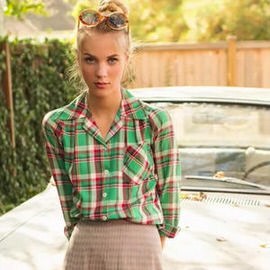
You can turn anything into a Pattern in Photoshop using the Define Pattern command. It will take whatever is visible on a canvas and turn it into a repeatable pattern stored on the computer.
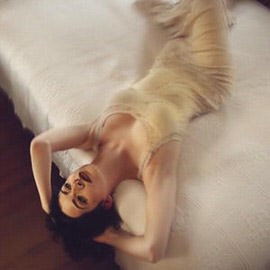
In this episode we cover a special technique we created to help blur the edges of a photo while keeping your subject in focus. Prepare to learn about drawing attention to your subject using radial focus blur!
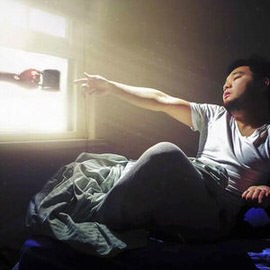
In today’s episode we learn how to create Light rays and dust particles using a custom Brush in Photoshop. The key to creating “dust” is to make particles that seem completely random.
Sample Images Included
Photoshop | Photo Effects | Easy | 15 mins | 1 video
1 Photoshop Brush
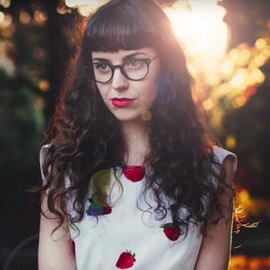
In this episode we show you how to unlock the secrets to the Lens Flare in Photoshop, getting around the limitation of the Filter.
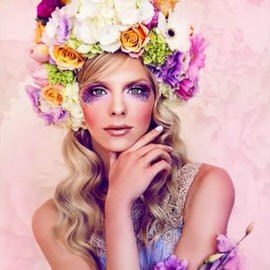
Sometimes you find yourself wanting to add some interest to a backdrop in Photoshop and this episode is perfect for showing you how it is done. There are many ways to add interest to a Background, but this is one of the simplest and most effective.
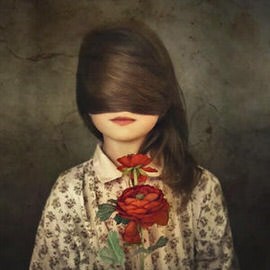
Learn a Simple Technique for adding textures to your images. We are using multiple textures combined together to create the final effect.
Sample Images Included
Photoshop | Photo Effects | Easy | 15 mins | 1 video
6 Sample Images

In Part II of this tutorial we show you how to put the splatter Brush (created in Part 1) to good use.

In this episode we teach you how to use the Pen Tool to cut your subject out of their Background. The Pen Tool is a vital part of Photoshop and is used to create accurate selections.
Sample Images Included
Photoshop | Photo Effects | Easy | 15 mins | 1 video
1 Photoshop Brush
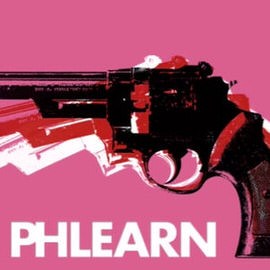
Today we focus on POP ART! Aaron hops into Photoshop to create a Pop Art style graphic out of an image of a gun.

In today’s episode we continue creating the pop art image by filling in the Black and White Outline with Color.

We are going behind the scenes on our Pop Art shoot, and sharing some Insights on how to create this stylized image in a fun way.
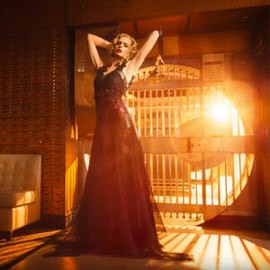
This tutorial is perfect for those images that have a strong backlight, such as when you are shooting into the sun. We show you how to enhance a lens flare and create lighting effects that will make your image more interesting.
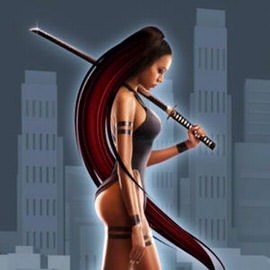
In today’s episode we show you how to add layer FX to duplicates of a layer. The reason we use duplicates is to stack multiple effects.

Learning how to create custom Brushes in Photoshop is a skill that will benefit many images. In this tutorial, we show you how to make a selection around a bird and promote it onto a new document in order to create the Brush.
Sample Images Included
Photoshop | Photo Effects | Easy | 15 mins | 1 video
1 Custom Brush

There are many ways to make an image Black and White in Photoshop. In most cases you will be best off using the “Black and White” Adjustment Layer.
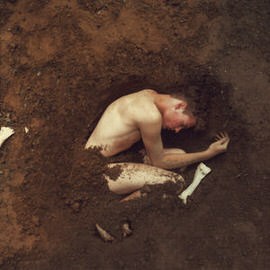
In today’s episode we create a custom Brush that looks like dirt and show you how to configure it perfectly. We then save the Brush and load it into the Clone Stamp tool to finish the job. The resulting effect is seamless and fun!

Today we are using an image from our latest Halloween contest to show you how to add Color to enhance the overall feel of an image.
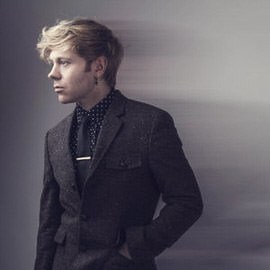
This started as an incredible image by Daniel. We noticed just a couple small improvements that could really help to give it the magazine feel. We’re just going to add a touch of Style and refinement.
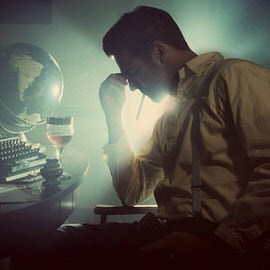
In this episode we show you how to create a custom Brush that creates dust anywhere you want it. All you have to do it paint over the area you would like the dust and erase the rest!
Sample Images Included
Photoshop | Photo Effects | Easy | 15 mins | 1 video
1 Photoshop Brush
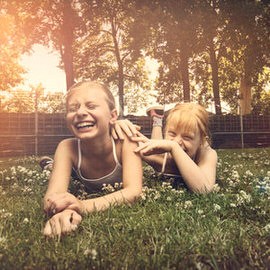
In this tutorial you will learn methods for adding a Lens Flare and atmosphere as well as adding interesting Colors that complete the effect.
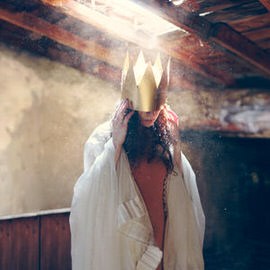
In this episode we cover everything you know to create custom brushes from scratch as well as use them to enhance your images!

We noticed that this image by phamily member Quintino has a cool Light trail that resembles a heart monitor’s pulse. It made us think, how could we add more of these to the image?
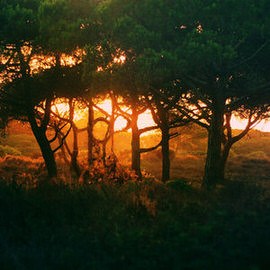
Today we’re going to be making the branches in this image look like the word “hope”.
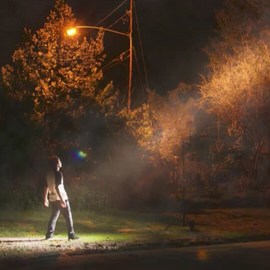
Here is some great Insight on creating beams of light in Photoshop. Check it out.
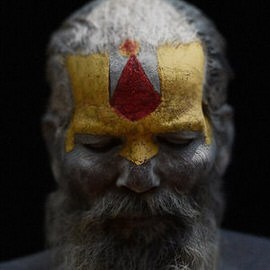
Learn how to create a shallow depth of field effect in Photoshop.
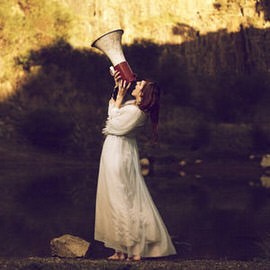
Even great photos can usually be improved in Photoshop. There are some things that simply can’t be controlled during a photoshoot that end up being distractions in the final image. Let’s take a look at correcting them.

By duplicating the layer and using a Layer Mask, we extend the wall up, but the projector still needs some work.

Today we’re editing an amazing self portrait by Amelia Fletcher.
What You’ll Learn
Good visual effects are built from the same things a photographer works with on set: light, atmosphere, and depth. These tutorials teach the effects as lighting and physics first and Photoshop tricks second, which is why they hold up at full size.
- Light. Glows, highlight bloom, light rays, sun flares, neon, and painting light onto a subject so it matches the scene.
- Atmosphere. Fog, haze, rain, snow, dust, smoke, and depth of field, layered so the subject sits inside them rather than in front of them.
- Elements. Fire, water, lightning, sparks, and particles from stock and from scratch, with the blend modes and masks that make them believable.
- Stylized effects. Double exposure, dispersion and pixel stretch, portrait slice, glitch, 3D and long-shadow text, and film and vintage looks.
- The finish. Grain, vignette, color grading, and sharpening that make an effect feel like part of the photograph.
Where to Start
Begin with the Special Effects Learning Path, which sequences the fundamentals of light and atmosphere before the showpiece effects. For the deep dive, the PRO course Advanced Lighting Effects in Photoshop is the one most people come back to. Many effects here start with a clean cutout, so the selection tutorials in Tools & Techniques are worth a look first.
Free and PRO Tutorials
Free tutorials are complete lessons, not previews. PRO tutorials go deeper and longer, and they include the sample images, RAW files, actions, and presets used in the lesson so you can follow along on the exact same file. A PHLEARN PRO membership unlocks every PRO tutorial on the site, including all of the ones in this category.
Frequently Asked Questions
Why do my effects look pasted on?
Usually because the effect ignores the light already in the photo. Match the direction and color of the existing light, add the effect on its own layer with a soft mask, and let it interact with the subject through blend modes like Screen and Soft Light. The light tutorials here show each step.
Do I need plugins or stock images?
No plugins. A few tutorials use free stock elements for fire, smoke, or particles and show where to find them; most build the effect entirely inside Photoshop with brushes, gradients, and filters.
Which blend modes are used for effects?
Screen and Linear Dodge for light, Multiply for shadows and darkening, Soft Light and Overlay for contrast and color, and Blend If for fitting an effect into the tones of a photo. The blend-mode tutorials in this category explain each.
Where to Go Next
Visual effects sit on top of a solid edit and often a composite. See Compositing for placing subjects in scenes, Color & Tone for the cinematic finish, and Text & Graphic Design for painterly and illustrative looks. The PRO library is at PRO Visual Effects.
Learn Effects in Order
The Special Effects Learning Path teaches light and atmosphere first, then the showpiece effects.
On This Page
PHLEARN PRO
Every PRO tutorial in this category, with sample and RAW files, plus the full PRO library.