Photoshop & Lightroom Workflow Tutorials
Edit faster, stay organized, and stop redoing work. Workflow tutorials for Photoshop and Lightroom on culling, batch editing, presets and actions, Smart Objects, non-destructive editing, and exporting. More than 250 free and PRO video tutorials from Aaron Nace.
What You’ll Learn
Workflow is the difference between a great edit that took all night and a great edit that took twenty minutes. These tutorials are about the habits and tools that make editing repeatable: setting up files so changes are cheap, doing the same thing to a hundred photos at once, and knowing which program to do each job in.
- Non-destructive setup. Smart Objects, adjustment layers, masks, and Blend If, so a client change is a slider move instead of a redo.
- Lightroom for volume. Culling, syncing edits and masks across a shoot, presets, Denoise, and moving between Lightroom and Photoshop without losing anything.
- Automation. Actions, batch processing, LUTs, and the new AI tools that take the grunt work out of masking and clean-up.
- Organization and export. Naming, catalogs, color spaces, sharpening for output, and export settings for print, web, and social.
- Photoshop 2026 features. Object masking, the AI slider, Firefly, and the updated Remove Tool, with an honest verdict on which ones actually save time.
Where to Start
The Lightroom Editing & Workflow collection is the fastest way to speed up a whole shoot. In Photoshop, start with The Ultimate Guide to Smart Objects and the non-destructive editing tutorials, because everything else in this category depends on files that stay editable.
Free and PRO Tutorials
Free tutorials are complete lessons, not previews. PRO tutorials go deeper and longer, and they include the sample images, RAW files, actions, and presets used in the lesson so you can follow along on the exact same file. A PHLEARN PRO membership unlocks every PRO tutorial on the site, including all of the ones in this category.
Frequently Asked Questions
Should I edit in Lightroom or Photoshop?
Cull, correct, and batch in Lightroom; retouch, composite, and do anything that needs layers in Photoshop. Most professional workflows use both, and several tutorials here show the round trip.
What is non-destructive editing?
Editing in a way that never overwrites the original pixels: adjustment layers instead of direct adjustments, masks instead of erasing, Smart Objects instead of flattened filters. It costs nothing up front and saves hours when something changes.
Do actions and presets replace learning the tools?
No, but they multiply what you already know. An action is only as good as the technique inside it, which is why the workflow tutorials teach the manual version first and then show how to automate it.
Where to Go Next
Workflow supports everything else on the site. For the editing itself see Photo Editing and Retouching; for the tools in depth see Tools & Techniques; and for Lightroom-first editors, the Lightroom tutorials and presets.
Speed Up a Whole Shoot
The Lightroom Editing & Workflow collection shows how to cull, sync, and export a full session in one sitting.
On This Page
PHLEARN PRO
Every PRO tutorial in this category, with sample and RAW files, plus the full PRO library.
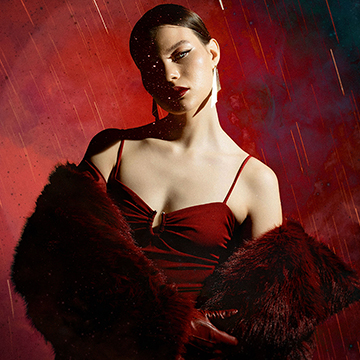
Explore Photoshop Blending Modes to easily create conceptual portraits in Photoshop! We’ll show you how to add texture and light, craft double exposures, and build captivating composites in no time. We’re even including a handy Blending Modes PDF guide to help you get started!.
Photoshop | Compositing | Medium | 2.25 hours
22 Sample Images | 7 Sample PSDs | 1 Blending Modes PDF Guide
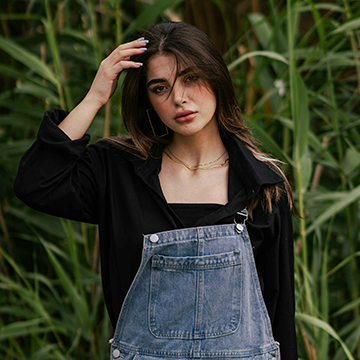
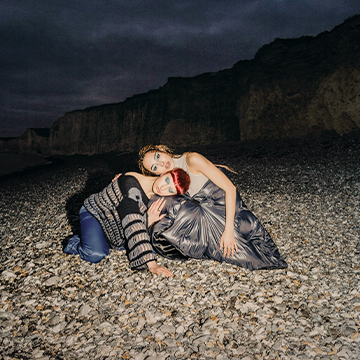
Learn to fix image color and exposure in Photoshop using the Camera Raw Filter! We’ll teach you how to use masking for non-destructive, targeted adjustments like localized warmth and vignetting.
Photoshop | Photo Editing | Medium | 15 mins | 1 video
1 Sample Image | 1 Sample PSD
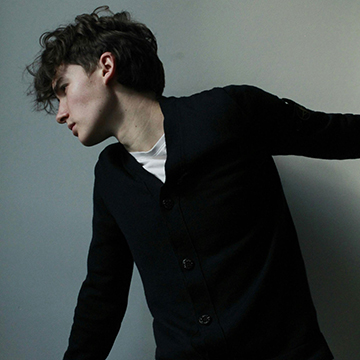
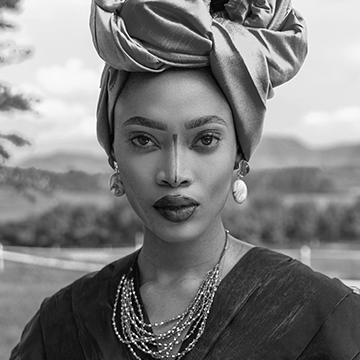

Photoshop Beta’s biggest AI upgrade is here! Learn to use Gemini 2.5 Nano Banana and Flux Context Pro with single text prompts for simultaneous complex image edits and advanced artistic changes.
Photoshop | Photo Editing | Medium | 30 mins | 1 video
8 Sample Images | 8 Sample PSDs
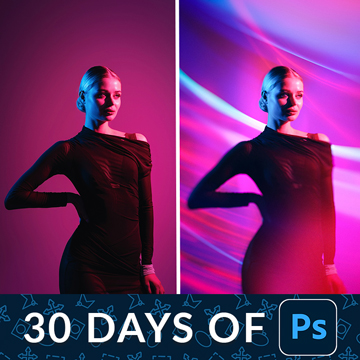
Welcome to the final episode of our series! Today we’ll show you how to use blending modes and smart objects to create dynamic, artistic light effects that look in-camera.
Photoshop | Compositing | Advanced | 30 mins | 1 video
7 Sample Images | 1 Sample PSD
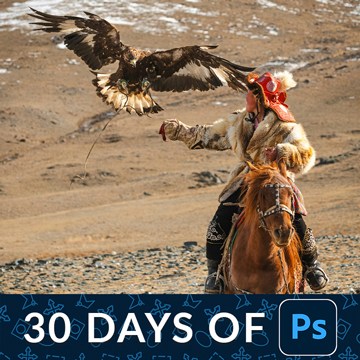
It’s day 29! Today, we’re diving into the differences between Lightroom and Photoshop. Use Lightroom for organizing and batch editing large sets of photos, and use Photoshop for detailed retouching, composites, and graphics on a single image.
Photoshop | Workflow | Advanced | 30 mins | 1 video
22 Sample Images | 1 Sample PSD


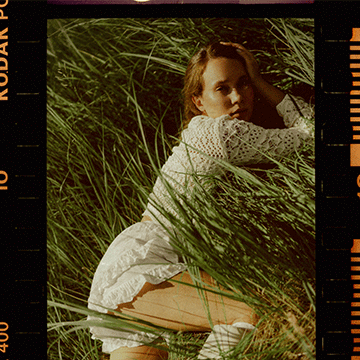
Master cinematic and film effects in Photoshop, Lightroom, and Adobe Camera Raw! Learn to add authentic grain, light leaks, and borders for stunning, artistic digital photos. Follow along easily with over 40 images, 27 textures, and 2 Lightroom presets included in the download.
Photoshop | Visual Effects | Advanced | 4.25 hours
42 Sample Images | 16 Sample PSDs | 27 Textures | 2 Lightroom Presets
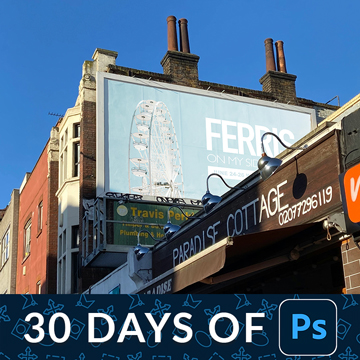
Learn to create a realistic Photoshop mockup using the Remove Tool, Smart Objects for perspective, and adding highlights and shadows for a lifelike image.
Photoshop | Photo Editing | Advanced | 15 mins | 1 video
2 Sample Images | 1 Sample PSD

Get amazing colors for your photos! Learn a simple trick to match colors from one picture to another using a powerful tool in Photoshop. It’s easy, fast, and a huge upgrade for your work.
Photoshop | Photo Editing | Advanced | 30 mins | 1 video
2 Sample Images | 1 Sample PSD
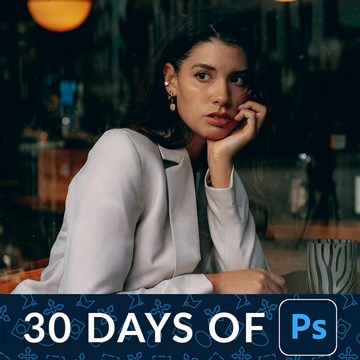
It’s day 24! Learn advanced Photoshop retouching using the Remove Tool and frequency separation. Make sure to download our free action to even out skin tone!
Photoshop | Retouching | Advanced | 15 mins | 1 video
1 Sample Image | 1 Sample PSD | 1 Photoshop Action
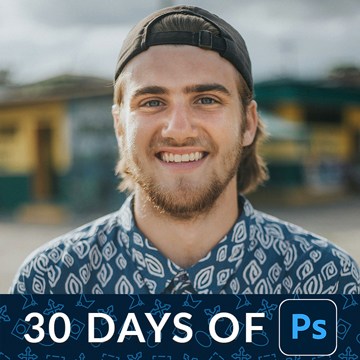
In Day 23 of 30 Days of Photoshop, we’ll teach you the basics of retouching! Learn how to remove blemishes and smooth out skin tones, creating a cleaner image while preserving all the beautiful, natural details.
Photoshop | Retouching | Medium | 30 mins | 1 video
1 Sample Image | 1 Sample PSD
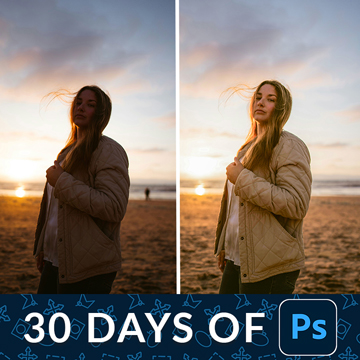
In Day 22 of 30 Days of Photoshop, we show you how to fix the exposure of any photo, recovering the details in dark shadows or blown-out highlights.
Photoshop | Photo Editing | Medium | 15 mins | 1 video
1 Sample Image | 1 Sample PSD

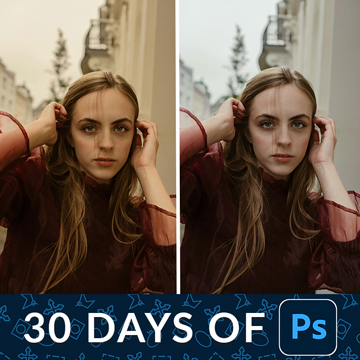
It’s day 20! Learn how to color correct photos in Photoshop using the Camera Raw filter’s White Balance tool or handy Auto feature to fix JPEGs and raw files.
Photoshop | Photo Editing | Medium | 15 mins | 1 video
1 Sample Image | 1 Sample PSD
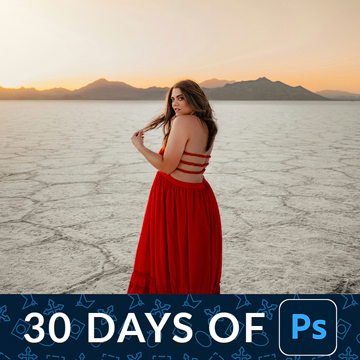
Learn how to dodge and burn in Photoshop, recovering details and adding beautiful shape and dimension to your photos.
Photoshop | Photo Editing | Medium | 15 mins | 1 video
1 Sample Image | 1 Sample PSD

It’s day 18 of our series! In today’s episode, learn how to use Photoshop blending modes to combine images and create stunning photo composites.
Photoshop | Photo Editing | Medium | 30 mins | 1 video
8 Sample Images | 3 Sample PSDs
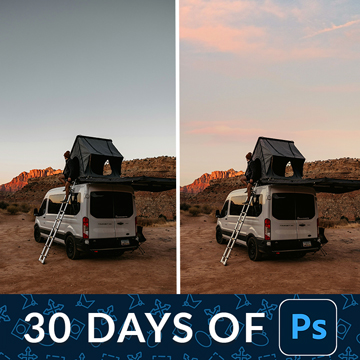
Blend If is Photoshop’s best kept secret. On day 17 we’ll show you how to use it to blend color and exposure effects into the highlights, midtones, and shadows of any Layer.
Photoshop | Photo Editing | Medium | 15 mins | 1 video
2 Sample Images | 1 Sample PSD

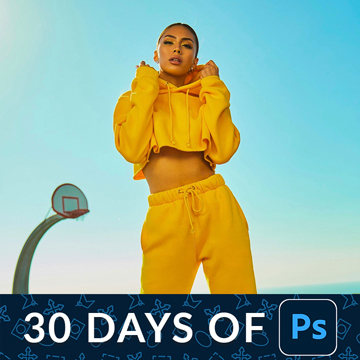
Learn how to use the Liquify Tool to change the shape of clothing and protect areas you don’t want to be warped, like the body.
Photoshop | Photo Editing | Medium | 15 mins | 1 video
1 Sample Image | 1 Sample PSD

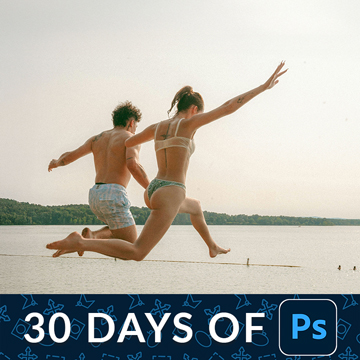
In day 13 of our series, you’ll learn to crop, straighten, and expand images in Photoshop using the crop tool and AI for stunning compositions.
Photoshop | Photo Editing | Easy | 15 mins | 1 video
1 Sample Image | 1 Sample PSD
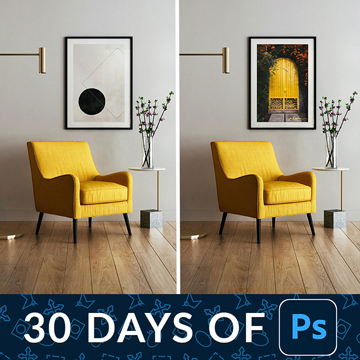
On day 12 of 30 Days of Photoshop, learn to scale, rotate, and align layers for beautiful compositions, using Smart Objects for non-destructive editing and precise placement.
Photoshop | Photo Editing | Medium | 30 mins | 1 video
3 Sample Images | 1 Sample PSD
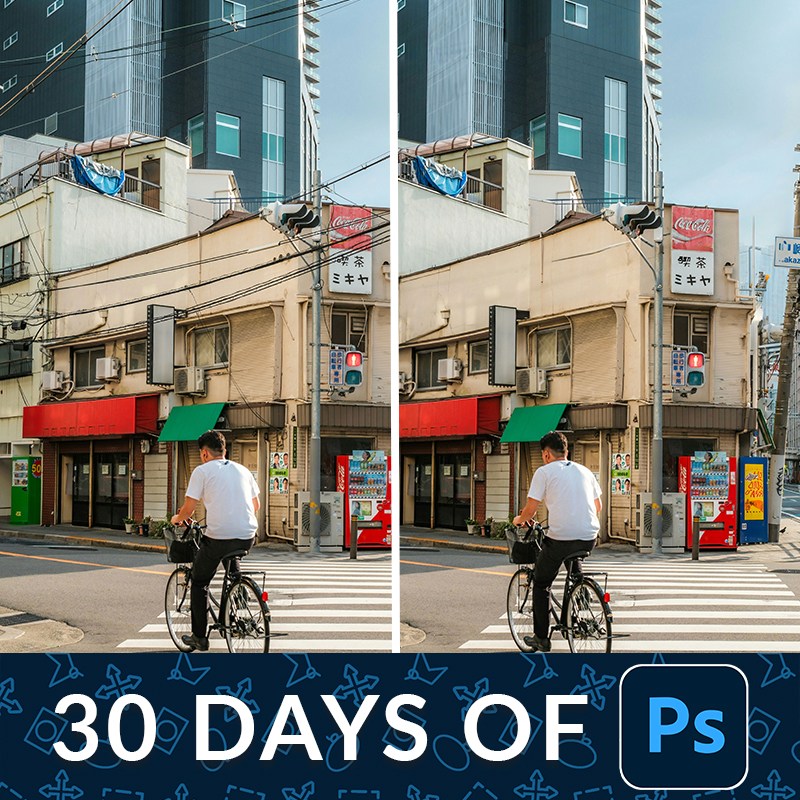
It’s Day 11! Learn to remove distractions in Photoshop using the new Remove Tool and Generative Fill for effortless, one-click object removal with AI.
Photoshop | Photo Editing | Medium | 15 mins | 1 video
2 Sample Images | 2 Sample PSDs
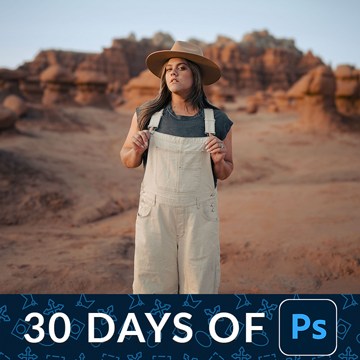
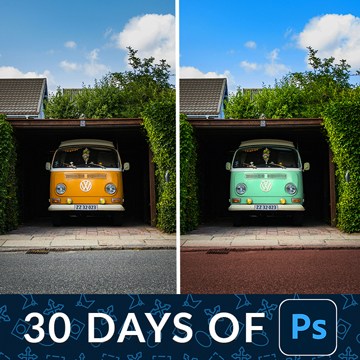
In Day 8 of 30 Days of Photoshop, we show you how to change the color of anything in a photo using Hue/Saturation Adjustment Layers.
Photoshop | Photo Editing | Medium | 15 mins | 1 video
1 Sample Image | 1 Sample PSD

It’s day 7 of our series! Learn the differences between Levels and Curves. We’ll show you how to use these powerful tools for precise exposure and color adjustments.
Photoshop | Photo Editing | Medium | 30 mins | 1 video
1 Sample Image | 1 Sample PSD