New Photoshop & Lightroom Features Explained
The newest features in Photoshop, Lightroom, and Camera Raw, explained as they launch: new adjustment layers, masking and selection updates, the Remove tool, AI models, and beta tools. Each tutorial shows what changed, when it helps, and how it fits into a real editing workflow.
What You’ll Learn
Adobe ships updates constantly, and the release notes rarely say whether a feature is worth your time. These tutorials try each new tool on real photos and give a straight answer.
- What changed. A quick look at the new tool or setting and where to find it.
- Where it helps. Real photos where the feature saves time or gives a better result.
- Where it falls short. Limits, credit costs, and the cases where the old way is still better.
- How to use it well. Settings and steps that get the best result on the first try.
Where to Start
Recent releases include the new Light adjustment layer, the Blemish Removal tool, and Enhance Edge. For a full tour of the current versions, the PRO course Master Photoshop & Lightroom 2026 covers every major update.
Free and PRO Tutorials
Free tutorials are complete lessons, not previews. PRO tutorials go deeper and longer, and they include the sample images, RAW files, actions, and presets used in the lesson so you can follow along on the exact same file. The PRO update courses include the sample files used in each lesson. A PHLEARN PRO membership unlocks every PRO tutorial on the site, including all of the ones in this category.
Frequently Asked Questions
How do I get the newest Photoshop features?
Update Photoshop from the Creative Cloud app. Beta features appear in Photoshop (Beta), which you can install alongside the regular version.
Are beta features safe to use for client work?
Beta tools can change or disappear before release, so use them for testing and keep client files in the regular version of Photoshop.
How often does PHLEARN cover new features?
New features get a tutorial soon after they launch, usually within a week of a major Photoshop or Lightroom update.
Where to Go Next
Many new features are AI tools, covered in depth in AI & Generative Tools. For the tools that don’t change every year, see Tools & Techniques.
Master the 2026 Versions
Every major Photoshop and Lightroom update, taught in one PRO course.
On This Page
PHLEARN PRO
Every PRO tutorial in this category, with sample and RAW files, plus the full PRO library.
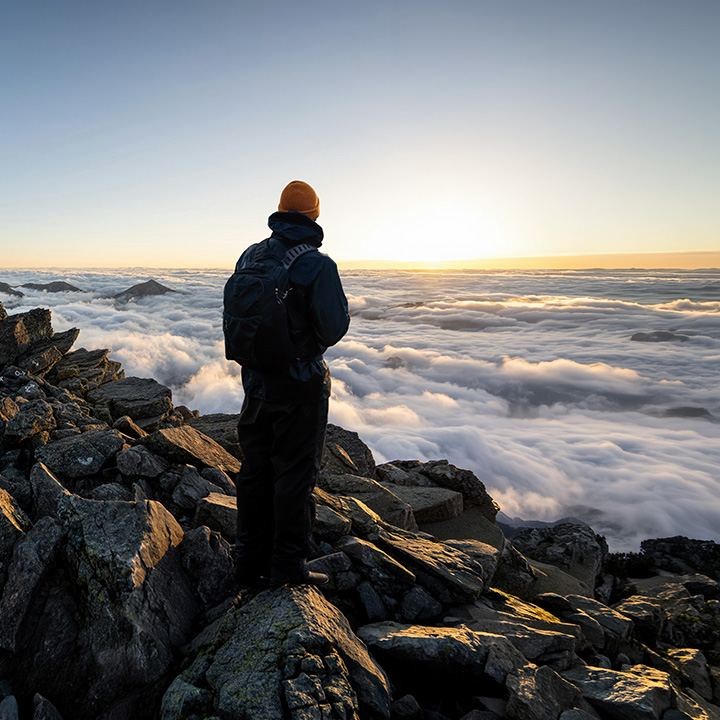
Relight in Photoshop lets you move the light after a photo is taken. Learn the settings, the 30-credit cost, the Lighten fix and how it compares to Harmonize.
Photoshop | AI & Generative Tools | Easy | 15 mins | 1 video
2 Sample Images | 1 Sample PSD | 1 PDF Guide
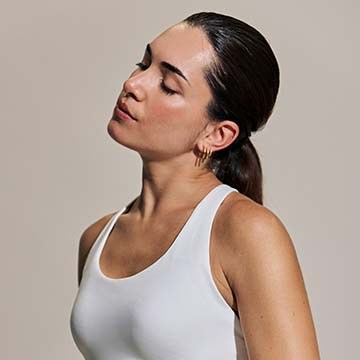
Blemish removal tool in Camera Raw fixes skin blemishes with one click. Learn the Fade slider, Refine mode, and manual clean-up for clothing and skin.
Photoshop | Retouching | Easy | 15 mins | 1 video
1 Sample Image | 1 Sample PSD | 1 PDF Guide

Use the Vectorscope tool in Camera Raw to read skin tone objectively, mask the skin and correct Temperature, Tint, and Saturation against its reference line.
Photoshop | Retouching | Medium | 30 mins | 1 video
3 Sample Images | 3 Sample PSDs | 1 PDF Guide

Fix color fringing in Photoshop two ways: the new Enhance Edge AI tool versus a free clipping mask technique using the Brush tool and Darken blend mode.
Photoshop | Selections & Masking | Medium | 15 mins | 1 video
1 Sample Image | 1 Sample PSD | 1 PDF Guide
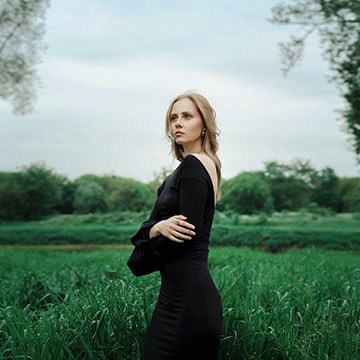
Learn the six sliders in Photoshop’s new Light adjustment layer, how to get the legacy Brightness/Contrast controls back, and when to use it instead of Curves.
Photoshop | Tools & Techniques | Medium | 15 mins | 1 video
1 Sample Image | 1 Sample PSD | 1 PDF Guide

Use object masking in Camera Raw to select trees, people and complex edges with a rough scribble, then balance a dark foreground without touching the sky.
Photoshop | Selections & Masking | Medium | 15 mins | 1 video
1 Sample Image | 1 Sample PSD | 1 PDF Guide

Use Rotate Object in Photoshop to turn a pasted object in 3D, then match the light with Harmonize and ground it with a generated shadow for a real composite.
Photoshop | Compositing | Easy | 30 mins | 1 video
2 Sample Images | 1 Sample PSD | 1 PDF Guide

Is the new AI slider in Photoshop 2026 worth the generative credits? We test Precision Flow on a portrait and compare it with a manual, non-destructive fix.
Photoshop | AI & Generative Tools | Easy | 15 mins | 1 video
1 Sample Image | 1 Sample PSD | 1 PDF Guide

Clean up and polish your photos in Photoshop: strip out background clutter with the Remove tool, rebuild tight framing, swap a flat sky, and blend it all.
Photoshop | Object Removal & Cleanup | Easy | 15 mins | 1 video
2 Sample Images | 1 Sample PSD | 1 PDF Guide

Learn how to use Firefly 5 in Photoshop for Generative Fill: how the credits work, how to control the result, and how to blend AI edits so they look real.
Photoshop | AI & Generative Tools | Easy | 30 mins | 1 video
1 Sample Image | 1 Sample PSD | 1 PDF Guide

Remove reflections from faces in Photoshop 2026: run the automatic tool, mask back the detail it flattens, and clean up the glare it leaves behind.
Photoshop | Retouching | Easy | 15 mins | 1 video
1 Sample Image | 1 Sample PSD | 1 PDF Guide

Use the Dynamic Text tool in Photoshop 2026 to wrap type around your subject: curve the text, split it front and back, and keep the whole thing editable.
Photoshop | Text & Graphic Design | Easy | 30 mins | 1 video
1 Sample Image | 1 Sample PSD | 1 PDF Guide

Use AI depth masking in Photoshop to separate foreground from background by distance, then lift your subject and direct the eye without a single selection.
Photoshop | Selections & Masking | Easy | 15 mins | 1 video
1 Sample Image | 1 Sample PSD | 1 PDF Guide

See what the updated Remove tool in Photoshop can do: find distractions automatically, clear clutter, fix what it breaks, and finish the retouch by hand.
Photoshop | Object Removal & Cleanup | Easy | 15 mins | 1 video
1 Sample Image | 1 Sample PSD | 1 PDF Guide

Use the Clarity and Dehaze tool in Photoshop to cut through haze: select the hazy area, add clarity where it helps, and reuse the mask for the rest.
Photoshop | Photo Editing | Easy | 15 mins | 1 video
1 Sample Image | 1 Sample PSD | 1 PDF Guide
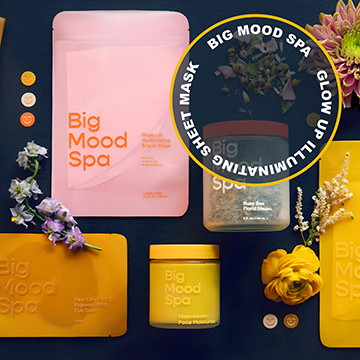
The updated Dynamic Text tool in Photoshop Beta snaps type into Circle, Arch and Bow shapes without warping it, and everything stays live and editable.
Photoshop | Text & Graphic Design | Easy | 15 mins | 1 video
1 Sample Image | 1 Sample PSD | 1 PDF Guide

Photoshop 2026 adds Color & Vibrance, Clarity & Dehaze and Grain as adjustment layers. See what each replaces and when to use it instead of Camera Raw.
Photoshop | Tools & Techniques | Easy | 30 mins | 1 video
6 Sample Images | 5 Sample PSDs | 1 PDF Guide
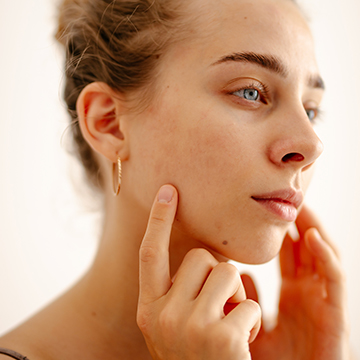
Test the new blemish removal tool in Lightroom Mobile: run it from Quick Actions, see what it clears in one tap, then clean up what it misses by hand.
Lightroom | Retouching | Easy | 15 mins | 1 video
1 Sample Image | 1 Sample PSD | 1 PDF Guide
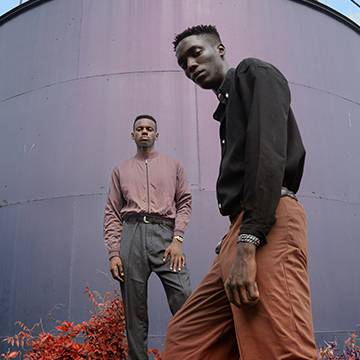
Use Reference Image in Photoshop 2026 to make Generative Fill precise: select the object, drop in a reference photo, and pick the variation that actually fits.
Photoshop | AI & Generative Tools | Medium | 30 mins | 1 video
5 Sample Images | 1 Sample PSD | 1 PDF Guide

Adobe’s AI landscape tool now detects snow. Generate separate snow, sky and vegetation masks, then edit each one without touching the rest of the scene.
Photoshop, Lightroom | Selections & Masking | Easy | 15 mins | 1 video
1 Sample Image (RAW File) | 1 PDF Guide
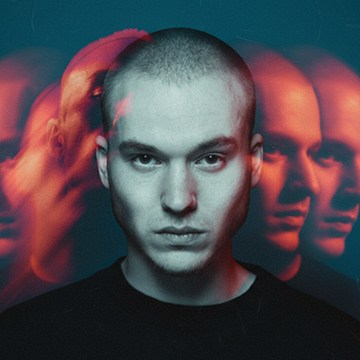
Firefly Boards is Adobe’s AI workspace in a browser tab. Set up a board, merge two images, refine one result, and turn a still into motion without leaving it.
Photoshop | AI & Generative Tools | Easy | 15 mins | 1 video
2 Sample Images | 1 PDF Guide
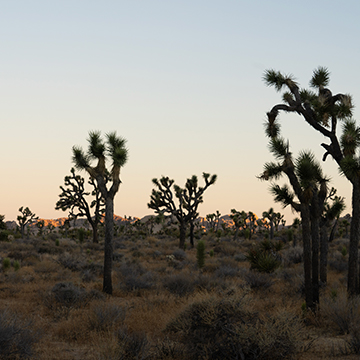
Use AI dust removal in Lightroom and Photoshop: clear every sensor spot on one frame in a click, then sync the detection across the whole shoot.
Photoshop, Lightroom | Object Removal & Cleanup | Easy | 15 mins | 1 video
3 Sample Images (RAW Files) | 1 Dust Removal Settings (XMP File) | 1 PDF Guide

Master 2026’s Photoshop and Lightroom AI updates, from Harmonize to Assisted Culling we cover it all. This pro tutorial includes 30 practice images including 3 RAW files to perfect your workflow.
Photoshop, Lightroom | AI & Generative Tools | Advanced | 2 hours
26 Sample Images (JPEG Files) | 3 Sample Images (RAW Files) | 8 Sample PSDs | 2 Sample Videos

Nano Banana PRO in Photoshop rebuilds the whole scene around your subject. See how to select, prompt, review the variations, and what each generation costs.
Photoshop | AI & Generative Tools | Medium | 15 mins | 1 video
3 Sample Images | 3 Sample PSDs | 1 PDF Guide

Use assisted culling in Lightroom Classic to sort a shoot fast: run it during import, read the scores, auto-stack near-duplicates, and reject the weak frames.
Lightroom | Workflow & Productivity | Medium | 15 mins | 1 video
15 Sample Images

Partner models put Nano Banana and other companies’ AI inside Photoshop’s Generative Fill. See how to pick one, what each costs in credits, and where they fail.
Photoshop | AI & Generative Tools | Medium | 15 mins | 1 video
4 Sample Images | 4 Sample PSDs | 1 PDF Guide

AI Assisted Culling in Lightroom sorts a big shoot for you: set the criteria, let it group and rank the frames, then make the final calls yourself.
Lightroom | Workflow & Productivity | Easy | 30 mins | 1 video
38 Sample Images | 1 PDF Guide

Nano Banana and Flux Kontext Pro turn Generative Fill into a conversation in Photoshop Beta. Learn which model to pick and how to write the prompt.
Photoshop | AI & Generative Tools | Medium | 30 mins | 1 video
8 Sample Images | 8 Sample PSDs | 1 PDF Guide

Dynamic text keeps the layout when the words change. Set the type once, and leading, tracking and alignment hold while you rewrite the headline.
Photoshop | Text & Graphic Design | Medium | 15 mins | 1 video
1 Sample Image | 1 Sample PSD
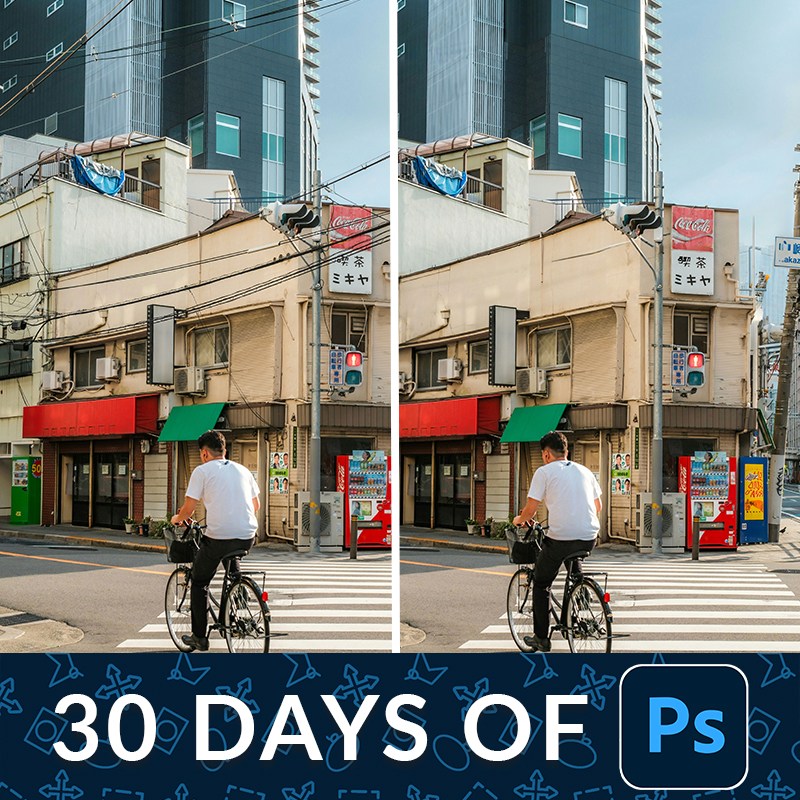
Remove distractions in Photoshop on a duplicate layer so the original pixels stay intact. One click handles most of it; the rest is a short manual pass.
Photoshop | Object Removal & Cleanup | Medium | 15 mins | 1 video
2 Sample Images | 2 Sample PSDs

Select Subject has quietly become the most useful button in Photoshop. Switch it to the cloud engine and it handles hair and fine edges properly.
Photoshop | Selections & Masking | Medium | 15 mins | 1 video
2 Sample Images | 2 Sample PSDs