Photo Editing Tutorials for Photoshop & Lightroom
Learn to make any photo better: light and exposure, contrast and clarity, shadows and highlights, cropping and composition, and full start-to-finish edits of portraits, landscapes, weddings, food, and travel photos. Free and PRO video tutorials from Aaron Nace, with new lessons every week.
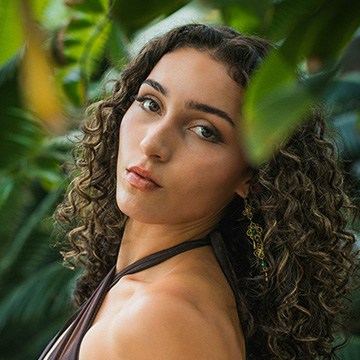
Photoshop 2026 tips I wish I knew sooner: 10 old tricks and new features, from scrubby sliders and Blend If to Lens Blur and a Remove tool that uses no credits.
Photoshop | Photo Editing | Easy | 30 mins | 1 video
11 Sample Images | 8 Sample PSDs | 1 PDF Guide
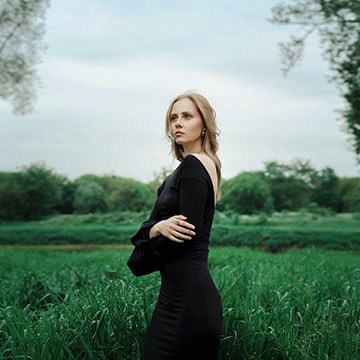
Learn the six sliders in Photoshop’s new Light adjustment layer, how to get the legacy Brightness/Contrast controls back, and when to use it instead of Curves.
Photoshop | Tools & Techniques | Medium | 15 mins | 1 video
1 Sample Image | 1 Sample PSD | 1 PDF Guide
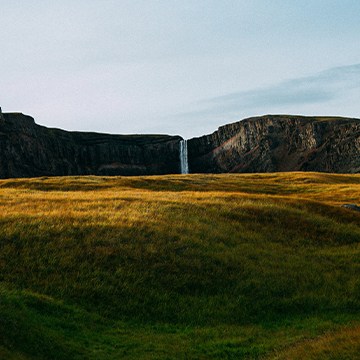
Master the fundamentals of Lighting and Composition! In this tutorial, we’ll use Photoshop and Camera Raw across nine scenarios to master highlight sculpting, dynamic framing, border cleanup, and much more!.
Photoshop | Photo Editing | Medium | 3 hours
8 Sample Images (JPEG Files) | 1 Sample Image (RAW File) | 9 Sample PSDs
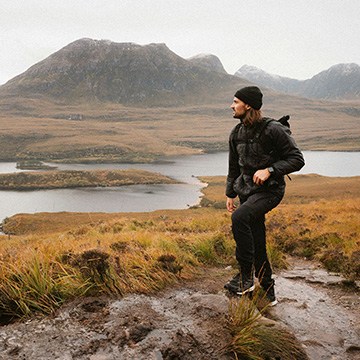
Stop worrying about permanent mistakes! Discover our non-destructive workflow using masks, smart objects, and more to transform your images while keeping original pixels perfectly safe. This tutorial includes both JPEG and RAW files, so you can follow along.
Photoshop | Photo Editing | Medium | 2.25 hours
14 Sample Images | 13 Sample PSDs
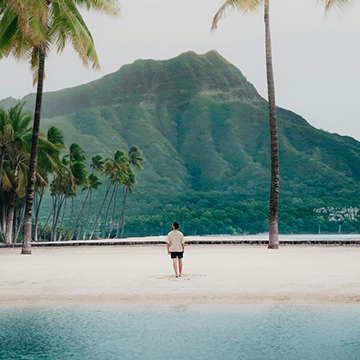
Use the Clarity and Dehaze tool in Photoshop to cut through haze: select the hazy area, add clarity where it helps, and reuse the mask for the rest.
Photoshop | Photo Editing | Easy | 15 mins | 1 video
1 Sample Image | 1 Sample PSD | 1 PDF Guide
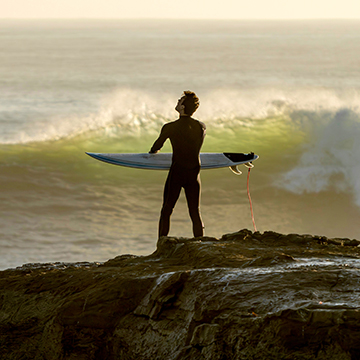
Use contrast and clarity in Photoshop where the image needs them: drag the Camera Raw histogram, mask before you push sliders, and check the result at 100%.
Photoshop | Photo Editing | Easy | 15 mins | 1 video
1 Sample Image | 1 Sample PSD | 1 PDF Guide
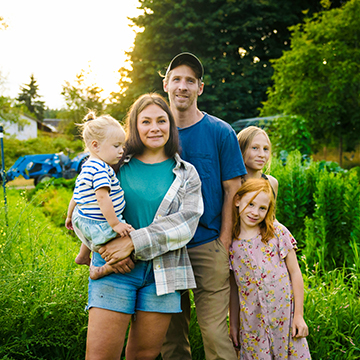
Photoshop 2026 adds Color & Vibrance, Clarity & Dehaze and Grain as adjustment layers. See what each replaces and when to use it instead of Camera Raw.
Photoshop | Tools & Techniques | Easy | 30 mins | 1 video
6 Sample Images | 5 Sample PSDs | 1 PDF Guide

Discover the complete workflow for natural light portrait editing! Learn how to enhance sun glow, remove flare, fix underexposure, and master professional light sculpting using the latest tools. This tutorial includes 8 RAW files and a our exclusive Frequency Separation Action.
Photoshop | Photo Editing | Medium | 2.5 hours
8 Sample Images (RAW Files) | 1 Sample Image (JPEG File) | 7 Sample TIFFs | 1 Photoshop Action
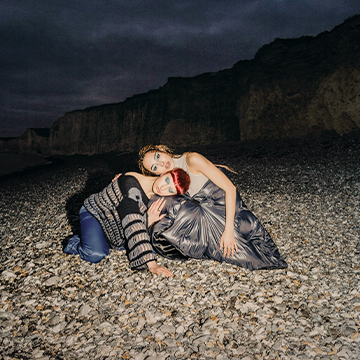
Correct color and exposure in Photoshop inside the Camera Raw filter, region by region, so every adjustment stays editable and nothing is baked in.
Photoshop | Color & Tone | Medium | 15 mins | 1 video
1 Sample Image | 1 Sample PSD | 1 Before/After Pair | 1 PDF Guide
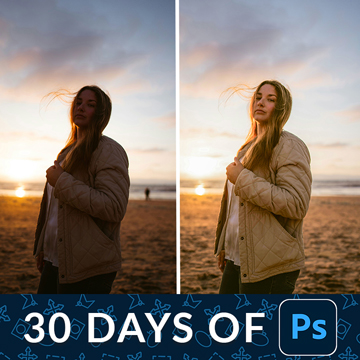
Correct exposure in Photoshop instead of just brightening the photo. Convert in Camera Raw first, mask the people, then fix the one color that is off.
Photoshop | Photo Editing | Medium | 15 mins | 1 video
1 Sample Image | 1 Sample PSD
Transform your portraits! This advanced tutorial in Photoshop and Camera Raw guides you through editing eight diverse RAW photographs, tackling unique challenges. Learn AI masking, reshape lighting, and more!
Photoshop | Photo Editing | Advanced | 3.5 hours
8 Sample Images (RAW Files) | 8 Sample PSDs
Master advanced landscape editing in Photoshop and Adobe Camera RAW. Learn Aaron’s must-do adjustments, advanced Sky Replacement, color grading, and more! This tutorial includes RAW files so you can follow along.
Photoshop | Photo Editing | Advanced | 3.75 hours
6 Sample Images (RAW Files) | 6 Sample Images (JPEG Files) | 5 Sample PSDs

Editing food photos is unusually consistent: quiet the background, protect the food, lift it, then add texture. The same recipe works whatever is on the plate.
Lightroom | Photo Editing | Medium | 15 mins | 1 video
1 Sample Image
Editing wedding photos has a specific job: warm, a little dreamlike, and the couple unmistakably the subject. Separate them from the background first.
Lightroom | Photo Editing | Medium | 15 mins | 1 video
1 Sample Image
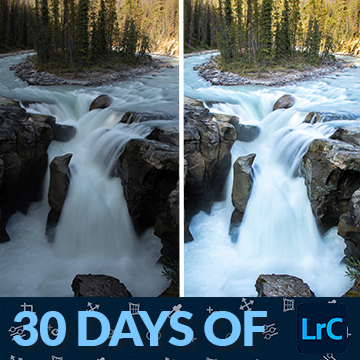
Editing landscapes is about deciding where the viewer should look, then using masks to send them there. Recover the sky first, then build a focal point.
Lightroom | Photo Editing | Medium | 15 mins | 1 video
1 Sample RAW File

Editing portraits has one job: make the viewer look at the face. Quiet the background, shape the light with two radial gradients, then work on the eyes.
Lightroom | Photo Editing | Medium | 30 mins | 1 video
1 Sample RAW File
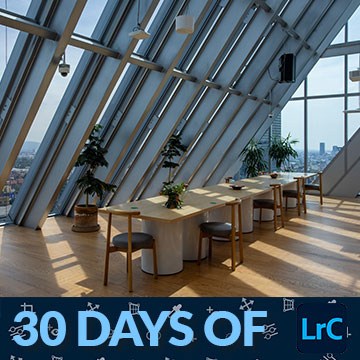
An HDR merge exists because your eyes handle a wider range of brightness than any sensor. Merge two bracketed raws and you get one file with all of it.
Lightroom | Photo Editing | Medium | 15 mins | 1 video
2 Sample RAW Files

How to edit baby photos in Photoshop: remove the rigging, extend the set with Generative Fill, brighten the subject in Camera Raw, then build a soft glow.
Photoshop | Photo Editing | Medium | 30 mins | 1 video
1 Sample Image | 1 Sample PSD | 1 PDF Guide

Master studio photo editing in Photoshop! This tutorial combines traditional and AI tools to teach you background changes, retouching, and essential techniques. Get JPEG and RAW files, plus our Frequency Separation Action!
Photoshop | Photo Editing | Medium | 2 hours
6 Sample PSDs | 6 Sample Images (JPEG) | 1 Sample Image (RAW) | 1 Photoshop Action
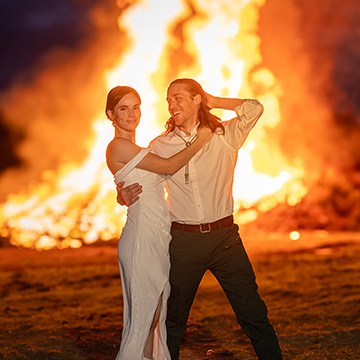
Learn how to transform wedding photo chaos into stunning keepsakes! This Lightroom tutorial, with 20 practice RAW files, teaches you easy organization and pro editing techniques that will unlock your creative potential.
Lightroom | Photo Editing | Medium | 1.75 hours
20 RAW Files

Master fashion photo editing with Lightroom & Photoshop! In this tutorial we’ll show you the best workflows and techniques, including background replacement, sky enhancement, and frequency separation retouching. The best part? We’ve included 14 RAW files, so you can follow along.
Photoshop, Lightroom | Photo Editing | Advanced | 3.25 hours
14 RAW Files | 1 Photoshop Action

Master the art of landscape editing! In this tutorial we’ll show you how to leverage Lightroom and Photoshop, to create stunning images. Learn how to adjust exposure, craft HDR images, and more!
Photoshop, Lightroom | Photo Editing | Medium | 1.75 hours
87 RAW Files | 3 Sample TIFFs

Learn to most powerful tools in Photoshop to improve any photo! Follow along and download the included frequency separation photoshop action.
Medium | 2.25 Hours | 2 Sample Images | Download PSD & Action
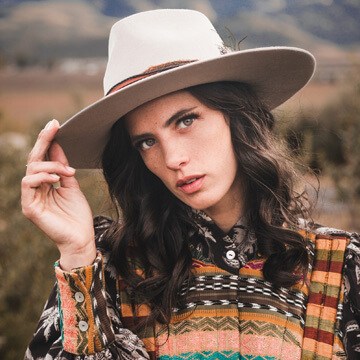
How to edit your subject and background separately in Lightroom Desktop: select the subject in one click, invert the mask, then refine with gradients and Color Range.
Lightroom | Selections & Masking | Easy | 15 mins | 1 video
1 Sample Image | 1 PDF Guide
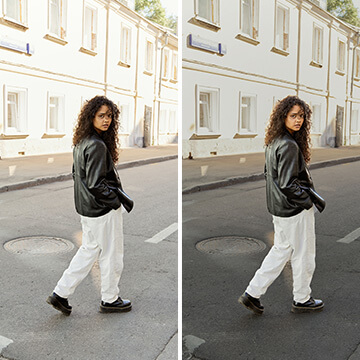
Learn how to isolate people in your images so you can edit them separately from the background, giving you more control over the exposure in your photos.
Lightroom | Selections & Masking | Easy | 15 mins | 1 video
1 Sample Image | 1 PDF Guide
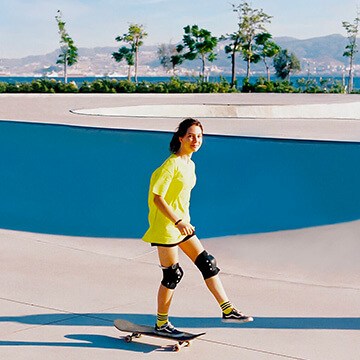
Learn to most powerful tools in Photoshop to improve any photo! Follow along and download the included frequency separation photoshop action.
Photoshop | Photo Editing | Medium | 2 hours
2 Sample Images | 2 Sample PSDs | 1 Photoshop Action
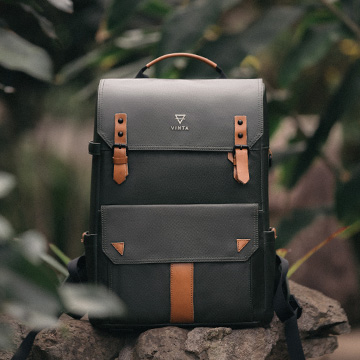
Join us as we explore a professional product retouching workflow in Photoshop. Learn how to retouch and reshape products, remove scratches and blemishes, sculpt highlights and shadows, and more!
Photoshop | Photo Editing | Easy | 1.5 hours
7 Sample Images | 6 Sample PSDs | 1 Photoshop Action
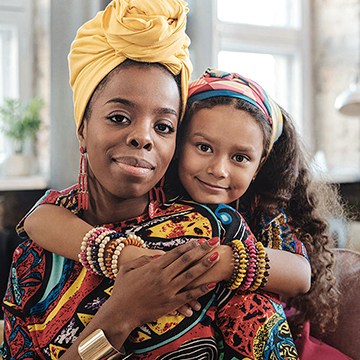
Join us through four complete edits as we show you how to balance exposure, add subtle color toning, draw more attention to subjects, and help life’s most precious moments last a lifetime.
Lightroom | Photo Editing | Medium | 1 hours
4 Sample Images

How many photos do you need to create the perfect HDR? Find out as we create three HDR images using one, three, and nine exposures in Lightroom Classic.
Sample Images Included
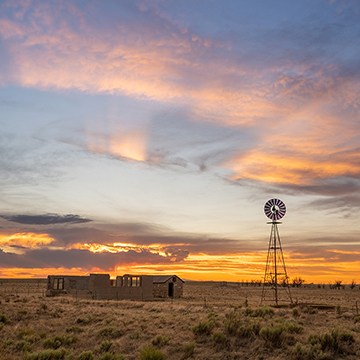
Learn how to blend multiple exposures together to create your own HDR images, all while seeing the new Adobe Camera RAW in action!
5 RAW Sample Images
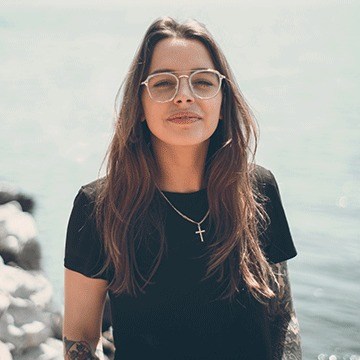
Learn how to edit a portrait, removing common distractions like people in the background, harsh light and glare, and even a tattoo! We also show you a quick and effective technique to add beautiful color toning to your photos.
Sample Image Included
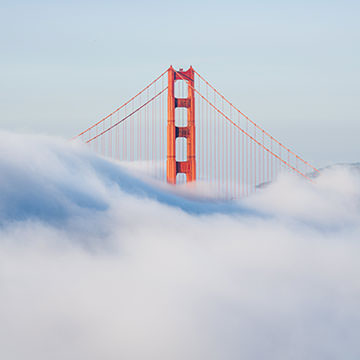
Create epic landscape photos using Lightroom and Photoshop! Learn how to replace a sky, fix exposure, create HDR and panorama images, and more!
Lightroom, Photoshop | Photo Editing | Medium | 3 hours
22 Sample Images | 1 Photoshop Action

Day 29 of 30 Days of Photoshop! Recover beautiful details in clouds and trees as we edit a landscape image with Adobe Camera RAW and Photoshop.
Sample Image Included
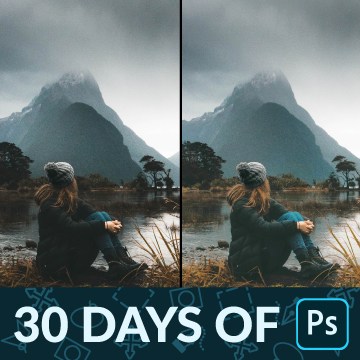
In Day 22 of 30 Days of Photoshop, we show you how to fix the exposure of any photo, recovering the details in dark shadows or blown-out highlights.
Sample Image Included
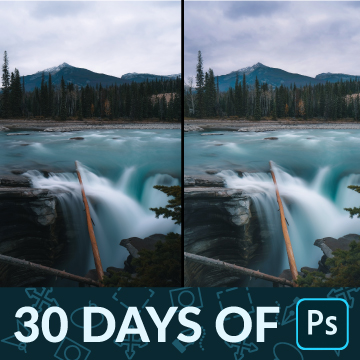
In Day 17 of 30 Days of Photoshop, we show you how to dodge and burn in Photoshop, recovering details and adding beautiful shape and dimension to your photos.
Sample Image Included

Make your landscapes more impactful with the tools and techniques in Adobe Camera RAW and Photoshop. Fix exposure, correct color, add lighting effects, and more!
Sample RAW Image Included
Photoshop | Photo Editing | Easy | 30 mins | 1 video
1 Sample RAW File | 1 PDF Guide
What You’ll Learn
Photo editing is the bridge between the picture you took and the picture you saw. These tutorials cover the whole edit: getting light, exposure, and contrast right, shaping the image with crop and composition, and finishing complete edits of every kind of photo. Pick the problem in front of you and start there.
- Light and exposure. Fixing over- and underexposed photos, recovering blown highlights and muddy shadows, and finding the detail hiding in a RAW file.
- Contrast, clarity, and haze. Curves, Levels, Clarity, Dehaze, and Texture, and when each one adds punch instead of crunch.
- Dodge and burn for depth. Shaping light by hand to guide the eye and give a flat photo dimension.
- HDR and blended exposures. Merging brackets in Lightroom and Camera Raw, manual blends, and luminosity masks for high-contrast scenes.
- Crop and composition. Composition guides, cropping for impact, and using light and color to direct attention.
- Complete edits, start to finish. Portraits, landscapes, weddings, food, travel, and family photos, taken from RAW file to final image.
Where to Start
If you are new to editing, start with 30 Days of Photoshop, which teaches the tools in the order they build on each other. Then try How to Correct Exposure in Photoshop and How to Use Contrast and Clarity in Photoshop, the two adjustments almost every photo needs. Lightroom-first editors should begin with the Lightroom Learning Path, and photographers who shoot as well as edit with the Photography & Photo Editing Learning Path. For complete edits, the PRO courses Advanced Portrait Editing and Advanced Landscape Editing take one photo from RAW file to finished image.
Free and PRO Tutorials
Free tutorials are complete lessons, not previews. PRO tutorials go deeper and longer, and they include the sample images, RAW files, actions, and presets used in the lesson so you can follow along on the exact same file. For the complete edits here, that means the original RAW file, so you can compare your result to Aaron’s. A PHLEARN PRO membership unlocks every PRO tutorial on the site, including all of the ones in this category.
Frequently Asked Questions
Should I edit in Photoshop or Lightroom?
Both, for different jobs. Lightroom is faster for global adjustments across many photos: exposure, white balance, and a consistent look for a whole shoot. Photoshop is for the work that needs layers and precision: dodging and burning, blending exposures, removing objects, and retouching. Most professionals cull and correct in Lightroom, then send the images that need more into Photoshop.
Should I shoot and edit in RAW?
Yes, whenever you can. A RAW file keeps far more highlight and shadow detail than a JPEG, so exposure and white balance corrections hold up without banding or noise. Open RAW files in Lightroom or Camera Raw first, then move into Photoshop for detailed work.
What version of Photoshop do these tutorials use?
The newest tutorials are recorded in Photoshop 2026. The core techniques, layers, masks, Curves, and Camera Raw, work the same way in every recent version, so older tutorials still apply. When a tool has changed, the tutorial says so.
Do I need to know the basics before starting?
For most of these, yes: you should be comfortable with layers and layer masks. If you are not, Tools & Techniques and 30 Days of Photoshop will get you there in a couple of weeks.
Where to Go Next
Once a photo is corrected, the next steps are specialized. Color & Tone is the fastest way to develop a recognizable style. Retouching covers skin, hair, and portrait work in depth, and Object Removal & Cleanup handles distractions. Photo Effects adds light, glow, and film looks, and Compositing is where editing turns into image-making.
New to Editing?
Start with 30 Days of Photoshop. It teaches every tool these tutorials assume you already know, one short lesson a day.
On This Page
PHLEARN PRO
Every PRO tutorial in this category, with sample and RAW files, plus the full PRO library.